Dollie
Connect Atarim to Dollie Control HQ so you can start collaborating on any site — and see its task count — without leaving your Dollie dashboard.
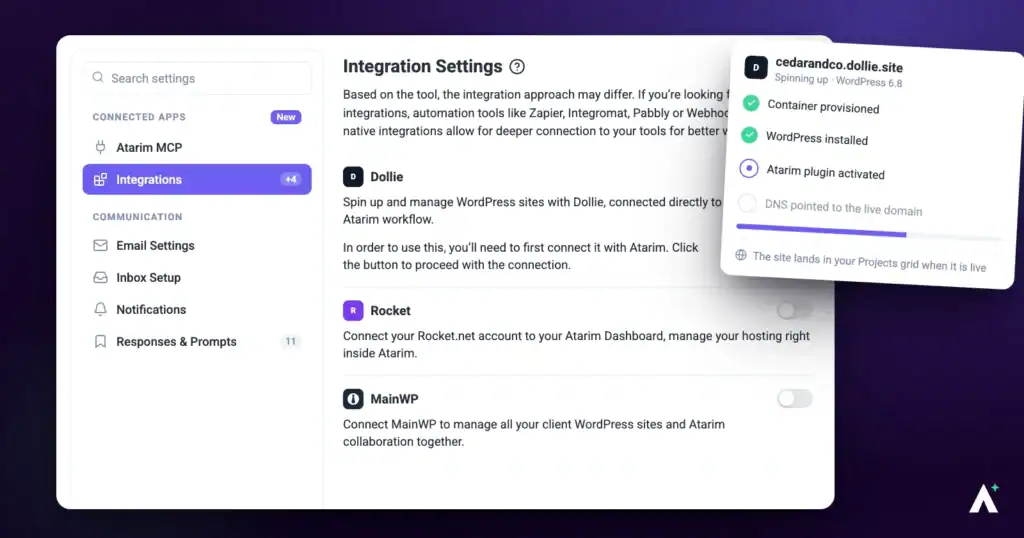
Atarim’s Dollie integration puts collaboration into the dashboard you already manage sites from. Once connected, every site in Dollie gains an Atarim column: sites not yet in Atarim get a Collaborate button that creates the project in one click, and sites already connected show a live task count you can open without signing into Atarim.
Setup runs in two halves — turn the integration on in Atarim and copy your API key, then activate and configure the add-on in Dollie.
Enable the Dollie Integration in Atarim
First, turn on the Dollie integration in your Atarim settings to generate your unique API key.
Instructions:
- Log in to your Atarim dashboard.
- Go to Settings.
- Under Connected Apps, select Integrations. The panel lists the available integrations, each with its logo and a toggle.
- Find Dollie in the list and switch its toggle on. The integration activates and your Atarim API key becomes available in the same block, in a field with a copy icon.


Copy Your Atarim API Key
With the integration enabled, your Atarim API key is shown in the Dollie block. This is what authorises the connection from Dollie’s side. Find the API Key field beneath the toggle and select the copy icon beside it — a confirmation reads Copied to clipboard.
Activate the Atarim Add-On in Dollie
This is the Dollie side, and the key you paste comes from Atarim.
Instructions:
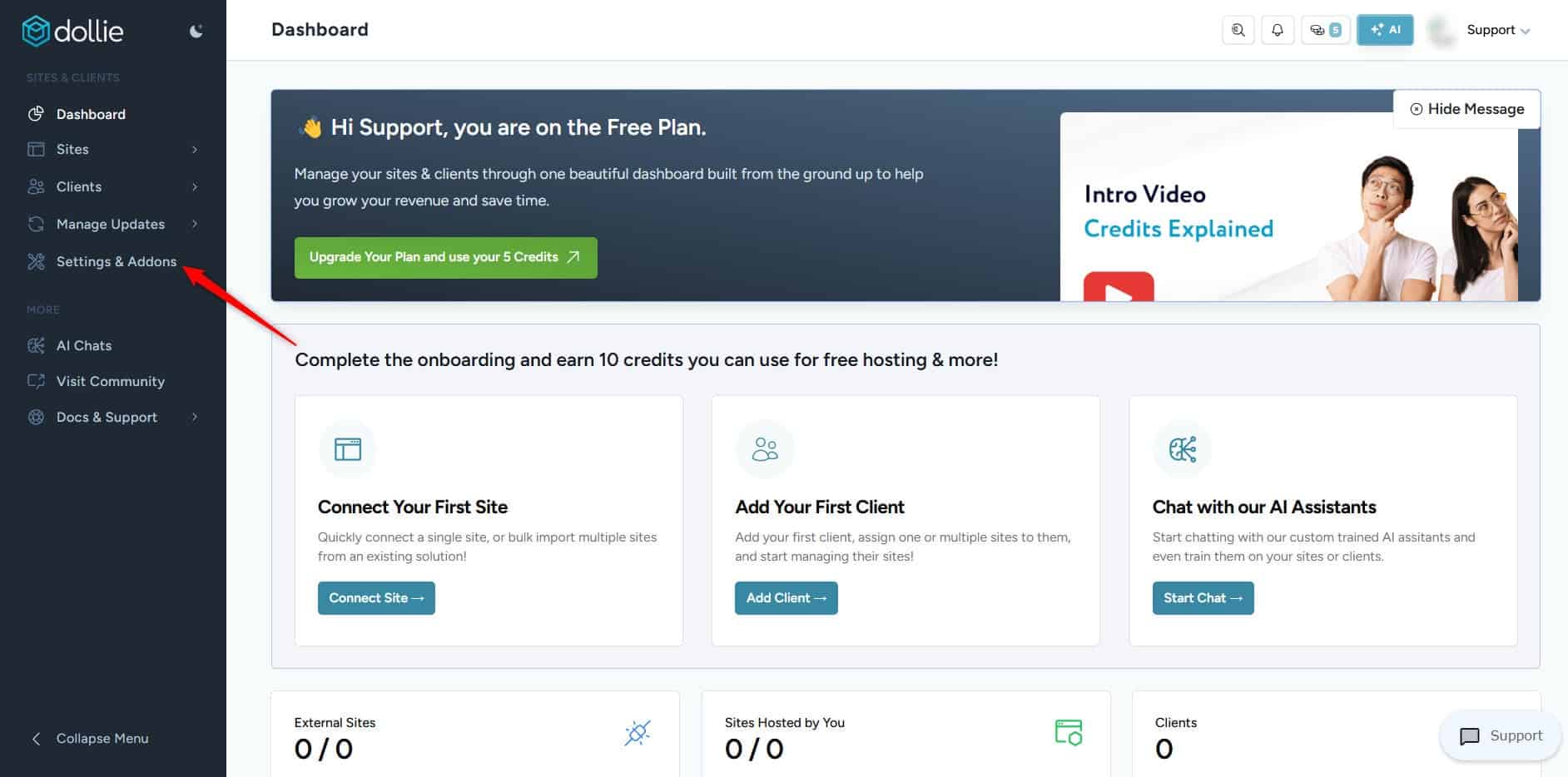
- Go to Dollie Control HQ and sign in.
- Navigate to Settings & Addons.
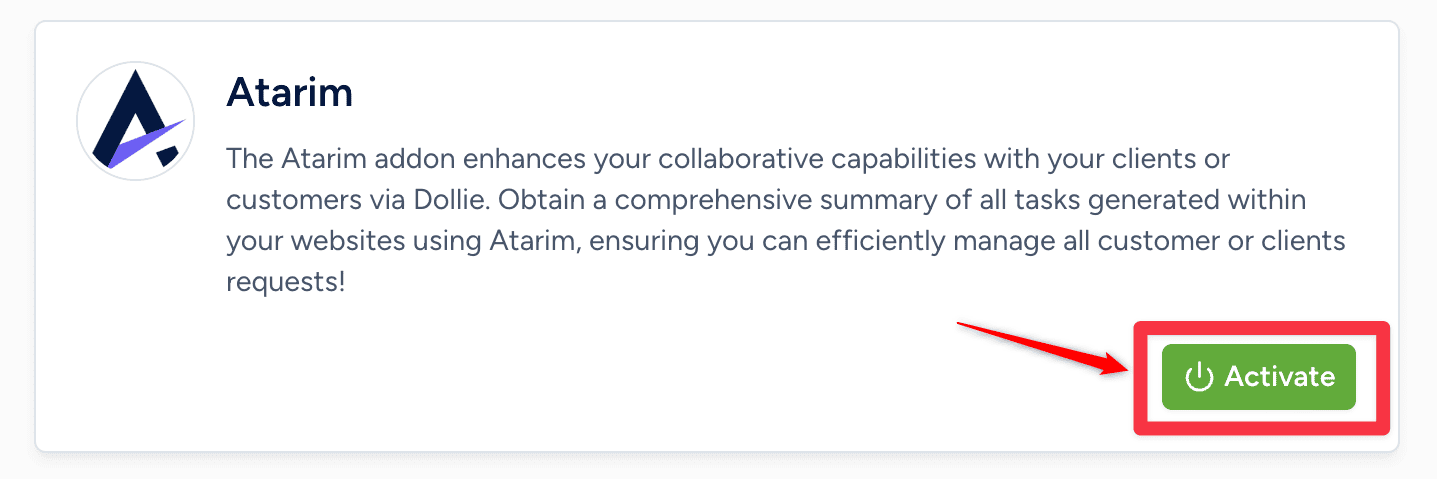
- Scroll to find Atarim among the available add-ons.
- Select Activate. The add-on becomes available to configure.
Enter Your API Key and Email in Dollie
Both the key and the account email are needed — the key alone will not authenticate.
Instructions:
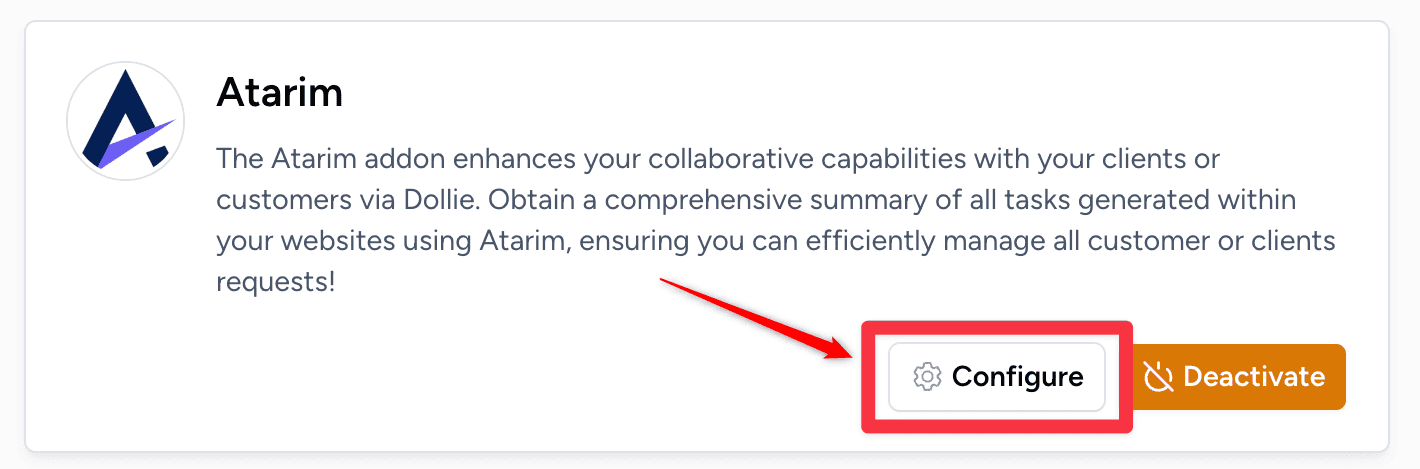
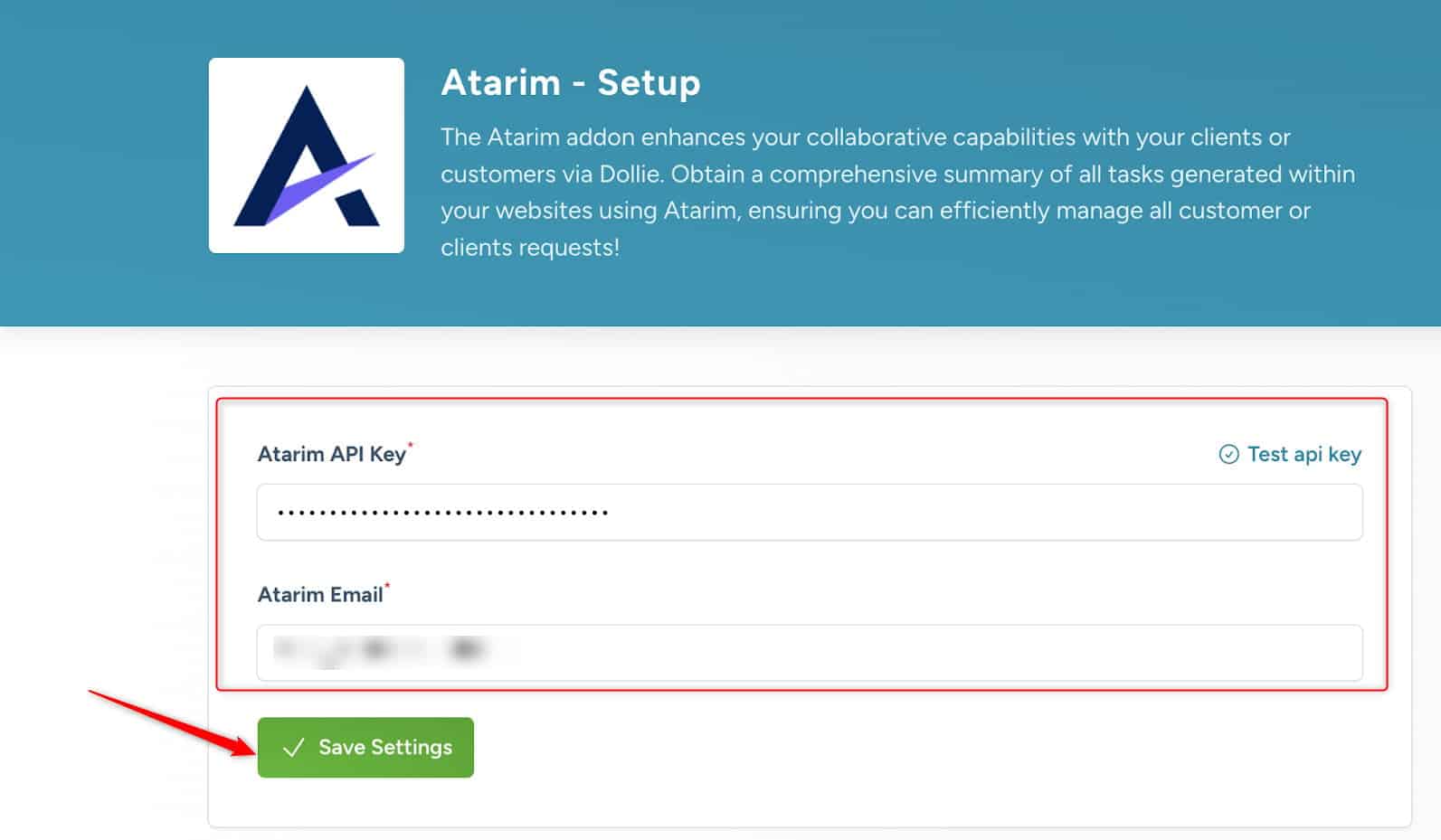
- Select Configure next to the Atarim add-on.
- Paste your Atarim API key into the setup form.
- Enter the email address associated with your Atarim account.
- Select Save Settings.
- Select Test API Key to verify the connection. A successful test confirms Dollie can reach your Atarim account.

Verify the Integration
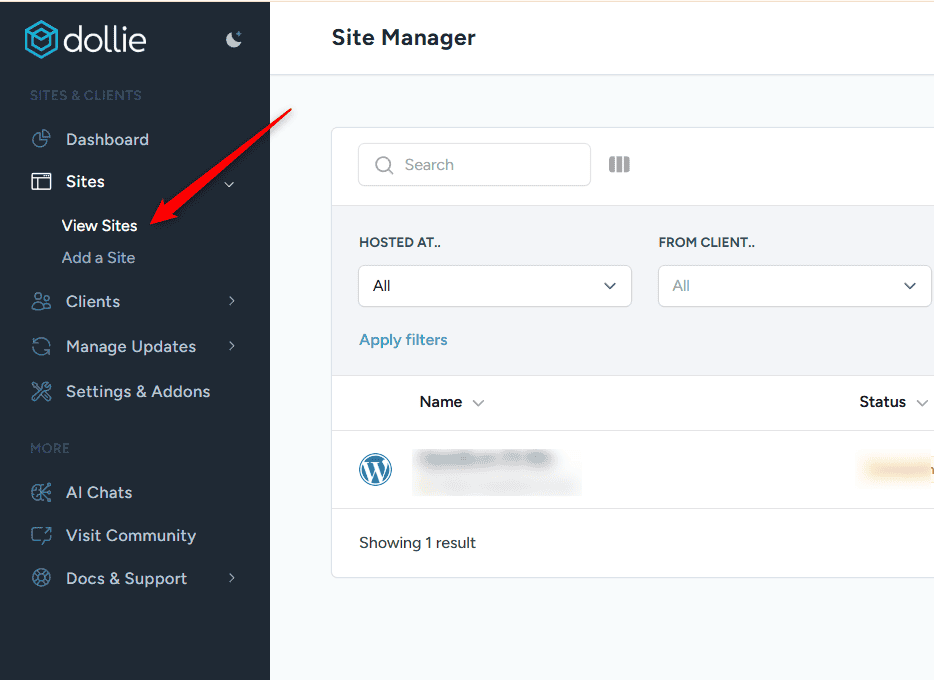
- In Dollie, go to Sites → View Sites.
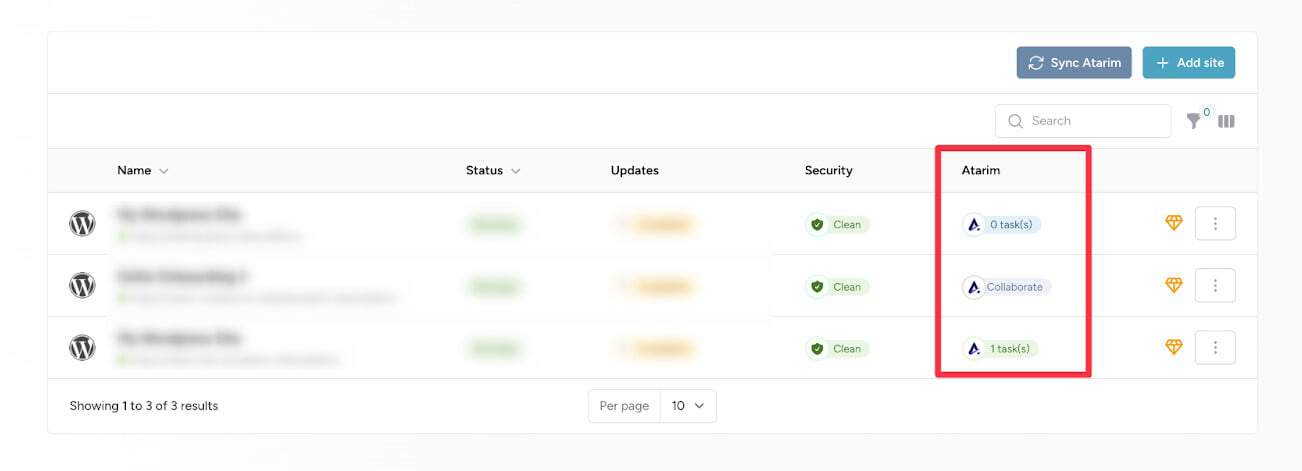
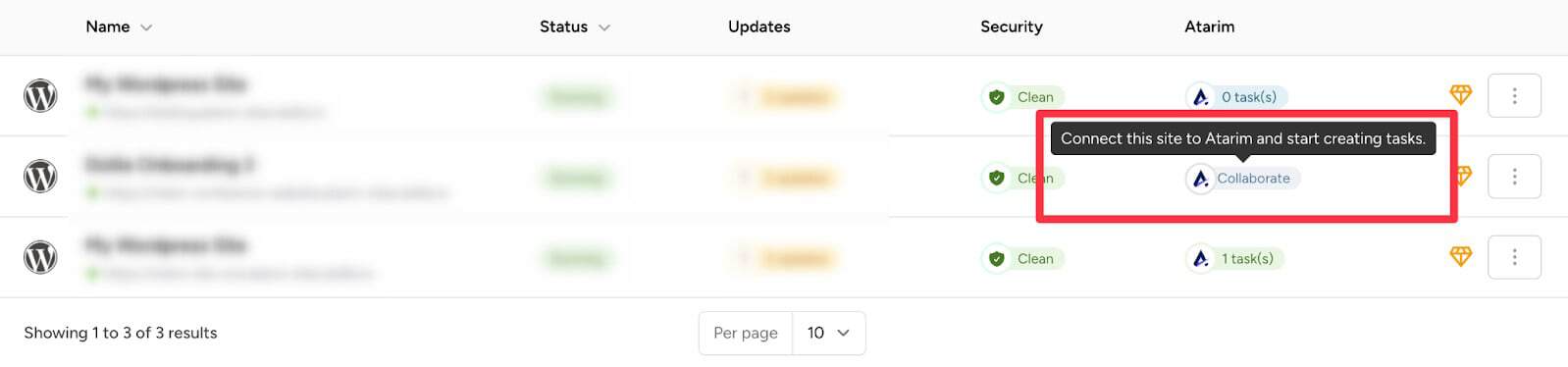
- Look for the new Atarim column on the far right. Unlinked sites show a Collaborate button; linked sites show a task count icon.
| What you see | What it means | What it does |
|---|---|---|
| Collaborate button | The site is not in Atarim yet. | Creates a project for it in one click, ready for tasks. |
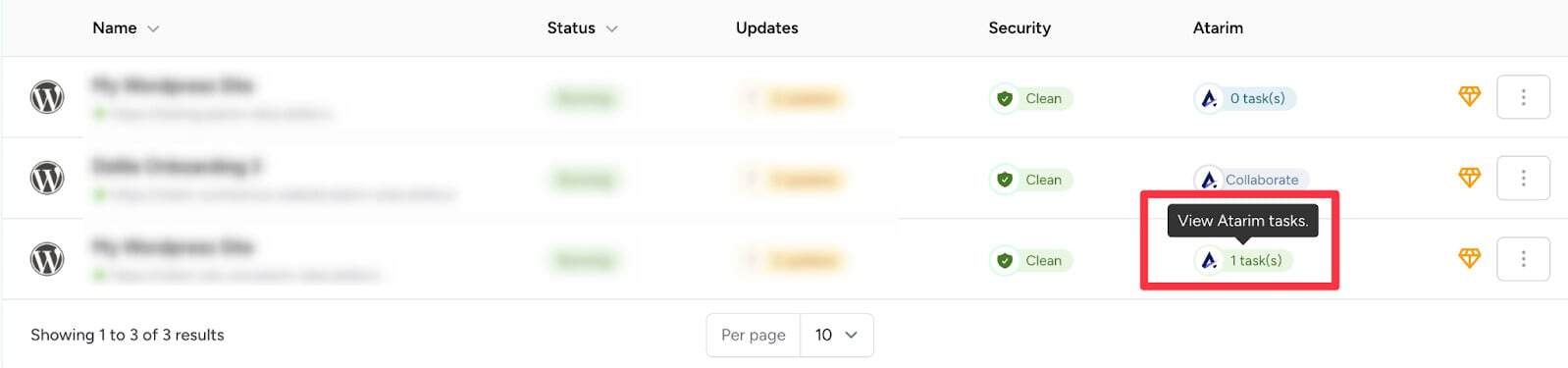
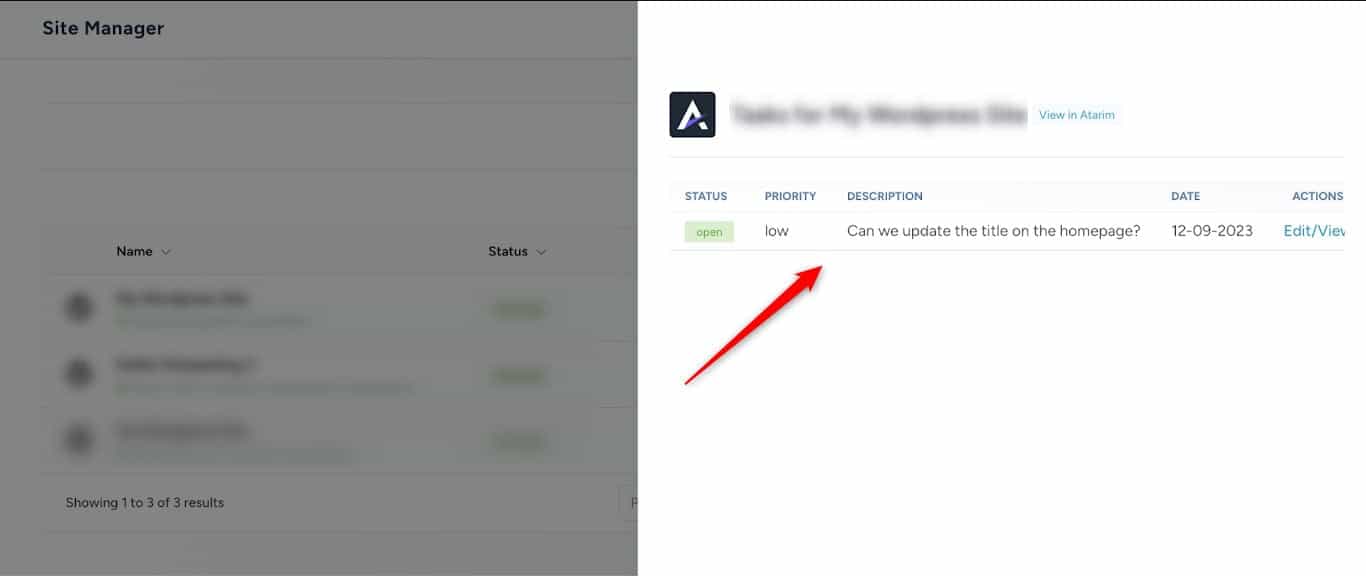
| A task count icon | The site is already connected. | Opens a side panel listing that site’s active tasks. |
Using the Integration Day to Day
- Select a site’s task count to review its Atarim tasks from within Dollie.
- Select Collaborate on a site that is not connected yet to create its Atarim project and start adding tasks.
Benefits
| Benefit | In practice |
|---|---|
| One-click project creation | Any site in Dollie becomes an Atarim project without leaving the listing. |
| Task counts at a glance | You can see which sites have outstanding work across your whole portfolio. |
| Less context switching | Reviewing tasks happens in the dashboard your team already has open. |
| Scales with the portfolio | Works the same whether you manage five sites or five hundred. |
| Client feedback stays in context | Requests arrive against the specific site they belong to. |
Known Limitations
- Admin access is needed in both platforms. Enabling the integration and managing Dollie add-ons each require the right role.
- It needs Basic Integrations on your Atarim plan, plus a Dollie plan that allows add-ons.
- One API key per workspace. It authorises that workspace rather than an individual site, so copy the key from the workspace whose data Dollie should see. It cannot be regenerated from the Integrations panel — contact support if you believe it has been exposed.
- The email must match your login exactly, including case.
- The Dollie panel is for viewing and creating. Detailed work still happens in Atarim.
FAQs
What does the Atarim–Dollie integration do?
It lets you start collaborating on a site from Dollie in one click, and view that site’s Atarim tasks in a panel inside Dollie.
Which Atarim plans support it?
It requires a plan that includes Basic Integrations. If the Dollie toggle is locked in your Integrations panel, the badge names the minimum plan required.
Do I need a separate Atarim account?
Yes. You need an active Atarim account linked to your Dollie dashboard via the API key and matching email.
Can I set this up without admin access?
No. Enabling integrations and reaching the API key require an admin account in Atarim, and managing add-ons requires the right role in Dollie.
What if the API key test fails?
Check for typos or stray spaces in the key, and make sure the email exactly matches your Atarim login. Case matters.
Where do I find the API key again later?
In Settings → Connected Apps → Integrations, in the Dollie block beneath the toggle.
Does the Collaborate button ask for confirmation?
No. It creates the Atarim project straight away, so only select it on sites you intend to connect.
Common issues
- Integrations is not in your Atarim settings — your role is not permitted to manage integrations. Ask an Administrator.
- The Dollie toggle is locked — your plan does not include the integration. Only the workspace owner can change the subscription.
- Atarim is not in Dollie’s add-on list — confirm your Dollie role can manage add-ons on your plan.
- Test API Key fails — check the key for stray spaces from copying, and confirm the email matches your Atarim login exactly, including case.
- No Atarim column in View Sites — the add-on is not configured or the test has not passed. Complete the configuration first.
- The task count looks wrong — open the panel to see the current tasks, and confirm you are looking at the right site.
- Collaborate created a project you did not want — remove or archive it from Atarim. The button creates a project immediately with no confirmation step.
- The connection stopped working — re-copy the key from the Dollie row, paste it into the Dollie add-on and run Test API Key again.
Conclusion
The integration is a short setup with a lasting payoff: enable Dollie in Atarim, copy the key, activate and configure the add-on, and test. After that, every site in your Dollie listing carries either a Collaborate button or a live task count.
The two things that trip people up are both worth checking before you start: admin access in both platforms, and an email that matches your Atarim login exactly. Discover The Stack
Tips & best practices
- Use the Atarim panel in Dollie for status checks, to cut platform switching.
- Test the API connection right after setup rather than discovering a problem later.
- Keep the API key out of email and chat.
- Review unresolved tasks across the sites listing regularly, using the task counts as your prompt.
- Only select Collaborate on sites you actually want in Atarim — it creates the project immediately.
- Check admin access in both platforms before you begin.