Optimizing Task Management for Large Teams
Structure, ownership and automation — what changes when the team gets big enough that nobody sees everything.
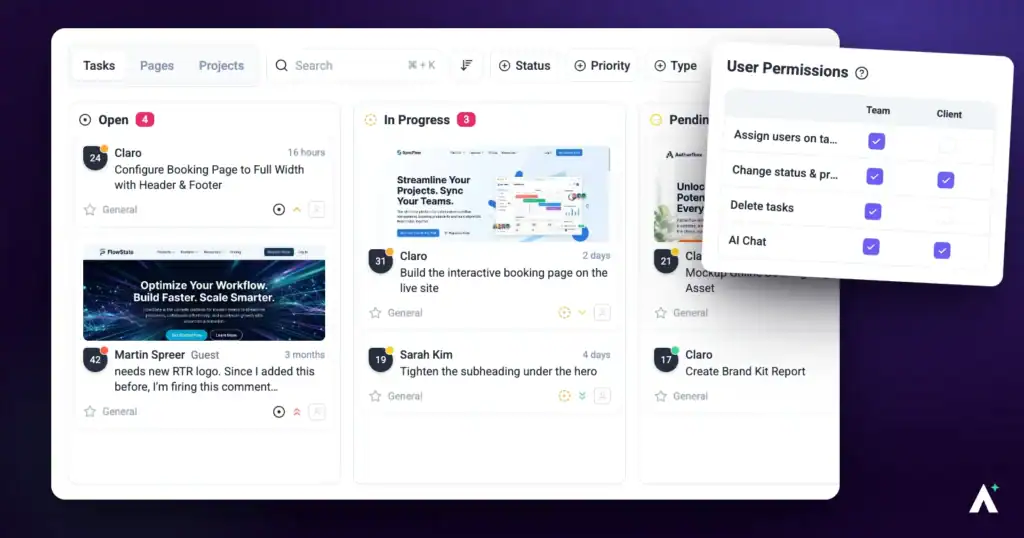
Small teams get away with informal coordination because everyone sees everything. That stops working at scale, and the fix isn’t more communication — it’s structure that makes work findable and ownership obvious without anyone asking.
At scale, structure is what stops work getting lost.
1. Organise with Workspaces and Folders
Assigning people at folder level saves granting access project by project as the team grows. By default, only workspace owners and administrators can create folders and change their settings.
Instructions:
- Go to Settings › Workspaces and select Add Workspace, or use Create a New Workspace in the workspace switcher at the top of the sidebar. Extra workspaces are a paid feature.
- Name the workspace for its purpose — “Marketing Department” or “Client A”.
- Create folders inside it to group related projects.
- Assign team members to the folder. They get access to every project inside it at once.

2. Assign Tasks and Set Expectations
An assignee and a priority are what turn a note into work somebody owns.
Instructions:
- Open the Inbox or a Board and find the task.
- Select the assignee control on the task — a person icon with a chevron, tooltipped Select a team member to assign — and pick who is responsible. Once set it shows their avatar and reads Assigned to: their name, with an X to unassign. Only one person can be assigned: this is the responsible owner, not a list.
- Set the priority and add detail in the description.
- Add anyone else who needs to follow the task through the separate notify control, tooltipped Add users to notify about this task. Notifying someone does not assign them.
| Status | What it signals |
|---|---|
| Open | Not started — and if it has no owner, nobody is going to. |
| In Progress | Someone is actively on it. |
| Pending Review | Waiting on someone else, often the client. |
| Complete | Done. |


3. Use Visual Collaboration
Pointing at the thing is faster than describing it, and it removes the round trip of asking which element was meant.
Instructions:
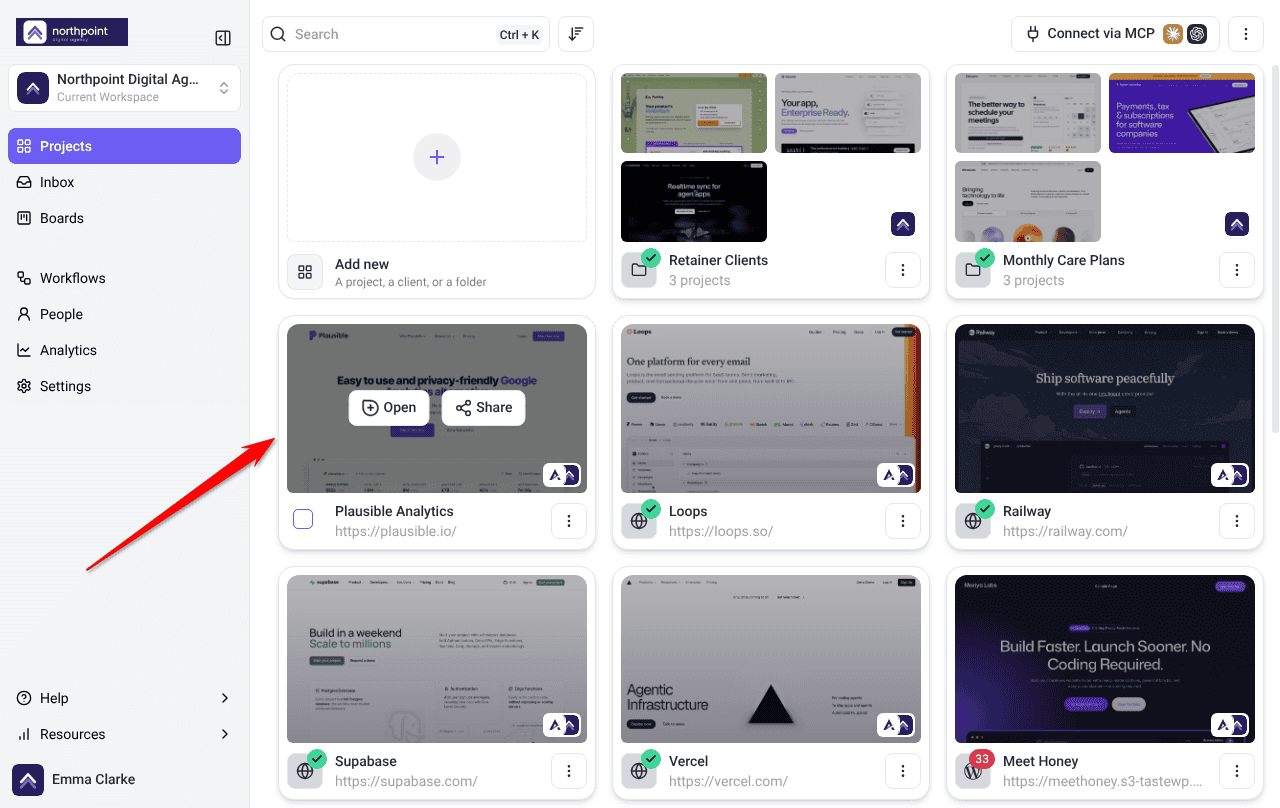
- On the Projects screen, find the project with the website or design.
- Select Open on its card.
- Switch to Comment mode in the bottom bar, then select the area you want to comment on.
- Use Annotate screenshot to highlight, point or draw. It’s a paid feature.

4. Run the Board
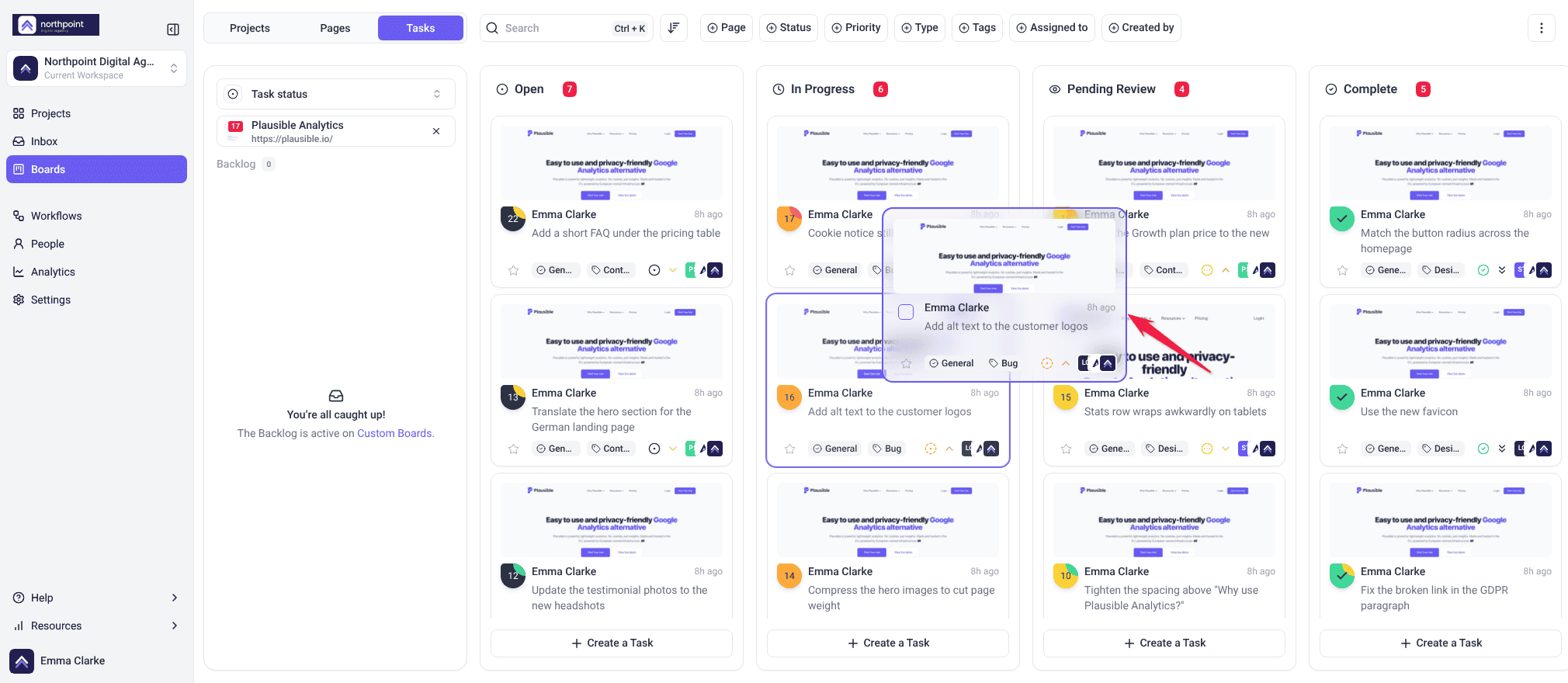
- Open the Boards view.
- Move tasks between columns as their status changes.
- Add tags and set priority to mark what matters.
- Select one project, then filter by assignee to see one person’s queue.

5. Automate the Routine
- Open Workflows in your workspace.
- Set a trigger — a task marked Critical, or a specific tag being applied.
- Define the action, such as notifying the right people or pushing to a connected tool.
- Test it with a real task before rolling it out.
Workflows are a paid feature. Each run uses 10 credits, plus whatever any AI steps in it use. Team Members don’t see Workflows by default.

6. Connect the Tools You Already Use
Bringing Atarim to the tools your team already lives in beats asking everyone to adopt another tab.
Instructions:
- Go to Settings → Connected Apps → Integrations.
- Connect the tools your team works in — Slack, Jira, Trello and others.
- Use them to send tasks and updates to those tools.

FAQs
Can I assign a task to several people?
Tasks are assigned to one person to keep accountability clear. Others can still be notified.
Can I see what changed on a task?
Yes. Changes including status updates and assignments are logged on the task.
What are the task statuses?
Open, In Progress, Pending Review and Complete.
How do I give a new starter access to everything they need?
Assign them at folder level rather than project by project — they get everything inside automatically.
How do I see one person’s workload?
Select one project on the board, then filter by assignee, optionally combined with priority.
Which integration is most useful for a large team?
Usually Slack, because updates reach people where they already are. Choose which events post carefully.
Common issues
- Work falls through the cracks — check for unassigned tasks. On a large team those are effectively invisible.
- People can’t find their projects — review folder structure and assign access at folder level.
- A teammate isn’t getting notifications — preferences are per person. Check their own settings.
- A dragged task didn’t move — if an upgrade card opened, your plan doesn’t include changing status and priority. Otherwise, open the task and set its status directly.
- An automation isn’t firing — check the trigger conditions still match how you work.
- An integration isn’t in the workflow list — connect it and switch it on in Settings first, then reopen the builder.
- The board doesn’t reflect reality — statuses aren’t being updated. A weekly review keeps it honest.
Conclusion
Large teams need structure rather than more coordination. Workspaces and folders make work findable, assignment makes ownership explicit, boards make status visible, and automation removes the manual chasing.
The one habit that matters most is assigning an owner as tasks arrive. Everything else can be tidied later; an unassigned task on a large team simply disappears. Discover How To Handle Backlogs And Bottlenecks
Tips & best practices
- Use tags and priority to mark what genuinely needs attention.
- Encourage everyone to update statuses so the board stays trustworthy.