How To Install The Atarim Chrome Extension
Collaborate directly on any live website — including the password-protected pages and internal tools a shared link cannot reach.

The Atarim Chrome Extension is the quickest way to collaborate while you are browsing a website or using a SaaS product. It lets you leave comments, reply to feedback, assign tasks and change statuses without leaving the page.
The extension answers the main limitation of link-based collaboration: because it works on the page as your browser renders it, it reaches sites behind a login, a staging password or an IP restriction — which a shared link cannot.
Install the Extension
Instructions:
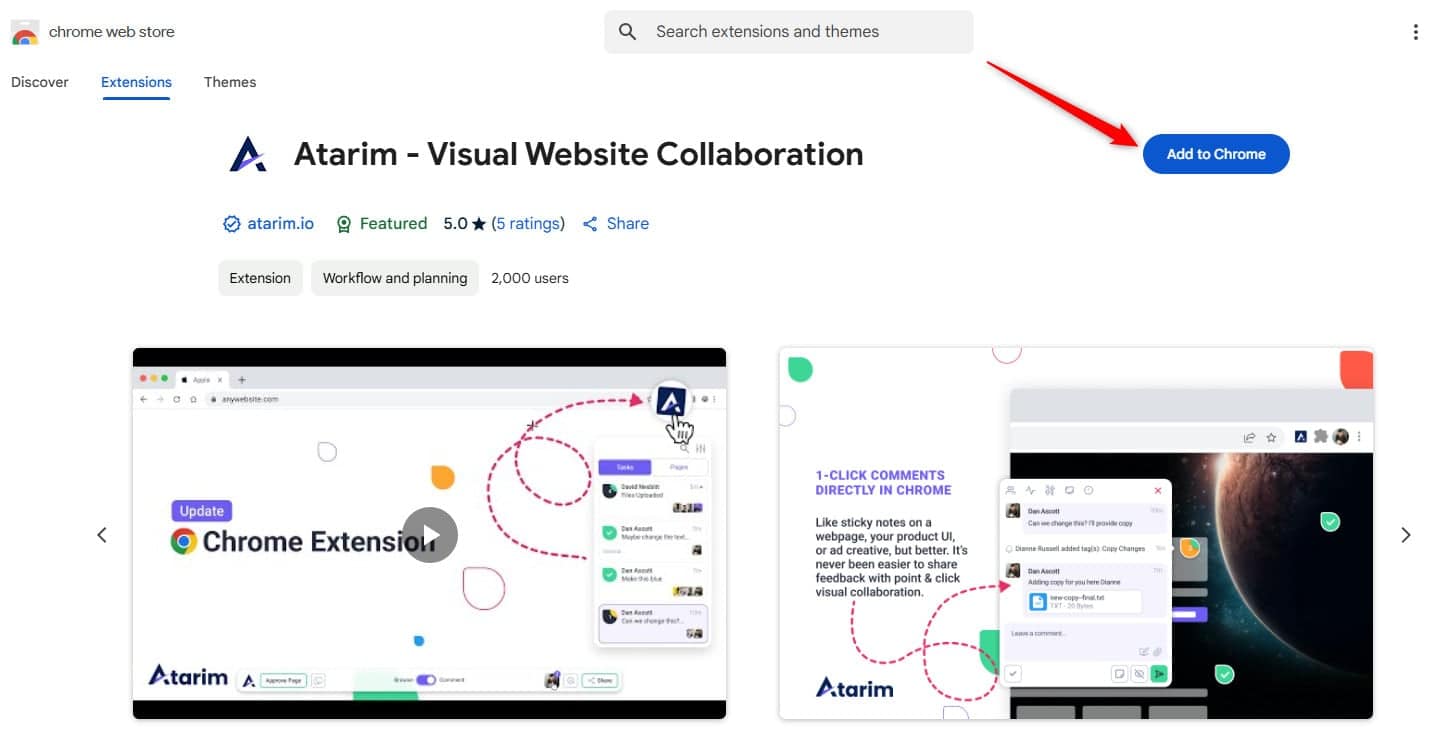
- Open the Atarim listing on the Chrome Web Store. The listing is named Atarim – Visual Website Collaboration.
- Select Add to Chrome.
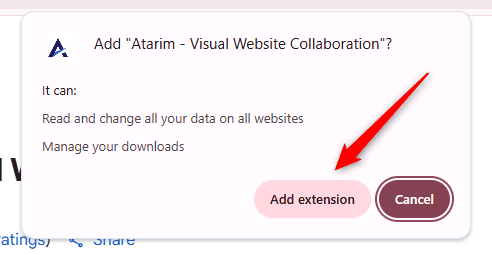
- In the confirmation popup, select Add Extension. Chrome installs the extension and its icon becomes available in your toolbar.
Connect the Extension to Your Account
Once installed, the extension needs to be linked to your Atarim workspace.
Instructions:
- After installation, your Atarim dashboard opens automatically. The extension and the dashboard connect to each other directly in the browser, and this only works on an Atarim page — which is why the dashboard has to open.
- If you are not signed in, sign in or create an account when prompted.
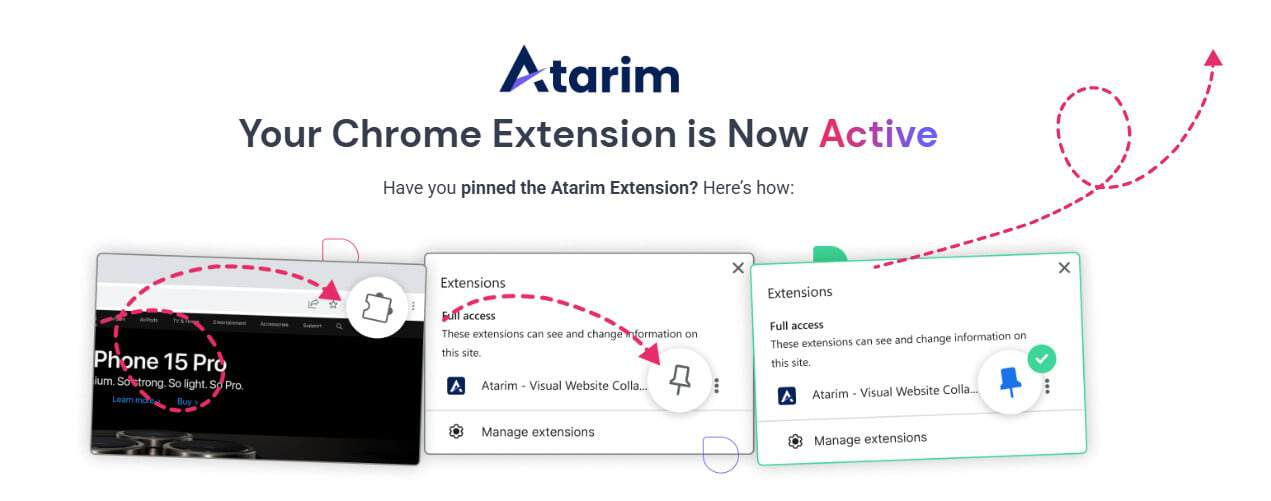
- Look for the confirmation that the extension is ready to use.

Pin the Extension for Quick Access
Pinning is cosmetic but worth doing — an unpinned extension is one most people forget they have.
Instructions:
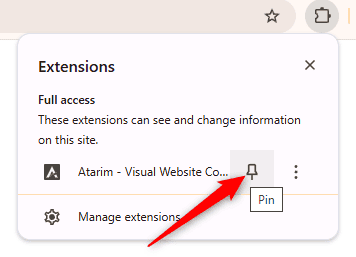
- Select the puzzle piece icon in Chrome’s toolbar.
- Find Atarim in the list and select the pin icon beside it. The Atarim icon now sits permanently in your toolbar.
Start Collaborating on Any Website
- Visit any website.
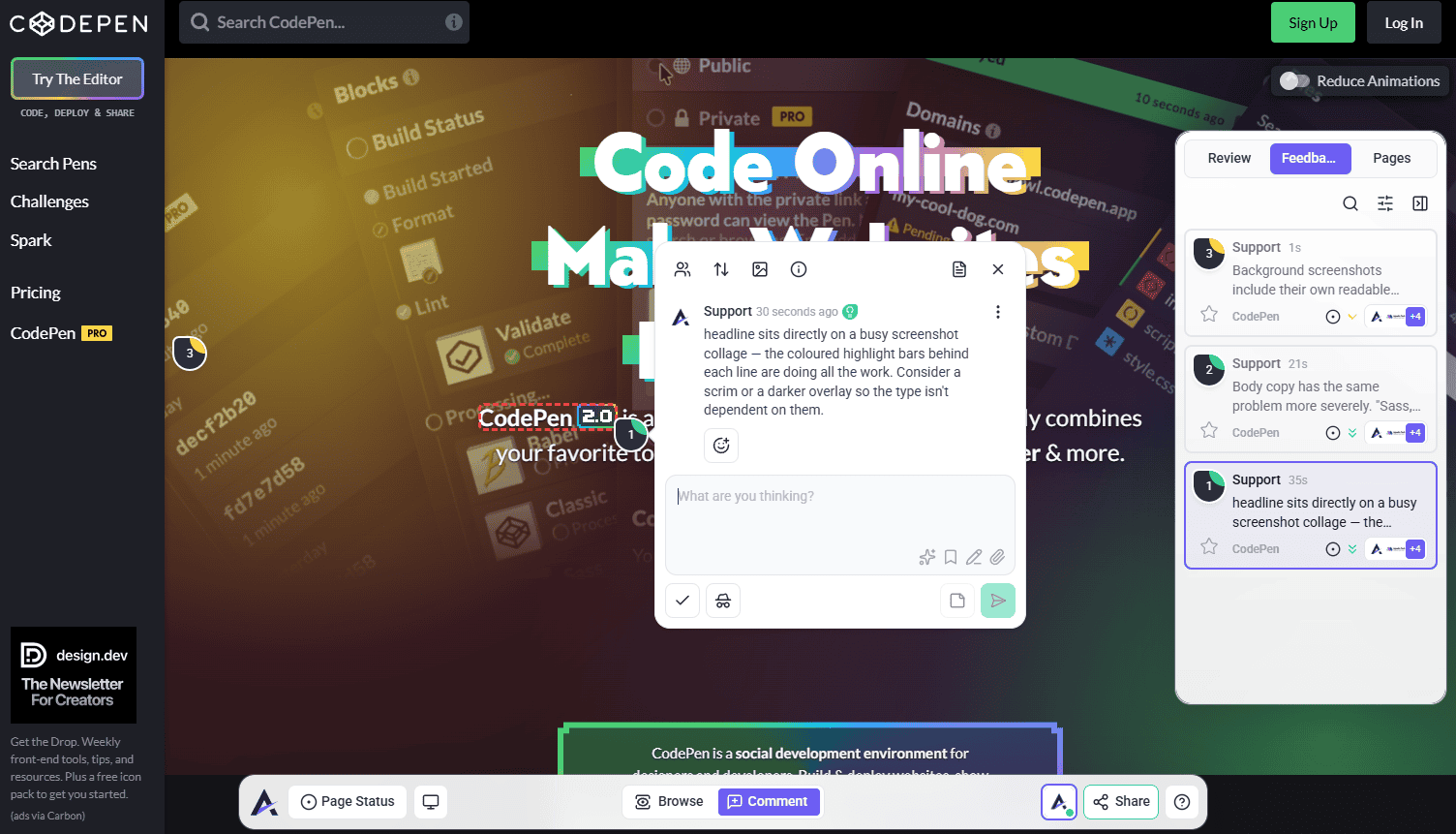
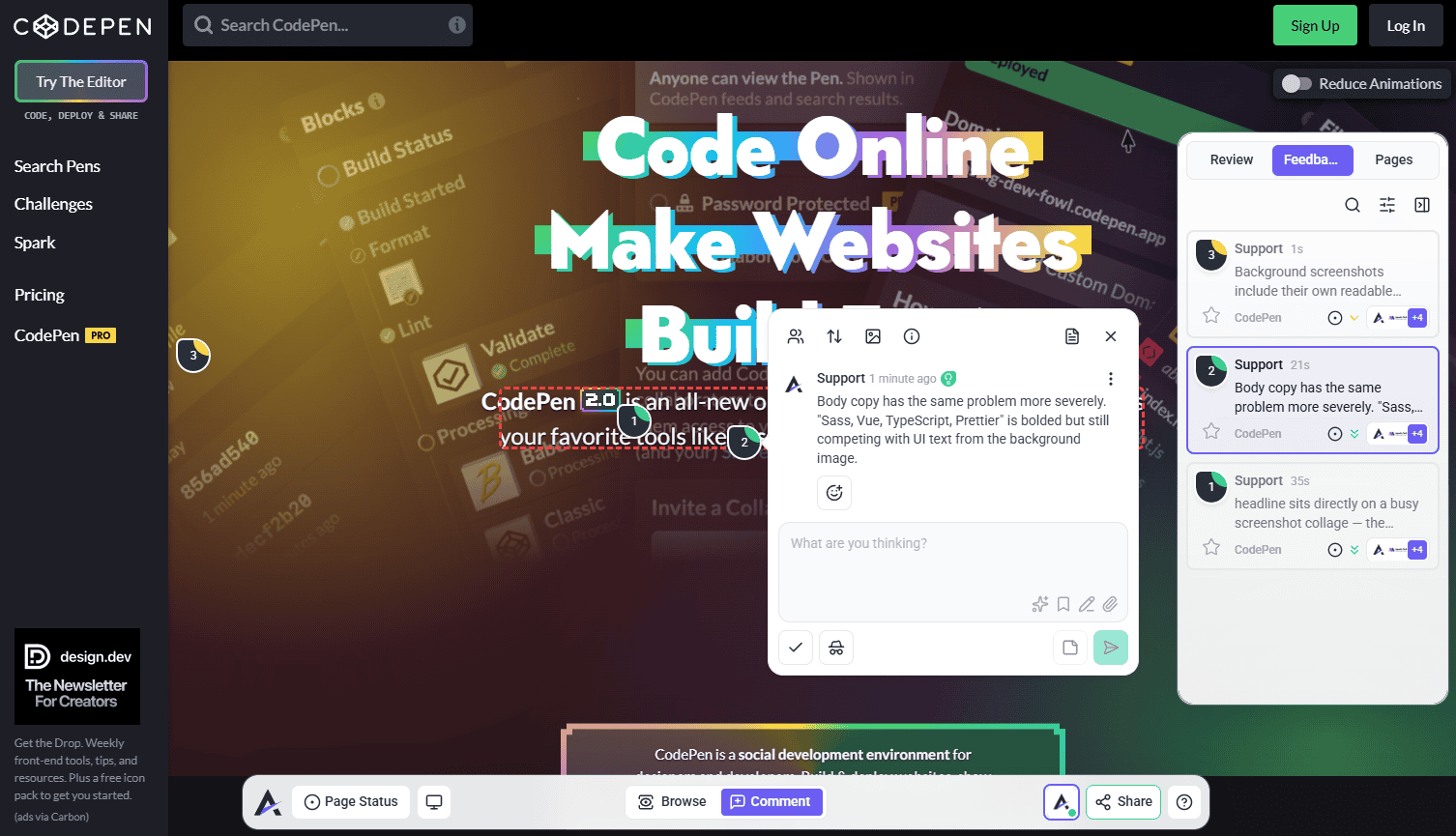
- Select the Atarim icon in the Chrome toolbar. The extension checks whether the site is already a project in your dashboard.
- If the site matches exactly one of your projects, you go straight into collaboration. Otherwise Project Select opens. Pick an existing project, start Live Site Feedback on the page, or take Screenshot Feedback of your view or the full page.
Tasks Appear Everywhere Immediately
It does not matter where a task was created. Whether it came from the extension, the task list, the boards or the visual interface, it is available in the project’s Collaborate view and in every other view of that project.
What the Extension Asks For, and Why
| Permission | What it is for |
|---|---|
| Access to the sites you visit | Running the collaboration interface on whatever page you are working on. |
| Active tab | Knowing which page you are collaborating on and matching it to a project. |
| Storage | Keeping you signed in between sessions. |
| Scripting | Loading the collaboration interface onto the page. |
| Notifications | Telling you when you have signed in or out, or need to sign in again. |
| Context menus | The options you get by right-clicking the Atarim icon: Turn off on this site, Sign in to Atarim and Log out of Atarim. |
Benefits
| Benefit | In practice |
|---|---|
| Reaches private pages | Works on logged-in areas, staging sites and internal tools. |
| Nothing loads slowly | You collaborate on the real page rather than a fetched copy. |
| Pages render correctly | The site behaves exactly as it does in your browser. |
| One click from any tab | Pinned, it launches collaboration wherever you are. |
| Clients need nothing | They collaborate through a link while your team uses the extension. |
Known Limitations
- Chrome-based browsers only. It is distributed through the Chrome Web Store.
- The connection needs an Atarim page. The extension links to your account through the dashboard, so it cannot be connected from an arbitrary site.
- Chrome shows a broad permission warning at install, because the extension cannot know in advance which sites you will use it on.
- It is for your team, not clients. Clients collaborate through a shared link instead.
- Signing out disconnects it until you sign in again.
FAQs
Do I need to reinstall the extension when Chrome updates?
No. Chrome keeps extensions up to date automatically, on its own schedule rather than tied to browser updates.
Can clients use the extension?
They can, but they should not need to. It is built for internal teams — clients collaborate through a shared Atarim link with nothing installed.
Does Atarim store data from the websites I visit?
No. Only the task data you deliberately create.
Why does Chrome say it can read data on all websites?
Because the extension runs the collaboration interface on whichever page you choose, and cannot know in advance which sites those will be.
Is the extension listed in Atarim’s Integrations settings?
Yes. Settings → Connected Apps → Integrations has a Chrome Extension row with a Chrome Web Store link. There is no toggle to enable — installing it in Chrome is all that is needed.
Why did installing open my Atarim dashboard?
That is how the extension links to your account. The dashboard and the extension communicate directly, which only works on an Atarim page.
Can I use it on a site behind a login?
Yes. That is its main advantage over link-based collaboration, which needs a publicly reachable page.
Where do tasks created from the extension go?
Into the project, and they are immediately visible in the Collaborate view and every other view of that project.
Common issues
- The extension does not seem to have installed — it is most likely hidden. Select the puzzle piece icon and pin Atarim to the toolbar.
- The permission warning at install looks alarming — expected. The extension needs page access to run collaboration on any site you choose.
- The extension is not connected to your account — open your Atarim dashboard in a tab, which is what establishes the link, and sign in if prompted.
- Selecting the icon does nothing on a page — reload the page and try again. The interface is injected on load, so tabs opened before installing need refreshing.
- A client says the extension will not work for them — they do not need it. Send them the project link instead.
- A site loads but the interface does not appear — check the site is not blocking Atarim through a firewall or security rule. See How to Whitelist Atarim.
- You cannot find a switch to enable the extension in Atarim — there is not one. The Chrome Extension row in Settings → Integrations only links to the store; installing it in Chrome is what activates it.
- You are unsure whether you have the latest version — Chrome updates extensions on its own schedule. Check the version on the Web Store listing against the one in
chrome://extensions.
Conclusion
Installation is three clicks, and the two steps worth not skipping are pinning the extension and letting the dashboard open so the connection is established. After that the extension is one click away on any tab.
Use it for your own team and for anything a link cannot reach. Leave clients on shared links — it is less for them to install and less for you to support. Discover The Atarim Figma Plugin
Tips & best practices
- Pin the extension during setup, so it is not lost behind the puzzle piece menu.
- Use it for staging sites, logged-in areas and internal tools — the cases a link cannot reach.
- Leave clients on shared links rather than asking them to install anything.
- Refresh any tabs that were already open before you installed.
- If it seems disconnected, open your Atarim dashboard rather than reinstalling.