Atarim for Project Managers: Efficient Workflow Management
Scattered feedback, unclear ownership and slow approval cycles — and what to use in Atarim for each.
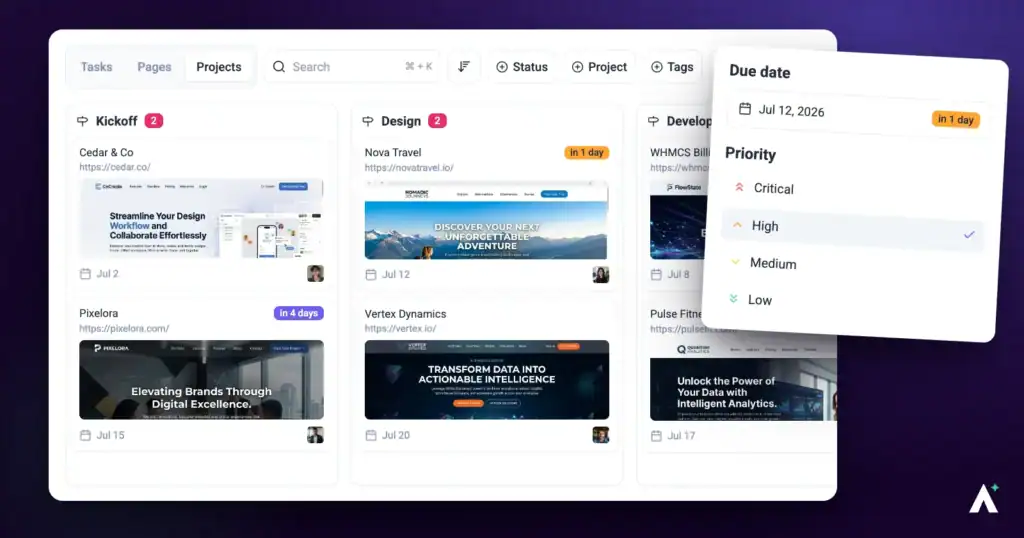
Project managers keep everyone aligned, resources sensibly allocated and communication moving. Cross-functional teams and client demands make that harder than it sounds. Atarim gives you one place to run feedback, tasks and progress, rather than assembling the picture from several tools each week.
Ownership and status visible in one view.
The Problems This Solves
| Challenge | What it costs you |
|---|---|
| Fragmented communication | Feedback scattered across email, chat and tools leads to miscommunication and missed deadlines. |
| Unclear resource allocation | Some people overloaded, others underused, and no easy way to see which. |
| Slow feedback loops | Long approval cycles and vague client comments hold up progress and hurt quality. |
| Stakeholder coordination | Managing expectations without transparency tools eats your week. |
What to Use for Each
| Area | What it gives you | Where to set it up |
|---|---|---|
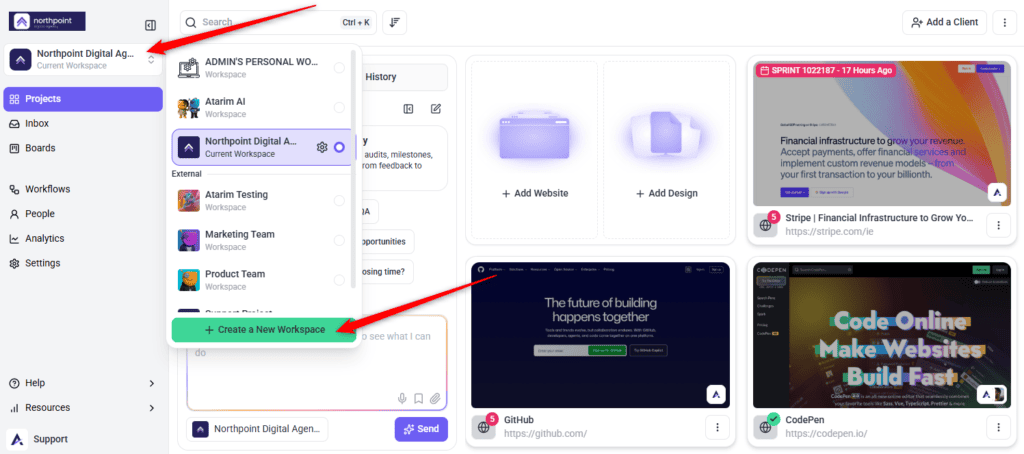
| Workspaces | Projects organised by client, team or department, with filtered views so you reach the relevant work quickly. | The workspace switcher at the top of the sidebar. Managing Your Workspaces |
| Visual collaboration | Comments pinned to the exact element they’re about, which removes the ambiguity that causes rework. | Select Open on a project card. Annotation Tools |
| Boards and task management | Phases tracked visually, with priority and ownership set per task. | Boards in the sidebar. Kanban Boards |
| Analytics and activity logs | Progress data for internal reviews or client presentations, and activity per team member. | Analytics in the sidebar; per-person activity from People. Activity logs are a paid feature. Analytics & Metrics |
| Integrations and workflows | Connections to Slack, Jira, Asana and others, plus trigger-based automation for repetitive updates. | Settings → Connected Apps → Integrations, and Workflows in the sidebar. Workflow (Automation) |
| Project stages and due dates | Critical phases mapped out, with visual indicators as deadlines approach. | The project’s own actions menu, then Set Project Stages — not Project Settings, which has no stages section. It is a plan feature, so without it the menu item opens an upgrade card. Project Stages |
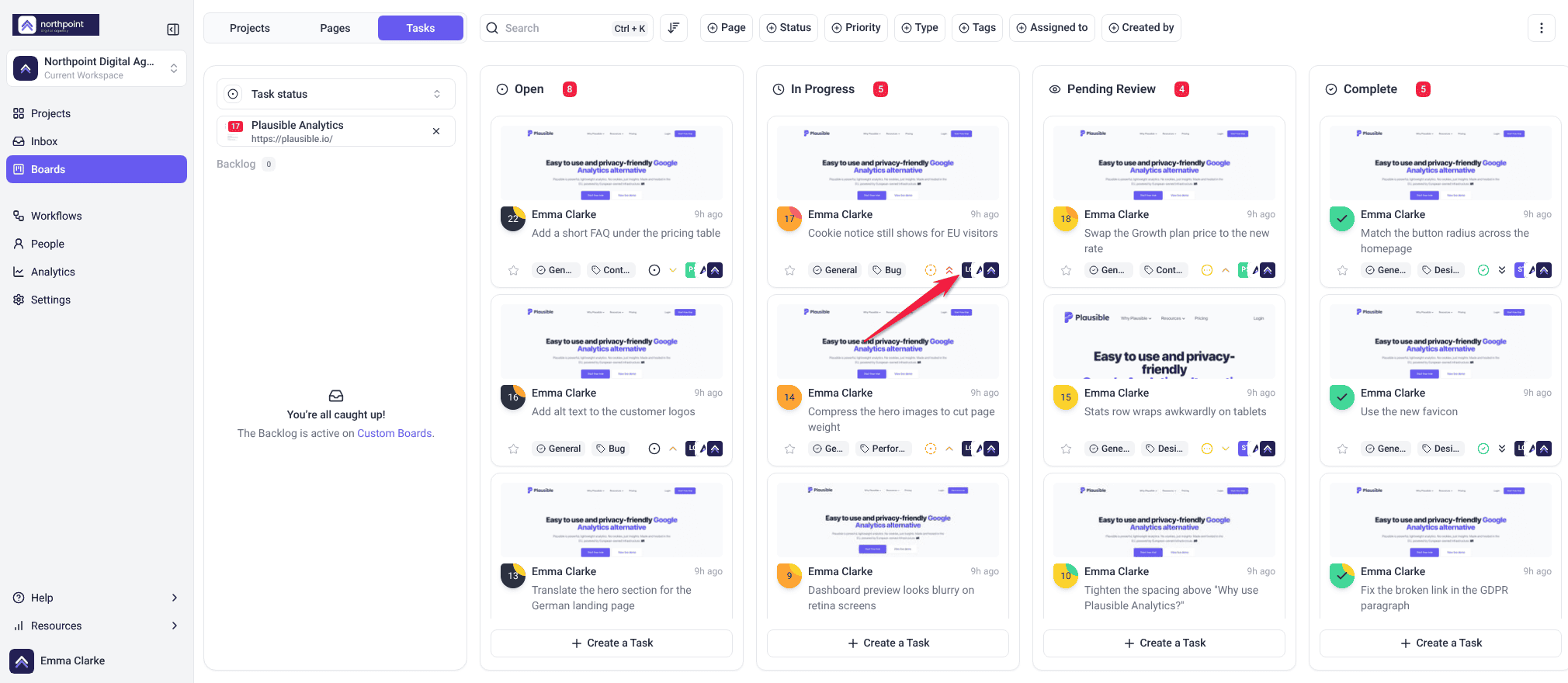
Setting Up for a New Client Project
Structure decided at the start is far cheaper than structure retrofitted once the work is underway.
Instructions:
- Create a workspace for the client, so their work stays separate from everything else. Switching between clients becomes a single change rather than a filtering exercise. Extra workspaces are a paid feature; on a single workspace, use a folder per client.
- Add the project and invite your team.
- Set up project stages to reflect how the work actually runs.
- Invite the client, and tell them how to leave feedback. Clients need no account — they comment directly on the page.
- Set up any integrations or workflows the team relies on.
Keeping Feedback Actionable
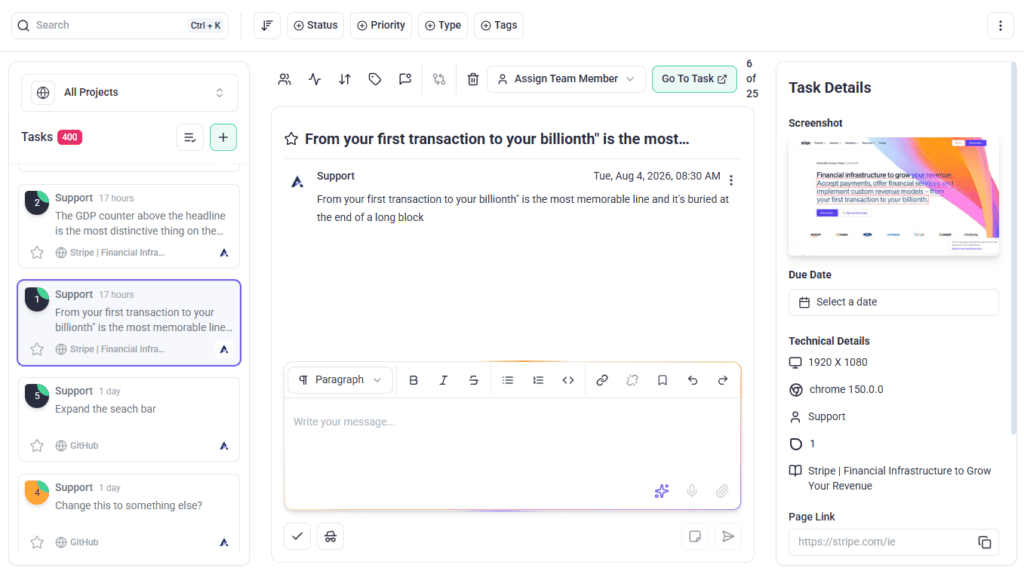
The most common cause of a slow project isn’t a slow team — it’s feedback nobody can act on. Visual collaboration solves most of it by attaching comments to the element in question, so “this looks off” arrives already pointing at the thing.
Putting the AI Team to Work
Alongside your own team, Atarim includes an AI review layer — the InnerCircle. For a project manager it is a way to catch issues before the client does, and to turn a review into tasks on your board without anyone transcribing them. Claro is your assistant in workspace chat (Beta), and you choose which specialists take part each time you start a page review.
| Specialist | Reviews |
|---|---|
| Claro | Clarity & Strategy — turns vague feedback into clear, scoped tasks. |
| Pixel | UI & Design. |
| Navi | UX & Accessibility. |
| Index | SEO & Performance. |
| Lexi | Content & Copy. |
| Glitch | Functionality. |
Findings arrive as tasks on the same boards as human feedback, so there is no separate process to run. AI chat, AI reviews and workflow runs draw on your workspace credit pool, and the changes the AI proposes in chat on a live site or its hosting wait in the Approval Queue (Beta) for a person to approve — plugin installs and activations, destructive WordPress actions, and hosting writes on rocket.net and InstaWP. A request nobody decides on within 14 days is declined automatically, and nothing runs. Do It works differently. When you select it yourself, the change applies straight away, with undo as the safety net. When the AI runs a Do It on a published, private or scheduled page, it waits for approval too; on a draft it runs straight away. How to Run an AI-Powered Page Review · Credits & Usage
Keeping Stakeholders Informed
Transparency is what stops clients asking for status updates. Shared stages and visible progress let them see where things stand without a meeting.


Why It Works
| Benefit | In practice |
|---|---|
| Less manual work | Automation handles notifications, status updates and reporting that would otherwise be yours. |
| One platform | Project management, collaboration and reporting stop being three tools to reconcile. |
| Clearer communication | Annotations sit on the design or page, so revisions start from a shared understanding. |
| Client trust | Visible progress reduces the back-and-forth that comes from clients not knowing where things stand. |
| Scales with you | The same structure works for one project or a full portfolio. |
FAQs
Can I integrate Atarim with Jira or Asana?
Yes. Atarim integrates with Jira, Asana, Slack and others, so tasks stay connected without manual duplication.
How does Atarim help with client feedback?
Clients leave pinpointed feedback directly on designs and websites, which reduces ambiguity and speeds up approval cycles.
Can I track team performance?
Yes. Analytics and activity logs give insight into productivity and task progress, including per-person activity from their profile.
Can I manage several clients or departments?
Yes. Workspaces and folders let you organise projects by client, department or team.
Do clients need an account?
No, while the project’s General Access is set to Anyone with the link. They can then leave feedback through a shared link without signing up. If you restrict it to Only people with access, invite each reviewer from Share › Guests and Clients.
How do I keep internal discussion away from clients?
Use internal tasks and private notes. Both are hidden from clients and guests.
Will clients be notified when a project stage changes?
Clients who have an Atarim account and are on the project are emailed when a stage is created or completed, and again around its due date. Anyone reviewing through a share link without an account is not emailed, so tell them directly.
Common issues
- A client says they were never told the work moved to review — they may be reviewing through a share link without an account, and those reviewers get no stage emails. Tell them directly.
- Tasks nobody is working on — they have no assignee or priority. Set both as tasks arrive rather than in weekly triage.
- Structure fighting the work — stages and workspaces were added after the project started. Set them up at kickoff.
- Internal discussion reached the client — it was not marked internal. Internal tasks are hidden from clients and guests, and send no notification email.
- Clients asking for status constantly — they do not know where to look. Agree at kickoff how progress is shared and how often.
- Too many projects to navigate — use workspaces per client, then folders and filters within them.
Conclusion
Atarim addresses the three things that slow projects down: feedback nobody can act on, work with no clear owner, and clients who don’t know where things stand. Workspaces give you structure, visual collaboration gives you clarity, and boards give you accountability.
The habits that matter most are setting structure before work starts, and assigning priority and ownership as tasks arrive rather than in a weekly catch-up. Discover Best Practices For Project Management
Tips & best practices
- Create separate workspaces per client or department to prevent overlap.
- Use folders and filters to find tasks quickly as projects grow.
- Encourage clients and teammates to leave feedback visually rather than by email.
- Set project stages at kickoff and share them with stakeholders.
- Assign priority and an owner as tasks arrive, not in weekly triage.
- Automate status updates and notifications with workflows.
- Connect the tools your team already uses so data stays in step.
- Keep internal discussion in internal tasks and notes.