Clarify Feedback Instantly with Claro
Turn vague or emotional feedback into clear, actionable tasks — by asking the client the right question.
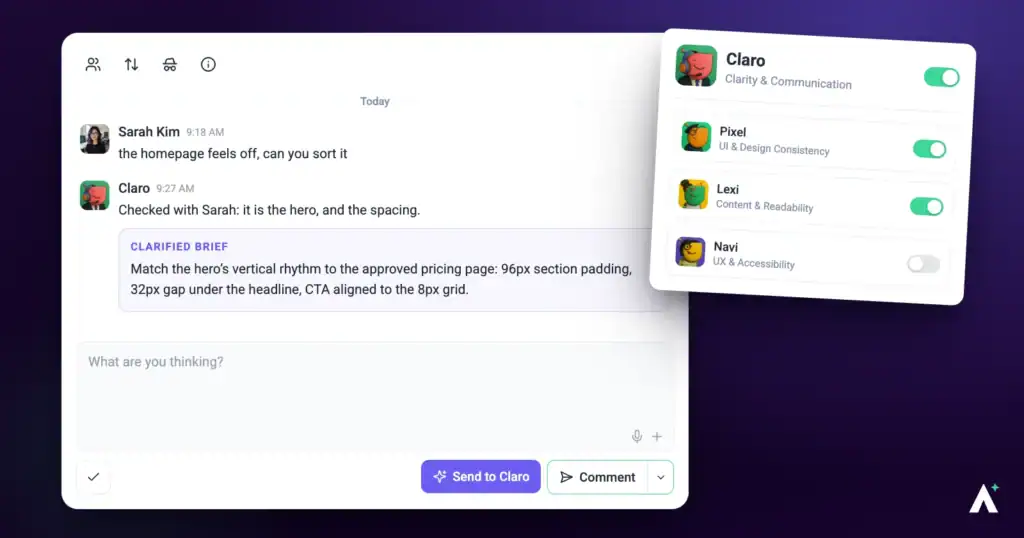
Feedback is often rushed, unclear or emotional, and each vague comment costs a round trip. Claro handles this differently from a plain rewrite: rather than guessing what “this feels off” meant, it asks the client to choose between three specific options — then hands your team the clarified result.
What Claro can do for you
- Turn a vague comment pinned to an element into three specific options the author can preview and pick, then write the result up for your team.
- Open every page review with a Strategic Overview of what is being checked and why, brief the specialists, and close with a summary: overall impression, recurring themes, top priorities and next steps.
- Pass a task thread to the right specialist when you select Send to Claro, so the answer comes from Pixel, Lexi, Navi, Index or Glitch.
- In workspace chat (Beta), create and assign tasks, hand work to the specialists, run workflows, remember standing rules for your workspace, and ask for your approval before anything changes on a site.
Claro Personality Snapshot
Claro is Clarity & Strategy, and it opens every review, while the other specialists are the ones you choose. It’s also the only one that doesn’t make anything. Pixel designs, Lexi writes, Glitch repairs; Claro is the orchestrator, deciding what the work actually is, who it belongs to, and handing it over. It sits a level above the specialists and never does their job itself, even when it could. When a review starts you’ll see it announce itself in the sidebar, Claro here, bringing clarity, and then get out of the way while they work.
Its instinct is to go under the request rather than take it at face value. Asked to move a button, it wants to know what moving the button was meant to solve — the problem, not the proposed fix. That’s the same instinct behind the three options: where intent is genuinely unclear, it would rather put two or three concrete readings in front of you than guess well and be confidently wrong.
In conversation it’s short. Warm in the way a capable colleague is over Slack rather than over email — no preamble, no sign-off, no restating your question back at you, and a brief answer to a brief question. Length gets earned by the work rather than taken as standard. When it hands clarified feedback to your team it shifts register slightly, opening a discussion rather than issuing instructions, because the point is to get the team talking about the best approach rather than to close the matter.
How it actually works
| Stage | What happens |
|---|---|
| 1. Scoring | Feedback pinned to an element is assessed for how clear and actionable it is — whether it identifies the exact element, and whether a developer or designer could act on it as written. On a thread that already exists, only a follow-up from the person who wrote the first comment is scored. |
| 2. Options | Where a comment is vague, Claro offers exactly three specific options, written in plain client language rather than technical terms, each applied in one click. |
| 3. Summary | Once the client picks, the clarified feedback is turned into direction your team can act on — describing what will look different rather than naming the setting behind it. |
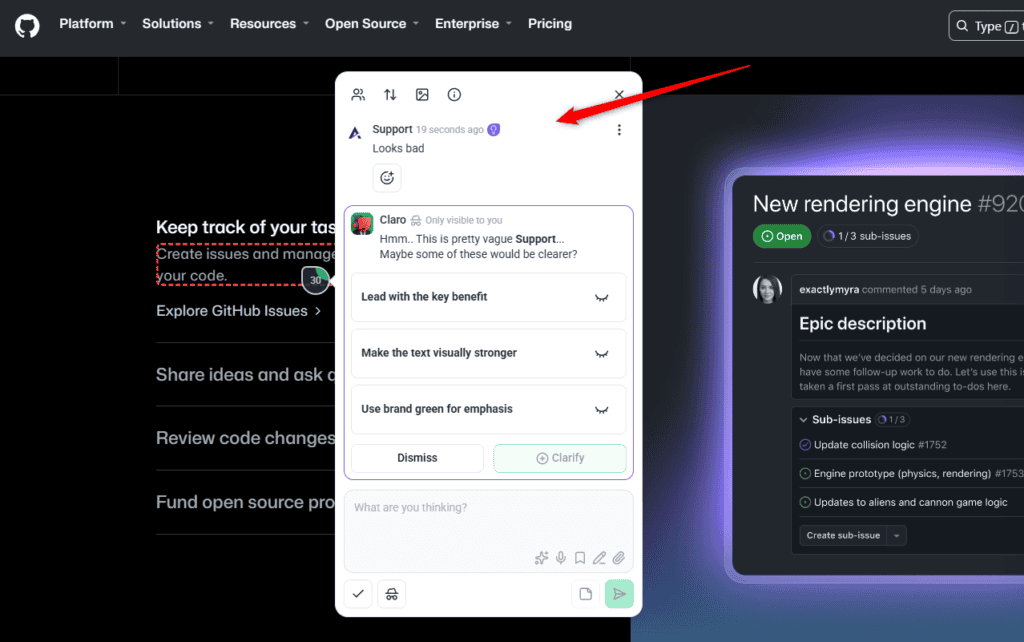
How a comment is scored
Scoring is the mechanism behind everything else, and it’s more precise than “vague or not”. Each comment is rated on two things: specificity — does it identify the exact element, page or feature — and actionability — could a developer or designer act on it as written.
| Clarity | Example | What happens |
|---|---|---|
| Very low | “Fix this”, “broken”, “looks bad” | Clarification offered. |
| Low | Some context, but a critical detail missing | Clarification offered. |
| Clear enough | Actionable, with minor judgement needed | Passes through untouched. |
| Fully specific | Exact quoted text, or technical values | Passes through untouched. |
When Claro steps in
- Vague client feedback
- Emotional or shorthand team notes
- Manual task creation with incomplete detail, where the task is pinned to an element
- Input flagged by other specialists
Typical triggers are comments like “doesn’t feel right”, “not sure about this section”, “make it pop”, “punch this up”, or “make this text better”. Well-intentioned, but not something a developer can act on without asking.
What comes with each task
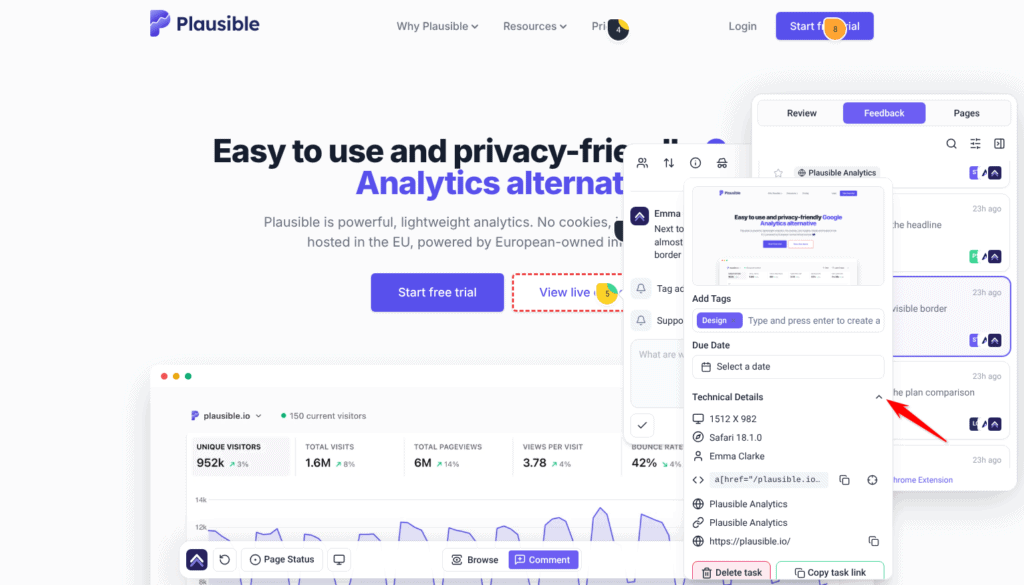
Alongside the clarified wording, every task carries the technical context a developer would otherwise have to request.
| Captured | Why it matters |
|---|---|
| Screenshot | Shows the page as it was when the comment was left. |
| Element location | Identifies the exact element, not the general area of the page. |
| Device, browser and resolution | Explains issues that only occur on certain setups. |
| Canvas source | Whether the feedback came from WordPress or a live site. |
What the three options look like
While Claro checks a comment, the thread shows Claro is checking. If the comment is too vague, Claro replies on it and offers the options. Everyone else on the project sees This comment is pending clarification review by the author.
Every option is something the client can watch apply to the element in one click, and they come in two kinds.
| Kind | What changes | Available on |
|---|---|---|
| Wording | The element’s actual text is rewritten and swapped in live. | Single text runs only — a heading, button, link, label or paragraph. |
| Look | Size, colour, weight, spacing, alignment or emphasis. | Both text runs and containers. |
Each option is titled in the client’s own language, naming the outcome rather than the technique — “Make the headline stand out” rather than “increase the font weight” — followed by a sentence or two on what will look different and why it helps. Nothing technical — no setting names, no numbers — appears in what the client reads.
Previewing a change before committing
Options apply live to the element, so the client sees the result rather than imagining it. Colour, visibility, alignment and emphasis apply directly; size and spacing changes step up or down by a proportion of the element’s current value, so the result stays in keeping with the existing design rather than jumping to an arbitrary number.
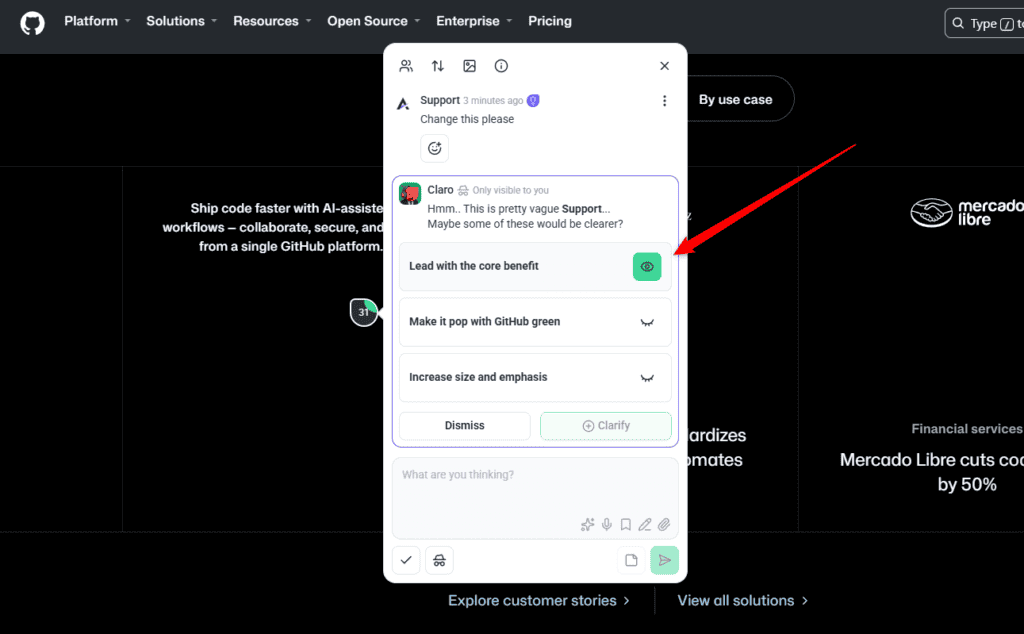
Every option acts on the element the comment is pinned to, or something inside it — never a neighbouring or parent element.
What your team receives
Once the client has picked an option, Claro writes the result up for whoever has to act on it. It isn’t a rewritten version of the original comment — it’s a short message built from what the client actually chose.
It comes in three parts. An opening line saying the feedback was followed up and with whom, naming the client where their name is known. Then the interpreted changes as a numbered list, one short sentence each. Then a closing line inviting the team’s view on the best way to handle it.
The tone is deliberately collaborative rather than instructional — it’s opening a discussion, not issuing a work order. Everything is described as a visual outcome or an improvement for the visitor, never in technical terms, so it stays readable for anyone on the thread while being specific enough for a designer to act on.
Working with the clarified task
The resulting task is anchored to the exact element on the canvas, so the conversation stays attached to what it’s about.
Instructions:
- Open the task from the element it’s pinned to.
- Reply with updates, change the status or priority, reassign it to another teammate, or add tags.
- Watch for related findings — the specialists stay active and will flag follow-up issues arising nearby.
- Review the original comment alongside the clarified version. Both remain visible in the task thread.
Where Claro works
Claro appears in more places than most people realise, and behaves differently in each.
| Where | What it does | How it starts |
|---|---|---|
| Collaborate URLs | Scores comments and offers three clarification options. | Automatic. |
| Page reviews | Opens the review with a plain summary of what’s being checked and why, then briefs the specialists before they start. | Automatic whenever a review runs. |
| Inbox | Brings the InnerCircle into a task thread — clarifying, suggesting, sanity-checking. | Choose Send to Claro beside the Comment button, or @-mention an expert or InnerCircle. |
| Workspace chat (Beta) | Acts as project manager across every project, site and task, delegating work to the specialists. | Open the chat. |
| Onboarding | Introduces itself and guides initial setup. | Automatic during onboarding. |
In page reviews
Every page review opens with Claro rather than with a finding. It writes the overview — what’s being checked, on which page, and what the review is aiming at — and then briefs the specialists on that intent before any of them starts looking. The findings that follow are theirs; the framing around them is Claro’s.
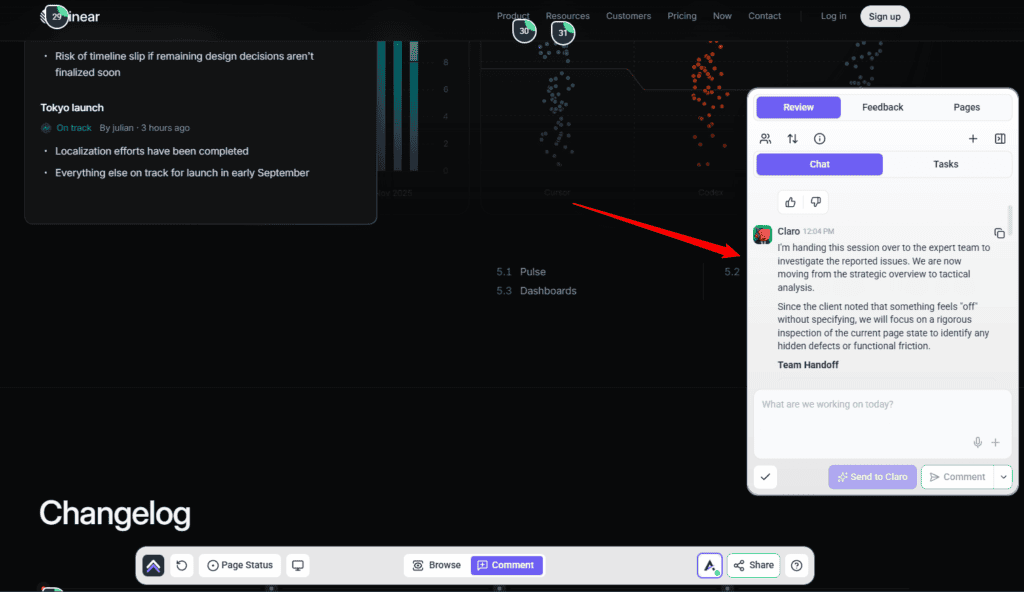
This is why a review reads as a piece of work rather than a list of complaints. Someone has set out what was being looked for before anyone reports what they found.
In the Inbox
There’s no AI mode to switch on in the Inbox, and a plain Comment never goes to the AI. You bring it into a thread when you want it, and it answers with the task’s history in front of it rather than from scratch.
Instructions:
- Open a task thread in the Inbox.
- Type your message, then select Send to Claro beside the Comment button, or @-mention InnerCircle or a specialist. Whichever specialist the work belongs to is the one who answers — Glitch for something broken, Lexi for wording, and so on — with Claro routing rather than replying itself.
- Ask it to clarify something, suggest ideas, or sanity-check your thinking — all based on the thread’s contents.
- Read the answer in the thread. It is posted under the name of the specialist who answered, with a Thought process link above it that shows how they worked it out.

In workspace chat
Workspace chat (Beta) is the largest of Claro’s roles and the one the feedback-clarifier name understates. In chat, Claro works at workspace scope across every project, site and task your agency manages, acting as project manager while the specialists do the work at project level.
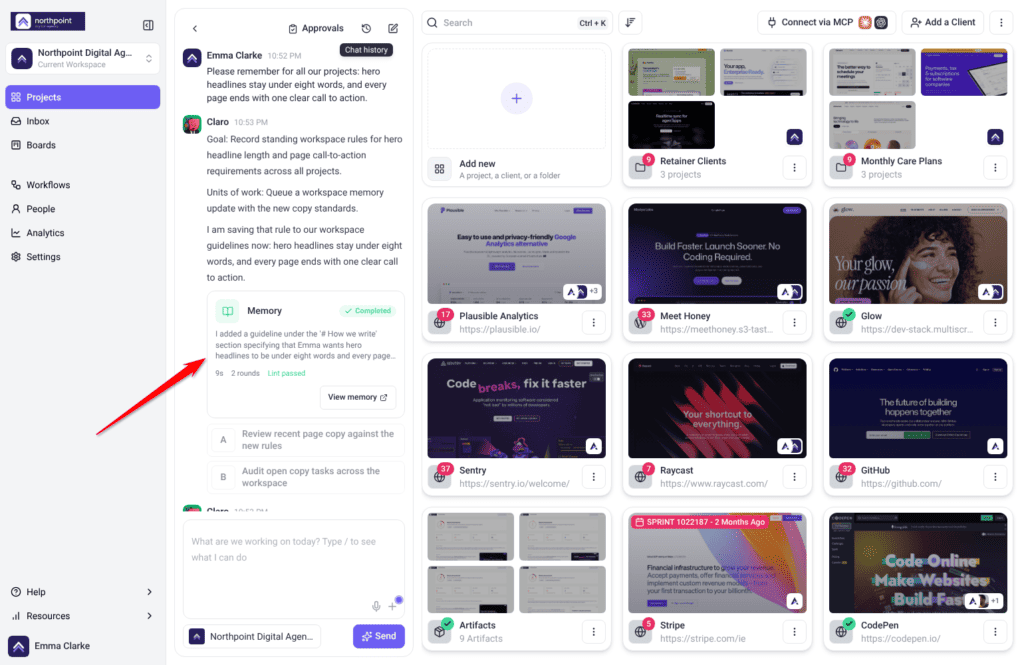
Working in workspace chat
Workspace chat is where you talk to Claro about anything across your workspace: clients, projects, tasks and workflows.
Opening the chat
Instructions:
- Select Projects in the sidebar. The chat sits to the left of your projects.
- On a smaller screen, select the round chat button in the bottom-right corner instead.
- To talk about one project, select Manage on its card to open its dashboard. The chat there has three tabs: Chat, Tasks for that project’s tasks, and Assets for its pages and artifacts.
- Select Collapse chat to give the page more room, and Expand chat to bring it back.
Asking for something
Instructions:
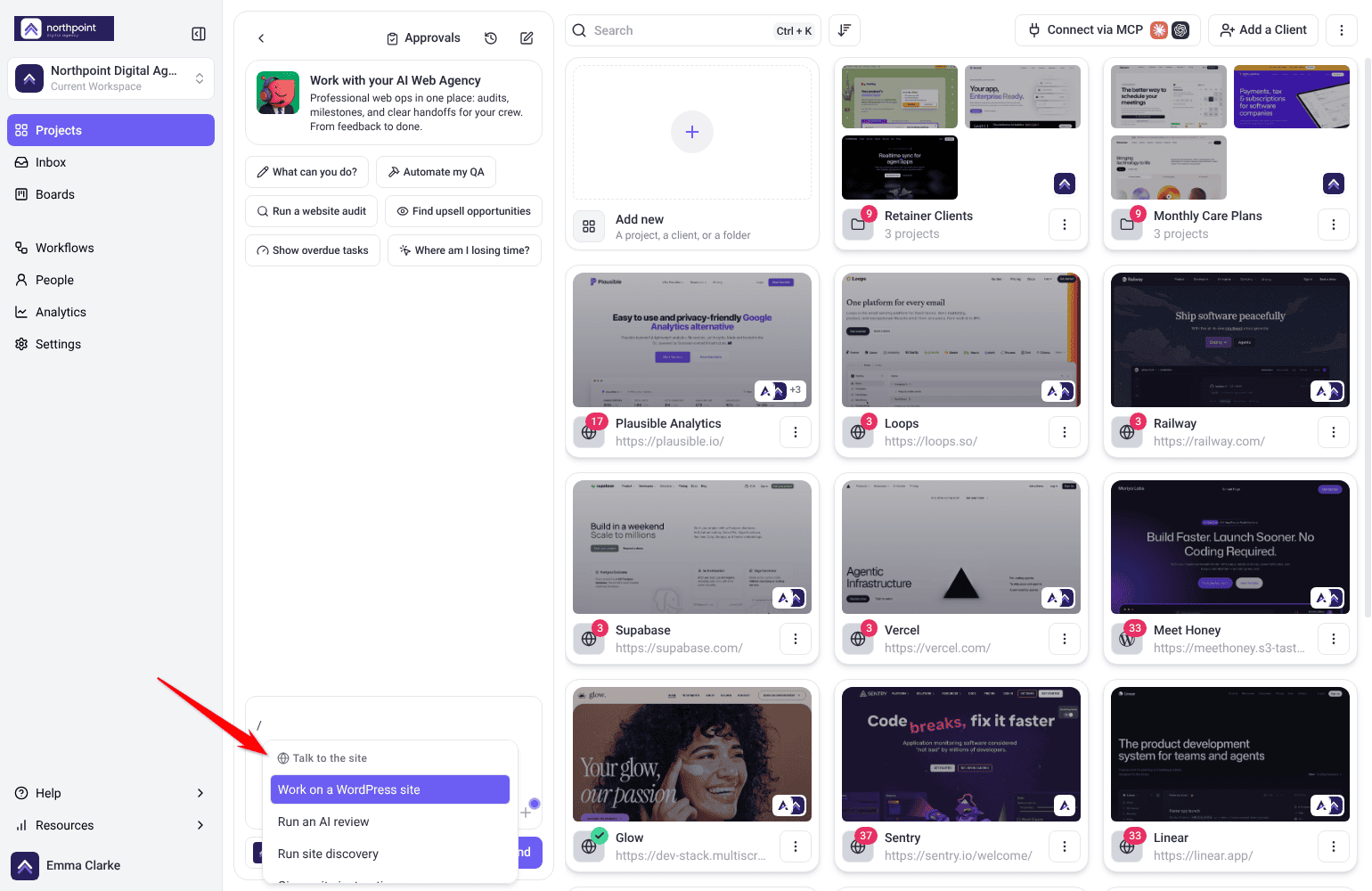
- Type in the box that reads “What are we working on today? Type / to see what I can do”.
- To see what Claro can do, type / and pick a suggestion. They are grouped into Talk to the site, Create and execute, Content and assets, Workflows, Know what’s happening, Push out and connect, and Undo and restore. The suggestion is added to your message, so finish the sentence before you send it.
- To add files, select +, then Attach a file. A message can carry up to 10 images, PDFs, HTML, JSON or text files.
- To point Claro at a project, drag its card from the grid onto the chat.
- Send the message.
Starting over or going back to a conversation
Instructions:
- Select New chat (the pen icon) to start a fresh conversation.
- Select Chat history (the clock icon) to see earlier conversations. A conversation still working on a reply shows Running. One whose last reply failed shows Failed. Open it and select Retry to run that reply again.
Follow-ups and workflow runs
When Claro plans to come back to something, for example to check on work that takes a while, the conversation shows Scheduled follow-ups above the messages, each with the time it is due. At that time Claro picks the conversation back up. Show message takes you to the reply that set it.
When Claro runs a workflow for you, a run card under its reply follows the run step by step and shows how it ended. Select the card to see its steps, or Open the full run to see the whole trace. If a run of a scheduled workflow fails, the card offers Re-run.
Approving from chat
When Claro needs your go-ahead, it says what it wants to do and why, and usually offers the choice as buttons in its reply. Select one, or answer in your own words, and Claro records your decision.
Instructions:
- To see everything waiting, select Approvals at the top of the chat. In a project, requests are grouped under This project and Workspace account.
- On Pending, read what each action will do, then select Approve or Decline. Approving runs the action.
- Open History to see what was decided and how it went. Select Refresh approvals (the circular arrow) if a status looks out of date.
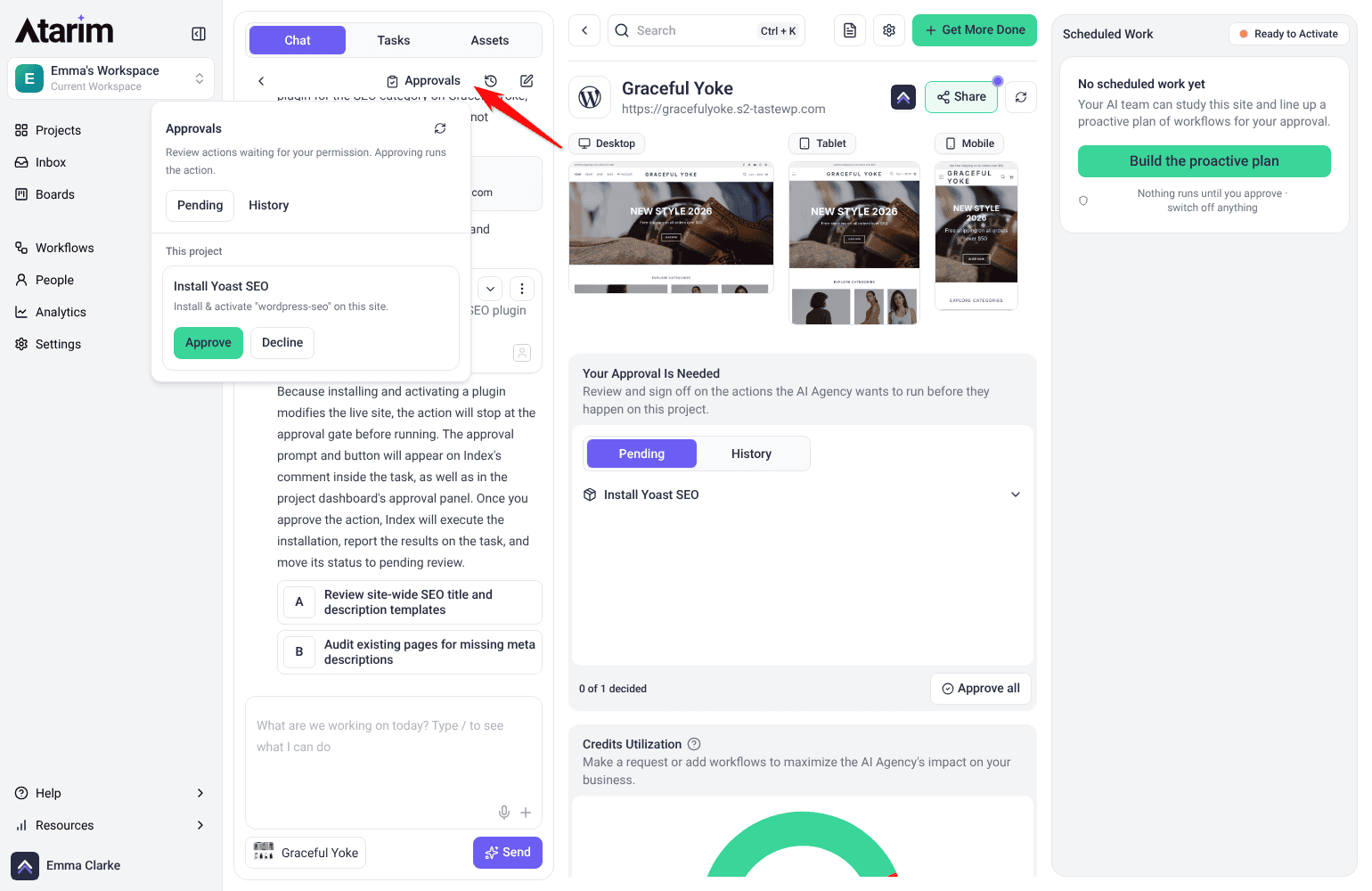
Once every request from a conversation has a decision, Claro picks that conversation back up with the outcome.
Each reply uses credits, charged on what it actually uses, at least 1 credit a reply. You need at least 10 credits available for Claro to start a reply. Explore Credits & Usage
Working with the other specialists
| Agent | Contribution during feedback |
|---|---|
| Pixel | Validates whether visual feedback aligns with the design system. |
| Lexi | Reviews copy clarity where feedback affects CTAs or headlines. |
| Navi | Checks accessibility — contrast compliance, structure, keyboard and screen-reader use. |
| Glitch | Checks for broken links, missing assets and faulty form structure. |
Frequently asked questions
Do I need to activate Claro manually?
No. On paid plans it runs automatically on comments pinned to an element. On plans without it, the comment shows Upgrade to unlock AI-powered clarity instead.
Why does it give options rather than just rewriting?
Because the client knows what they meant. Three specific choices in plain language resolve the ambiguity properly, rather than guessing at it.
Can I review the original comment?
Yes. The original and the AI-written task are both visible in the task thread.
What language are the options written in?
Plain, non-technical language. Technical terms never appear in what a client reads — an option is titled by the outcome it produces, not the technique behind it.
Where does Claro work?
Four places. Automatic clarification on Collaborate URLs; on-demand replies in the Inbox; as project manager in workspace chat (Beta); and during onboarding. It doesn’t run on Kanban boards or in design and image projects.
What does the Clarify badge mean?
It marks a task whose latest comment is waiting on clarification. The person who wrote that comment sees Claro’s options on it, picks the ones that fit and selects Clarify, or selects Dismiss.
Why is there no wording option on some elements?
Wording changes are only offered on single text runs. On a container, section, image or icon you’ll get three styling options instead.
Does the brand kit affect the options?
Yes. Where a project has a brand context set, options are grounded in that business — copy fits what the company does, and colour options use the brand palette.
Why do some vague comments pass through?
Scoring accounts for context. A comment pinned to an element already carries its location, so “make this bigger” can be actionable where it wouldn’t be in an email.
Can I dismiss a suggestion?
Yes. Ignore or dismiss it and the original comment remains untouched.
Can Claro change my client’s website?
From workspace chat (Beta) it can install plugins and write settings. Installing or activating a plugin, editing a published page, and anything the site marks as destructive come back as a pending approval, and nothing runs until you approve it.
What happens on a site that isn’t WordPress?
You still get the advice and the deliverable. Claro will say plainly that the site can’t be changed and what would enable it, rather than reporting a change that didn’t happen.
Can a change Claro routed be undone?
Yes, at three levels: a single element from the copy saved before the change, a page through WordPress’s own version history, and a whole site only from a backup plugin installed on that site.
Do other agents contribute?
Yes. Claro leads the clarification, and Pixel, Lexi, Navi and Glitch may add insight where the feedback touches their domain.
Common issues
- Claro didn't clarify a comment — it was probably clear enough already. Scoring decides whether Claro steps in.
- Nothing happens automatically in the Inbox — expected. A plain comment never goes to the AI. Use Send to Claro, or @-mention an expert or InnerCircle.
- Nothing happens on a board or design project — automatic clarification runs on Collaborate URLs only.
- The rewrite misses the point — dismiss it. The original comment is unaffected.
- The AI isn't responding — the message was probably posted with Comment. Use Send to Claro, or @-mention InnerCircle. If Send to Claro isn't shown, your role doesn't have access to the AI.
- You can't find the original comment — both the original and the clarified version stay in the task thread.
Conclusion
Claro closes the gap between what someone meant and what your team needs to act on — not by guessing, but by scoring each comment for clarity and asking the client to choose between three specific options when it falls short.
The practical shift is that you can encourage clients to leave feedback freely. Vague input is what Claro is for. Discover Reducing Feedback Cycles with Visual Collaboration.
Tips & best practices
- Encourage clients to leave any feedback — Claro thrives on vague input.
- Let the client pick from the options rather than choosing for them.
- Use shorthand internally and let Claro handle the rewrite.
- Review clarified tasks during stand-ups or sprint grooming.
- Confirm interpretations before implementing them.
- Ask clients to quote exact wording for copy changes — it lifts clarity immediately.
- Use the preview to show clients the result before committing to it.
- Set up the brand kit first — it makes the options specific to the client's business.
- Use Send to Claro in the Inbox when you want help working through a thread.
- Read approval requests properly before accepting — they're real changes to live sites.