Getting The Most Out Of The InnerCircle
Six specialists who review your work, then do it — and how to get the most out of each of them.

The InnerCircle is six specialists. Five do the work — design, copy, SEO, accessibility, bugs — and one coordinates them. They'll review a page and tell you what's wrong, and they'll make the changes when you ask. Both halves matter, and most people only ever meet the first.
Who they are
| Specialist | Owns | Reaches them when you mention |
|---|---|---|
| Pixel | Design, brand and visuals. Also builds — logos, images, sections, whole pages. | How something looks, or nothing in particular. |
| Lexi | Copy and tone. Also writes — posts, proposals, client updates. | What something says. |
| Index | SEO, structure and page speed. | Search, ranking, or why a page is slow. |
| Navi | Accessibility and usability. | Contrast, keyboard use, screen readers, mobile. |
| Glitch | Broken links, missing assets, faulty forms. | Anything broken or not doing what it should. |
| Claro | Coordination. Turns vague feedback into clear work and directs the others. | Nothing — Claro is who you talk to. |
The two halves
| Reviewing | Doing | |
|---|---|---|
| What happens | They inspect and report. | They make the change. |
| Your site | Untouched. A review writes nothing, ever. | Changed when you ask for it. |
| How it starts | You run a check. | You ask for the work. |
Where they work
Five places, behaving differently in each. Most people only meet the first.
| Where | What happens | Can they change things? |
|---|---|---|
| Page checks | A full pass over a page, section by section, each judged at desktop, tablet and mobile. | No. Read-only. |
| On the page | Select an element, ask about it, get an answer about that element. | Yes — Show me previews it, Do It keeps it. |
| In a task | A specialist works inside a task and comments the result. | Yes. |
| Workspace chat (Beta) | Claro coordinates work across every project and site you manage. | Yes, through the specialists. |
| On a schedule | Recurring work that runs without anyone starting it — a monthly sweep, a check after every update. | Yes, through the specialists. |
- Log in to your WordPress to use Do It
- Your WordPress account can’t edit this page
- Do It is turned off in the Atarim plugin settings
- Do It works on individual pages and posts, not on listing pages like the blog or archives
- Update the Atarim plugin to use Do It
- Do It isn’t available on this page
Asking on the page
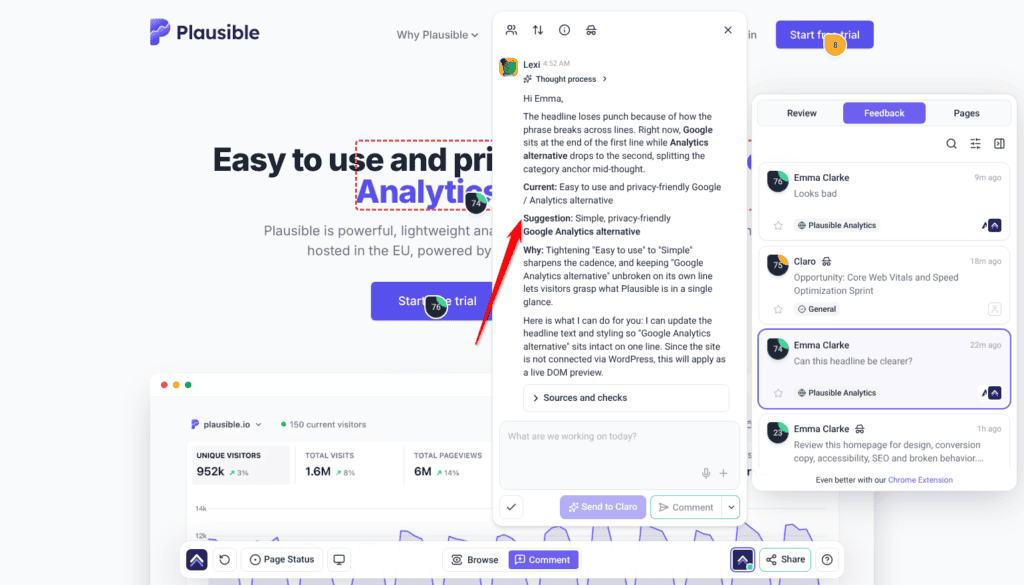
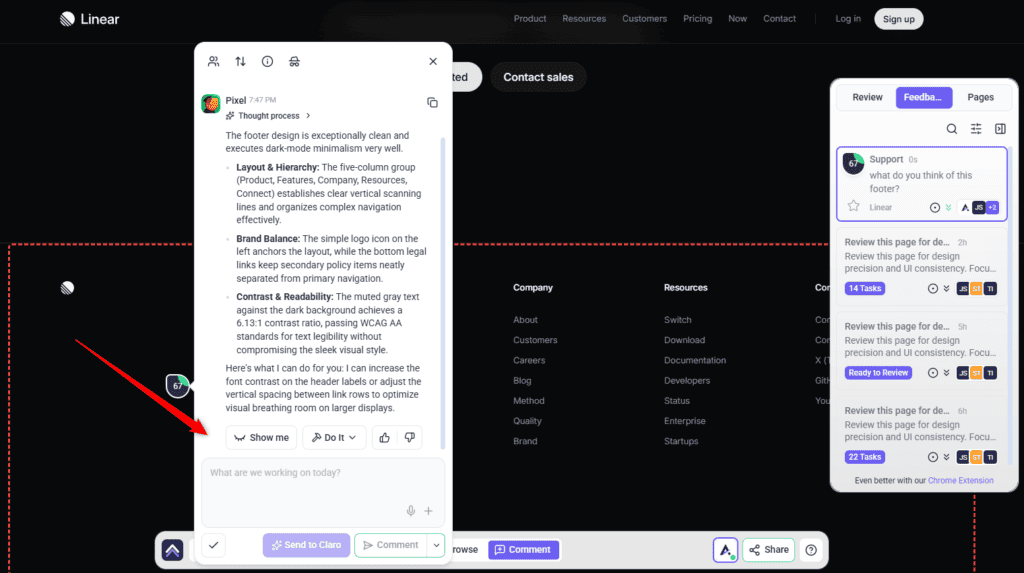
The quickest way in. Select any element and ask about it — the answer is about that element, not the page in general.
Instructions:
- Open a project from Projects in the visual collaboration view.
- Select the element you want to ask about.
- Type your question — “what do you think of this footer?”, “make this button clearer” — and select Send to Claro. The right specialist answers, based on what you asked about.
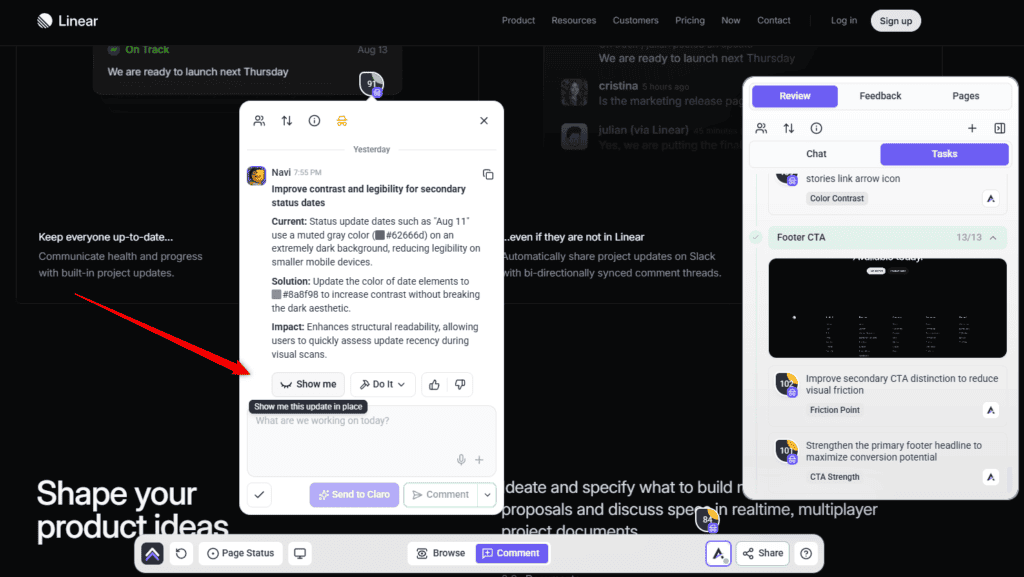
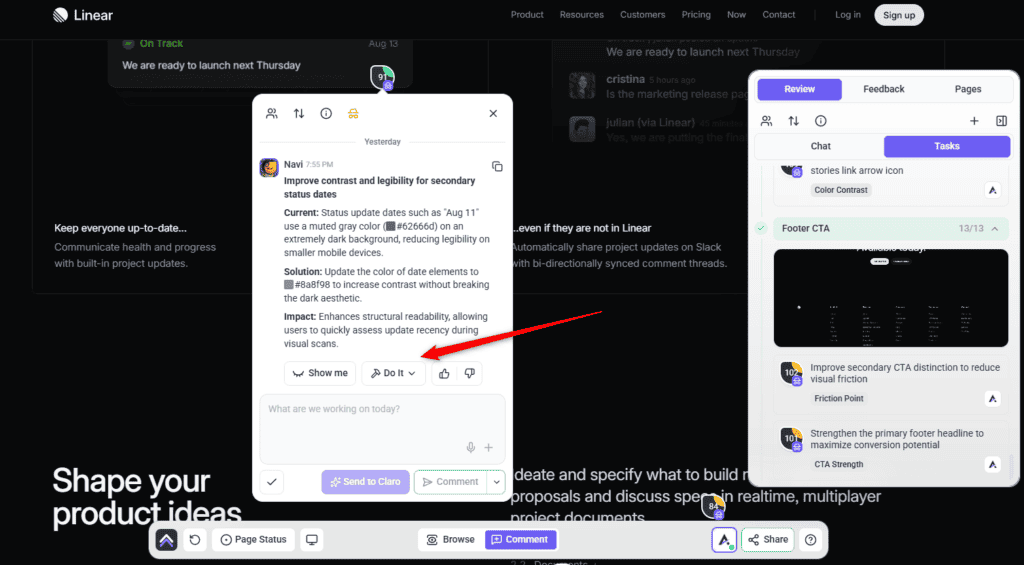
- Where they propose a change, use Show me to see it and Do It to keep it.
Running a full check
The description you add is what steers the specialists, so a vague one produces vague findings.
Instructions:
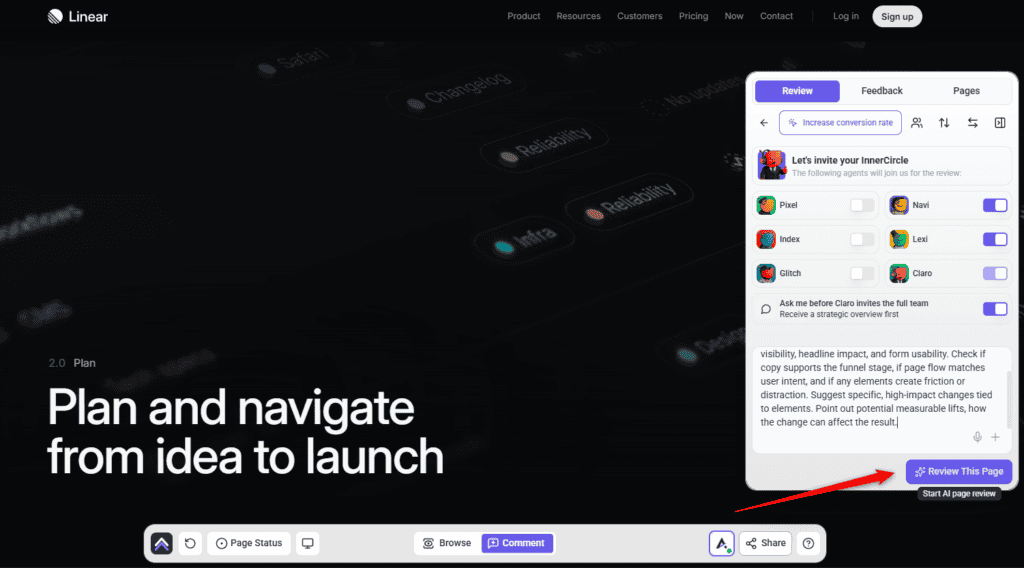
- Open the page and open the Review tab in the sidebar.
- Choose a preset, or pick the specialists yourself with Custom. A preset fills in the description and replaces anything already typed there.
- Add a short description of what you want them to focus on. This is the single biggest influence on how useful the results are.
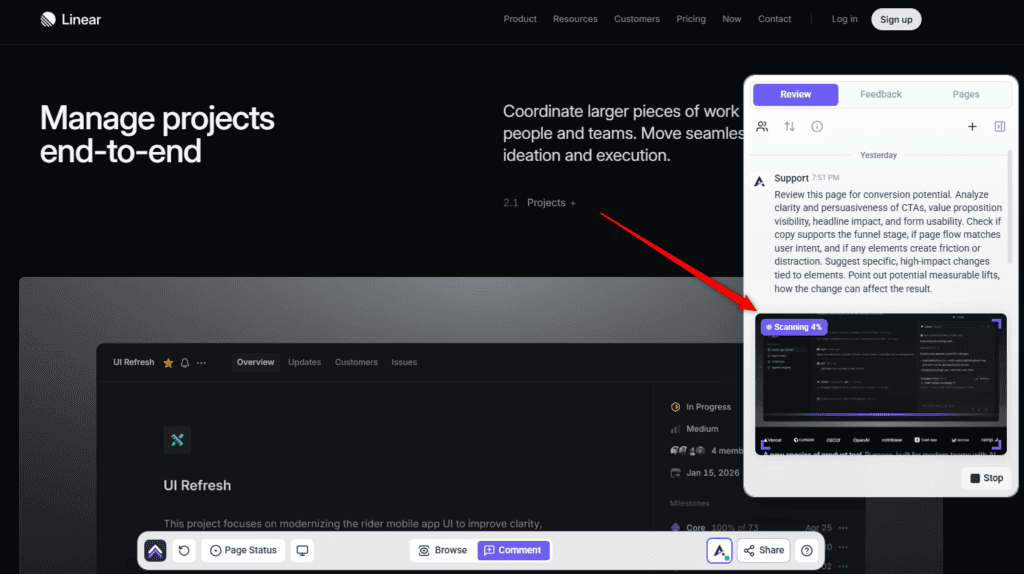
- Select Review This Page and leave it. It runs in the background.

Full detail in How to Run an AI-Powered Page Review.
What happens when a check runs
Four stages, in order:
- Strategic Overview — Claro reads the page and reports back before anyone else starts.
- Team handoff — the specialists receive their instructions.
- On-page comments — findings appear pinned to elements.
- Summary and next steps — what was found and what to do about it.
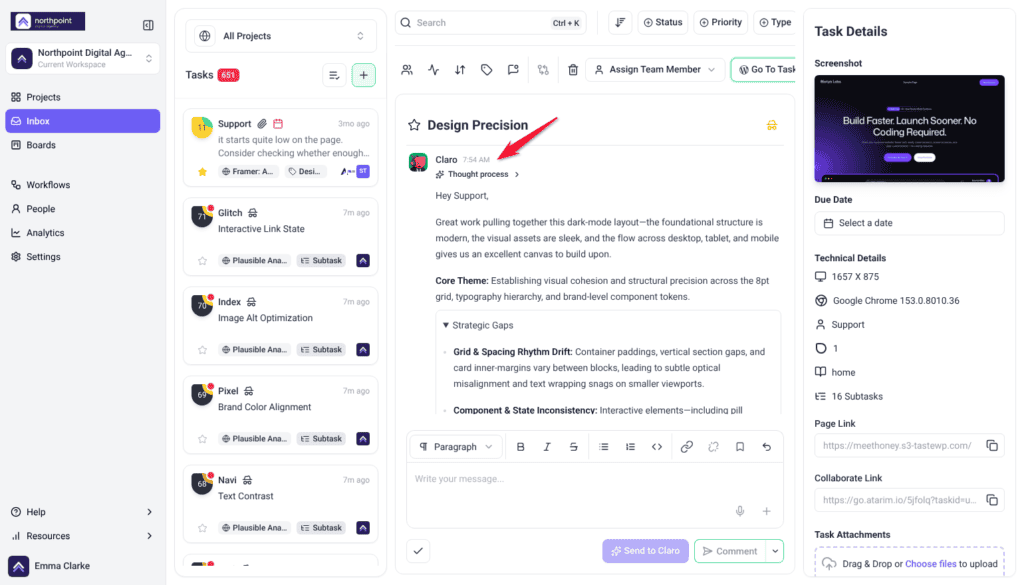
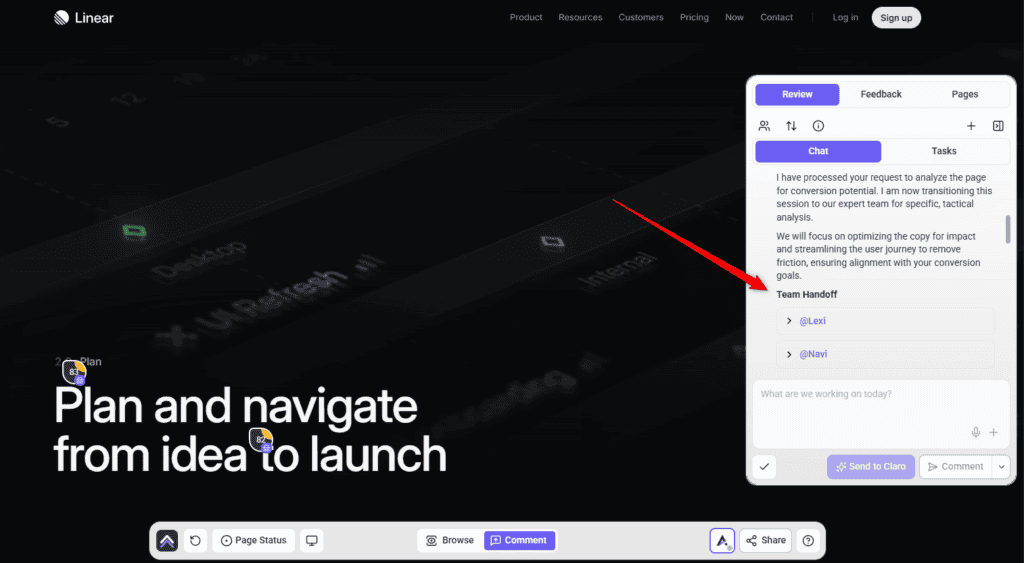
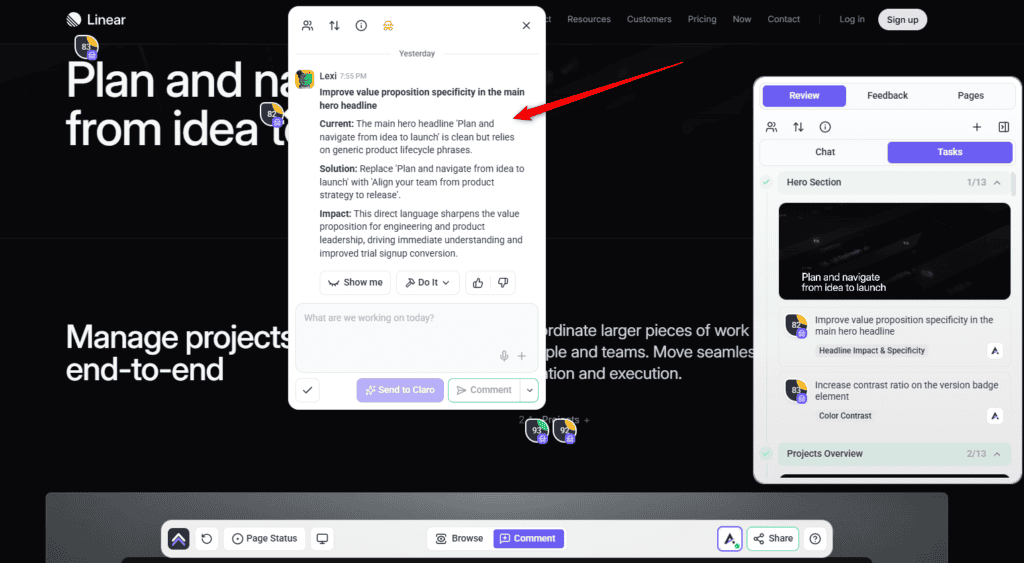
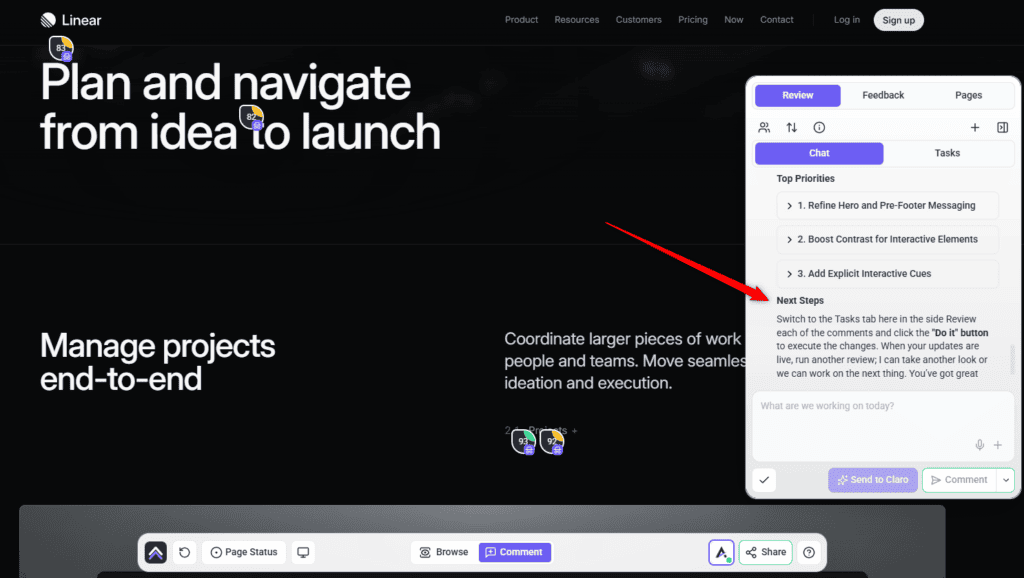
Reading the results
Findings appear as tasks pinned to the elements they relate to, alongside a high-level summary of the page. When the check finishes, you can download the whole review as an AI Review Cycle PDF from the review task in the Inbox, and a report is saved to Artifacts.
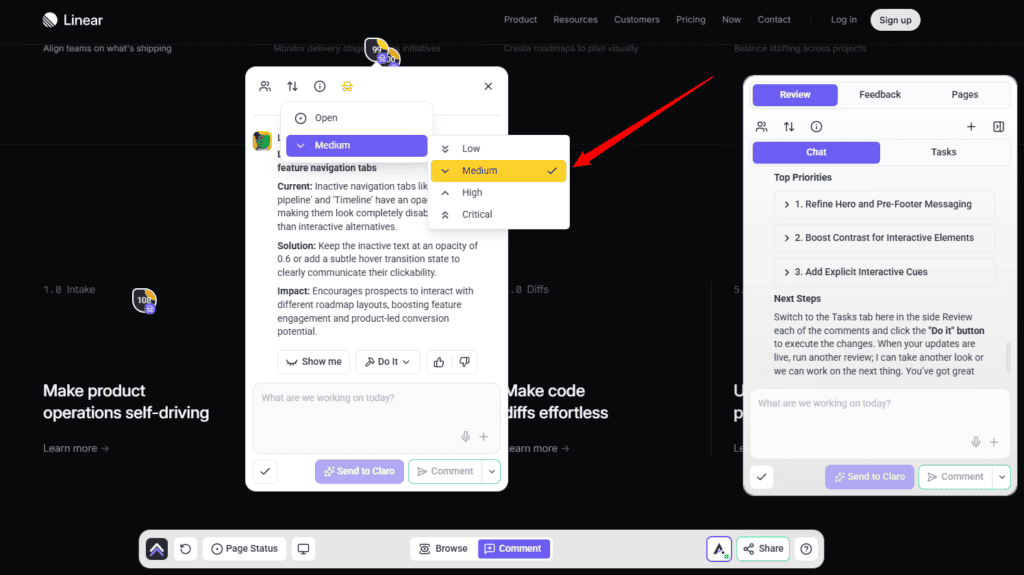
| Priority | What it covers | Do It |
|---|---|---|
| Critical (red) | Things blocking the main action on the page. | First. |
| High (orange) | Things affecting conversions and clarity. | Next. |
| Medium (yellow) | Usability and hierarchy improvements. | After those. |
| Low (green) | Cosmetic refinements — line breaks, minor typography. | When there’s time. |
Acting on a finding
A finding starts as a suggestion, not a job on your board. You decide which ones become work.
Instructions:
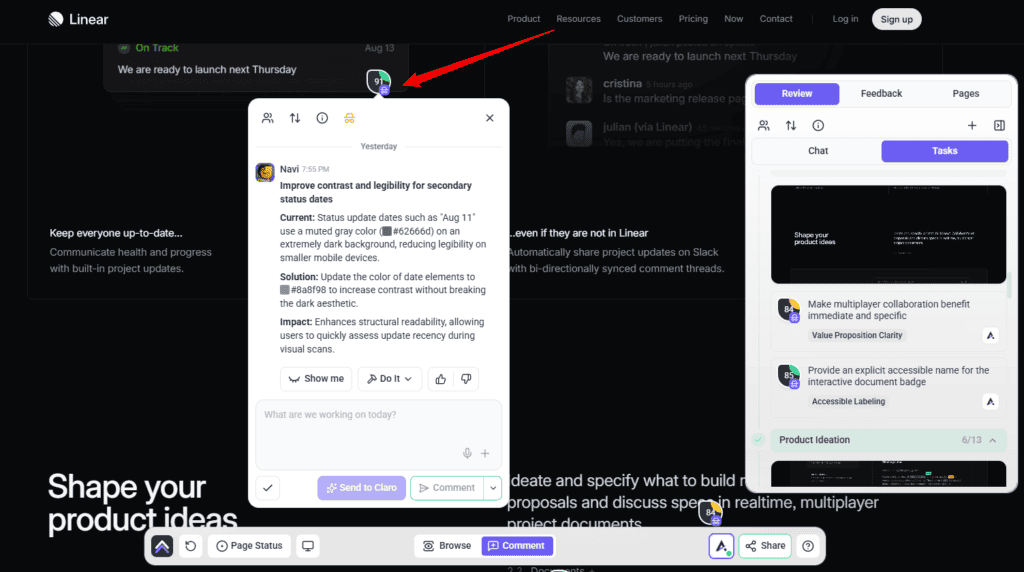
- Open the finding on the element it’s pinned to.
- Select Show me to see the change applied to the page in front of you. Nothing is committed. Toggle it off to compare against the original, or regenerate it if it isn’t what you meant.
- Select Do It to apply it for real. Your own click needs no approval: it queues and runs in the background. When it has applied, the task moves to Pending Review and an Undo control appears on that comment. When you ask Atarim to apply findings for you, a change to a published, private or scheduled page waits for your approval first; drafts run straight away.
- Work through the rest in priority order.
For the Do It Queue, undoing a change and what a page needs before you can apply a change, see What Do It Can Do on the Site.
Credits
AI work uses credits from your workspace’s pool, shared across everything — checks, chat, and the work the specialists do. A check costs 10 credits for each screen-height section of the page, plus 10 for Index’s metadata pass when Index is in the check, so a long page costs more than a short one.
Turning vague feedback into work
When a comment arrives that nobody could act on — “make this pop”, “something feels off” — Claro offers the person three specific options to choose from, rather than guessing on their behalf.
How they work together
Most real problems cross domains, and the specialists hand off between themselves rather than each answering in isolation.
A worked example. A client leaves “fix this section.”
- Claro turns it into a clear brief and routes it.
- Pixel looks at the layout and spacing.
- Lexi sharpens the wording.
- Navi checks the contrast and whether it’s usable.
One vague sentence becomes work in four domains, without you sorting it.
What they won’t do
| They won’t | Why it matters |
|---|---|
| Change anything during a review | Reviews are read-only. Always. |
| Publish without approval | Site changes needing sign-off wait for your decision. |
| Take a live page down | Rebuilds are staged as a draft and swapped in once, on approval. |
| Invent facts | No statistics, testimonials, prices or brand values that didn’t come from your brief. |
| Replace your team | They catch what gets missed and do the repetitive half. Judgement is still yours. |
Working with a reply
Every AI answer carries controls beneath it. Alongside Show me and Do It you can copy the response, and rate it a good or bad response with the thumbs — that rating is how the specialists get better at the work you actually do. While a reply is still being written, select Stop to end it. What was written so far stays, marked Stopped.
The composer has a Send to Claro button beside a Comment / Add a note split button. Comment posts normally. Send to Claro brings the AI in, and the right specialist answers. Add a note posts internally, visible to Admins and Team Members only. To hide the whole task from guests and clients, select the internal icon at the top of the task (tooltip Set internal task). Select it again to share it once it’s ready.
White-label behaviour
Frequently asked questions
Do I need to install anything?
Not to review. To let the specialists change a site, it needs the Atarim WordPress plugin and WordPress 6.9 or later.
Do I have to choose which specialist answers?
No. Describe the problem and the right one picks it up. You can select them by hand before a check if you want a particular lens.
Can they change my site during a review?
No. Reviews are read-only. Making changes is a separate request, and anything needing sign-off waits for your approval.
Can clients see the AI?
Clients see feedback clarification on their own comments, because they’re the one answering it. To keep a task and its replies from guests and clients, make the task internal with Set internal task.
What’s the difference between Show me and Do It?
Show me previews the change on the page in front of you — you can toggle it off to compare, regenerate it if it isn’t what you meant, and screenshot the result into the thread as a comment. Do It applies it for real, queuing and running in the background, after which an Undo control appears on that comment. On a connected WordPress site, Do It writes the change properly.
How do I turn a finding into actual work?
Use Show me to preview the change and Do It to apply it. Applying one moves the task to Pending Review and leaves an Undo control on that comment if you change your mind.
Do checks use credits?
Yes, from one shared workspace pool covering checks, chat and the work itself. A check costs 10 credits for each section of the page, plus 10 for the metadata pass when Index is in the check. You’re warned before a check starts if the workspace is low.
Can I run a review more than once?
Yes. Each run looks at the current version of the page, so re-running after a round of fixes shows what’s left.
Do they only review, or do they build things?
Both. Pixel builds logos, images, sections and whole pages; Lexi writes posts, proposals and client updates. The other three fix within their domains.
Do they find JavaScript errors?
Not as a separate check. Reviews read what is visible on the page at each screen size. Index does run a separate pass over the page’s metadata.
Does this replace my QA or my designer?
No. They catch what gets overlooked and handle the repetitive half. The judgement, the client relationship and the final call stay with you.
Common issues
- A specialist you wanted didn't take part — the preset didn't include them. Use Custom and pick them directly.
- Results feel generic — add a description before running the check, and set up the brand kit. Both change the output substantially.
- More findings than expected — detection reaches into nested layouts. Work down the priority order rather than top to bottom.
- A change vanished on refresh — that was a Show me preview, which is never saved. Use Do It on a WordPress site connected through the plugin to keep a change.
- A check won't start — the workspace may be low on credits. You're told before it begins rather than partway through.
- There's no Review This Page button — collaborators and guests can't start a check. Ask an Administrator or Team Member to run it.
- A check ends with “This review couldn't finish” — something went wrong, or the check was stopped. Select Start a new review to run it again.
- Nothing changed after a review — expected. Reviews never change anything; ask for the work separately.
- A fix is waiting and hasn't applied — a change you asked the AI to apply to a published, private or scheduled page waits for your approval. Read it, then decide. If nobody decides within 14 days, it is declined automatically.
- Nothing can be changed at all — check the site is on WordPress 6.9 or later with the plugin connected.
Conclusion
The InnerCircle is most useful when you stop treating it as a review tool. Reviewing is the visible half; the specialists will also write the copy, build the section, fix the link and repair the contrast — when you ask, on a page that stays up, with a way back if it's wrong.
The two things that most change what you get out of them: a filled-in brand kit, and a sentence of context before each check. Both take minutes and both affect every result afterwards. Explore Agency Brief: Building Your Brand Kit.
Tips & best practices
- Write a description before every check — it changes the results more than anything else.
- Set up the brand kit; without it, design and copy work is generic.
- Read the whole review before applying anything — work the priority order, not the page order.
- Check the device marker before fixing — it may only fail on mobile.
- Run several specialists together; problems rarely sit in one domain.
- Ask for the work, not just the review. That half is easy to miss.
- Use Show me in front of clients rather than describing a change.
- Connect the plugin before a working session, so changes save.
- Let clients leave messy feedback — clarification is built for it.