Best Practices for Time Management and Task Prioritization
Decide what to work on next, and make sure nothing important gets buried.
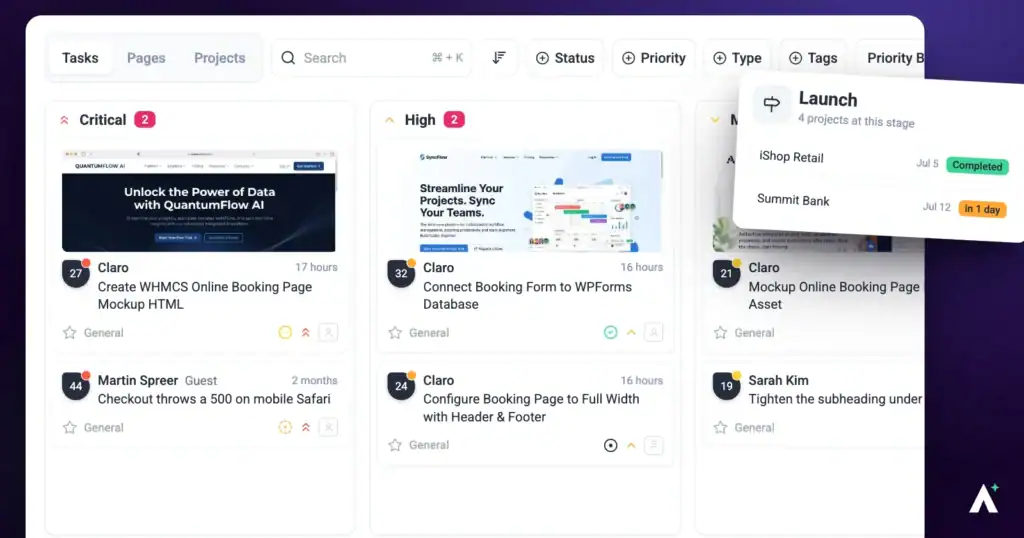
Keeping projects on track comes down to two questions: what phase is the work in, and what should someone pick up next. Project stages answer the first, the Priority board view answers the second, and a weekly review keeps both honest.
One view that answers “what do we do next?”
1. Organise Work with Project Stages
Stages break a project into phases, so it’s clear what’s required before the work moves on.
Instructions:
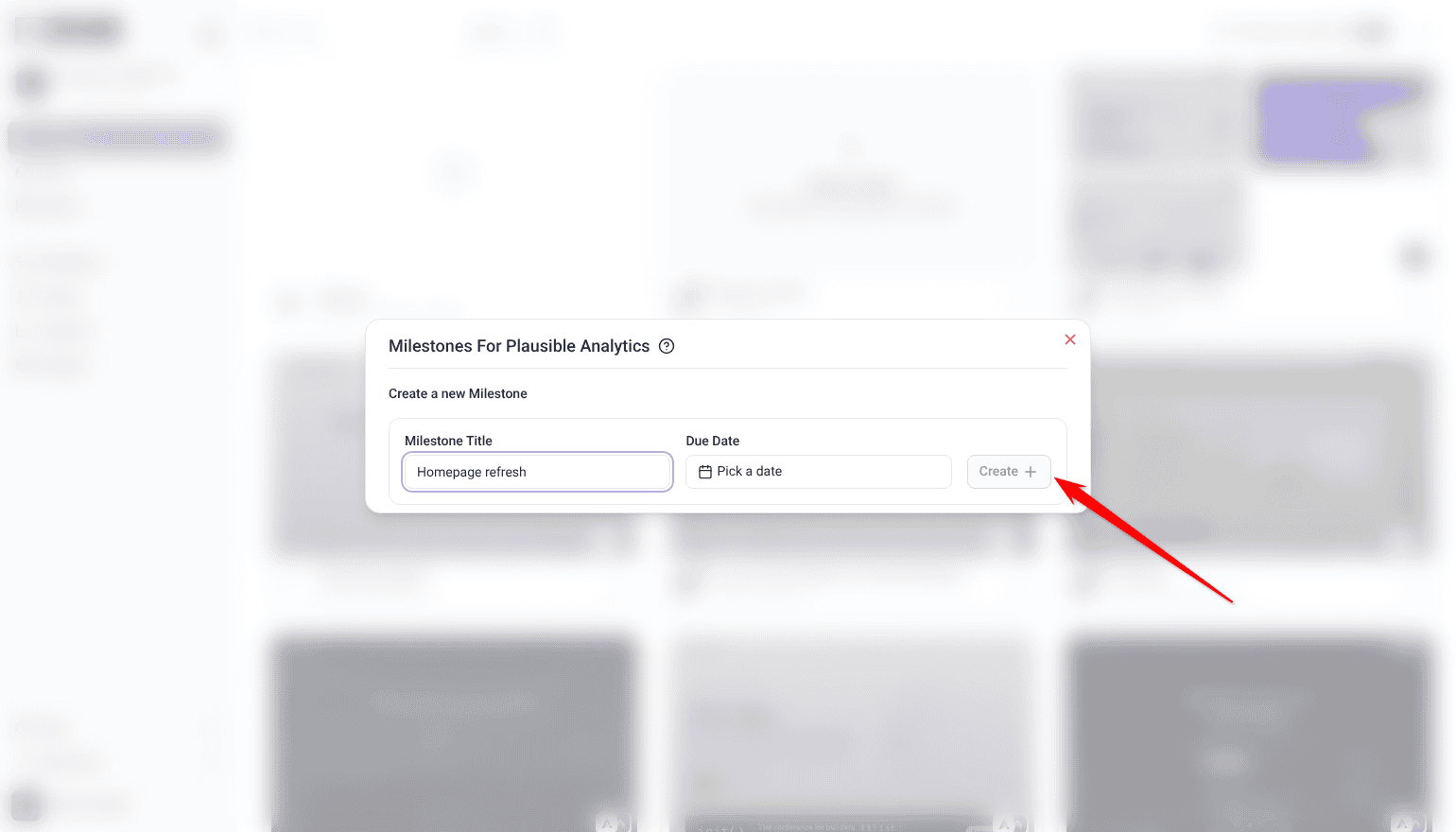
- On the Projects screen, open the project’s ⋮ menu and select Set Project Stages.
- Under Create a new Milestone, enter a Milestone Title for each stage your work actually runs through, such as Planning, Design, QA and Final Audit.
- Set a Due Date, then select Create.
- Create tasks with their stage in mind, so people know what has to happen first. Everyone can see which phase the project is in.
- When a stage is finished, select the clock icon beside it (Mark milestone as complete).
Project stages are a paid feature, and Team Members don’t see Set Project Stages by default.

2. Prioritise with the Priority Board View
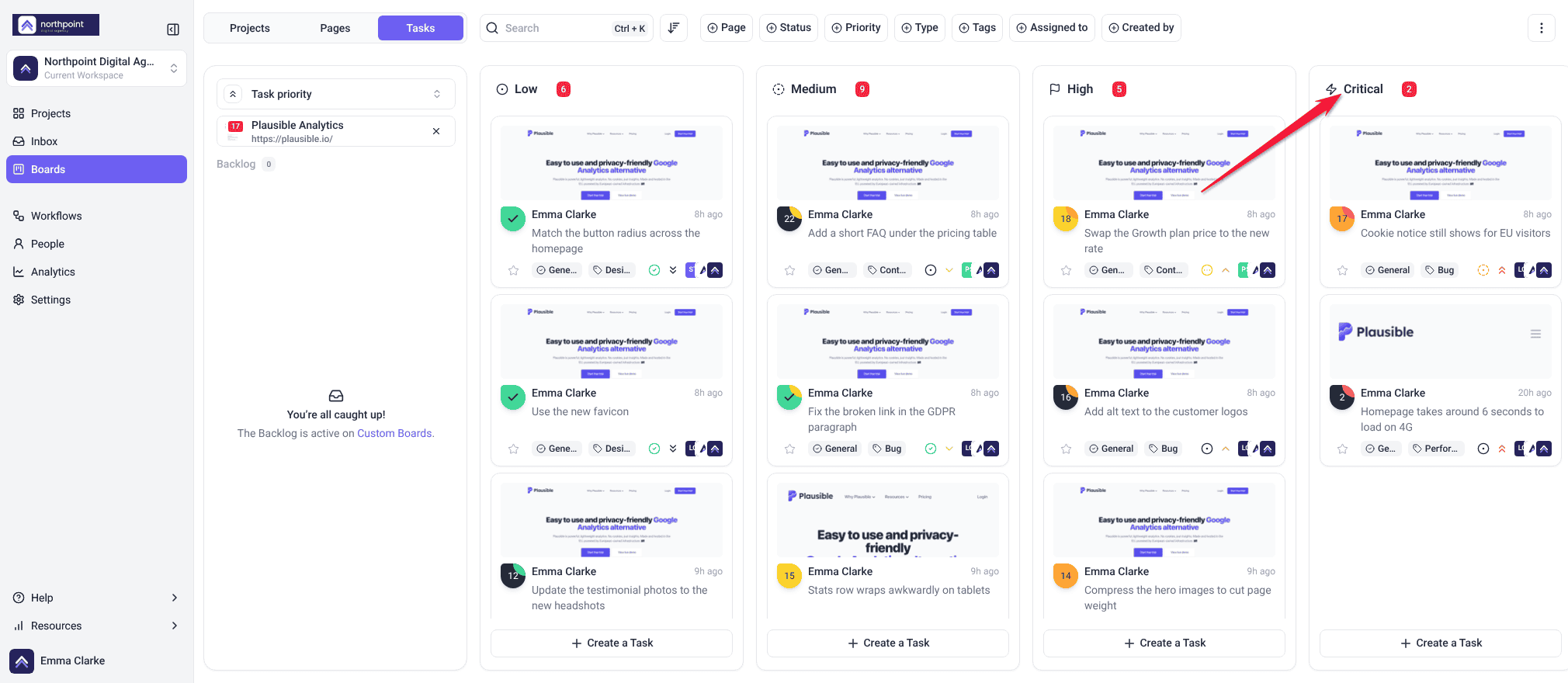
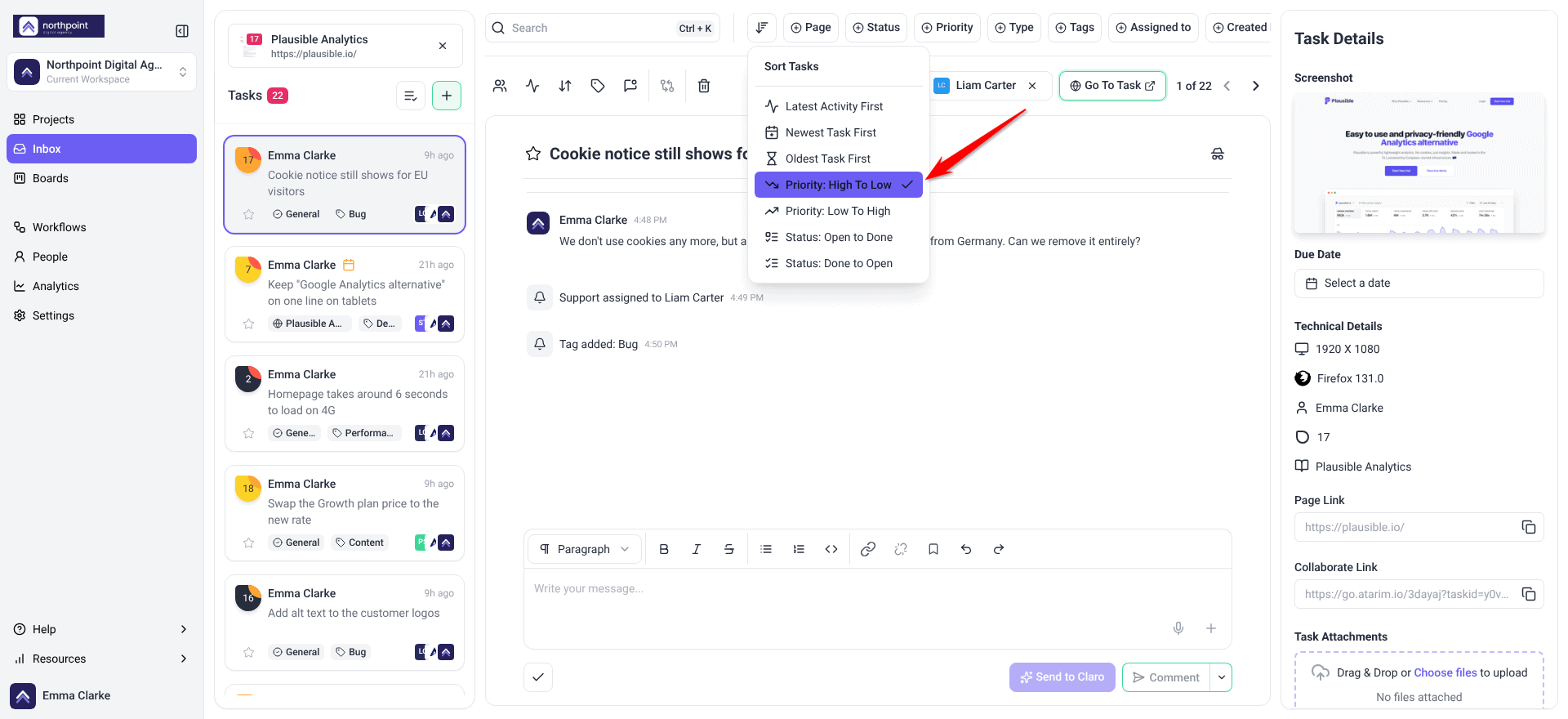
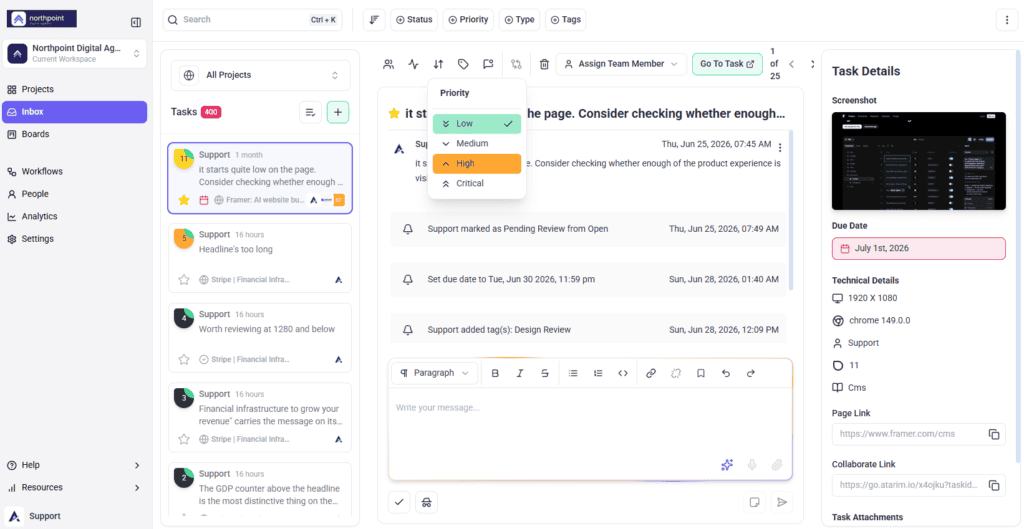
The board’s Priority view groups tasks by urgency, so the queue is visible rather than something you hold in your head.
| Priority | Use it for |
|---|---|
| Critical | Blocking work, or anything client-facing that’s broken now. |
| High | Due soon, or holding up someone else. |
| Medium | Planned work with room in the schedule. |
| Low | Worth doing, but nothing breaks if it waits. |
The board only reflects reality if priorities are actually set, so this view is only as good as the triage behind it.
Instructions:
- Open the board and switch to the Priority view.
- Set each task’s priority so the columns reflect reality.
- Work down from Critical.
3. Break Large Tasks Down
A task that never moves is usually too big rather than blocked.
Instructions:
- Use the task description or comments to lay out the smaller steps.
- Assign those steps to people, or give them their own deadlines.
- Update the task’s status and notes as each step lands.

4. Set Due Dates That Mean Something
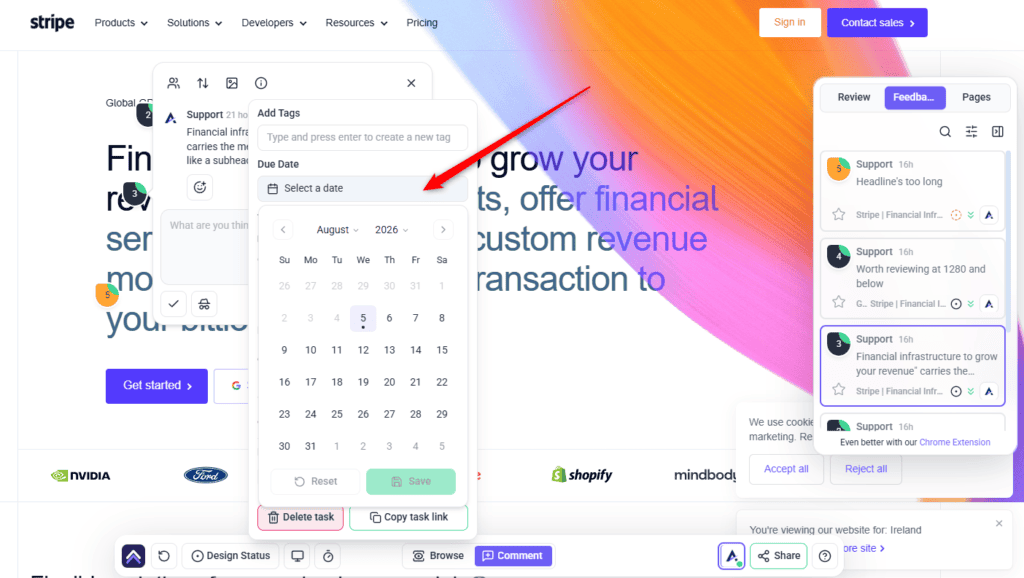
- Set a due date on tasks that genuinely have one.
- Combine due dates with priority so both urgency and deadline are visible.
- Select one project, then filter by assignee and priority to see one person’s queue.
5. Automate the Routine Parts
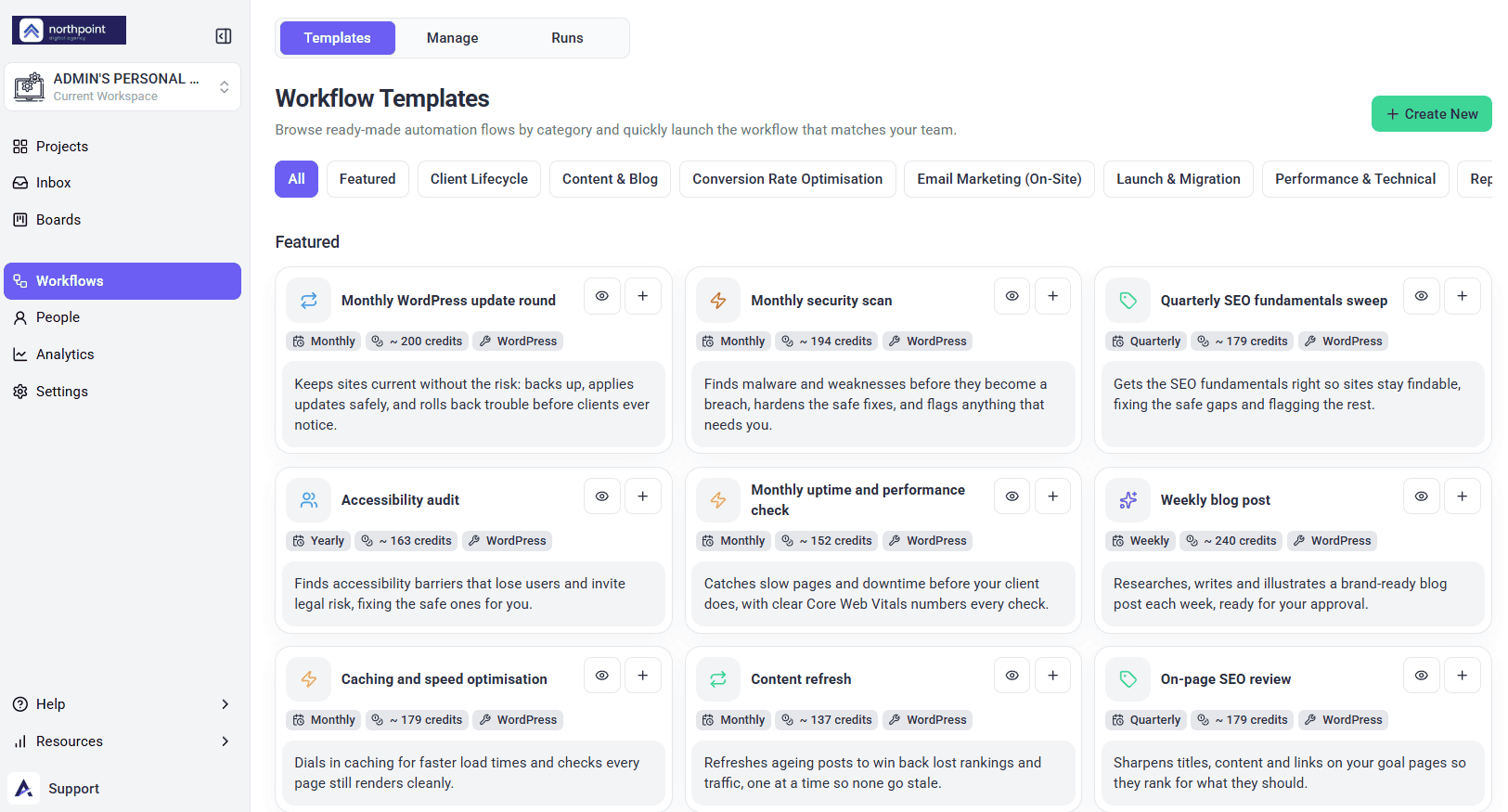
- Select Workflows in the sidebar, open the Manage tab and select Create New.
- Configure a trigger, such as a status change or a new task.
- Choose the action — a notification, or something in a connected tool.
- Test it with a real task before relying on it.
Each workflow run uses 10 credits, plus whatever any AI steps in it use. Workflows are a paid feature, and Team Members don’t see Workflows by default.
6. Run a Weekly Review
- Schedule a short session to look at completed work and what’s pending.
- Re-prioritise anything whose urgency has changed.
- Adjust stages and deadlines to match reality.
FAQs
How do I change a task’s priority?
Drag it between columns in the Priority board view, or open the task and set the value directly.
What are the priority levels?
Low, Medium, High and Critical.
How do I optimise project stages?
Review them regularly and adjust to match how your team actually works. Stages that don’t reflect reality stop being useful.
Will the team be notified when I change a stage?
Yes. Creating or completing a stage emails everyone assigned to the project, and assignees are emailed again as the due date approaches and after it passes. Anyone reviewing through a share link without an account is not emailed, so tell them directly.
Should every task have a due date?
No. Dates on tasks that don’t need them make people ignore dates generally.
How do I see one person’s workload?
Select one project on the board, then filter by assignee, optionally combined with priority.
Common issues
- Everything is marked Critical — re-triage. If most things are critical, nothing is, and people stop using the view.
- Work piles up at one stage — that’s a bottleneck. Look at resourcing rather than the tasks themselves.
- A dragged task didn’t move — if an upgrade card opened, your plan doesn’t include changing status and priority. Otherwise, open the task and set its priority directly.
- Nobody knows what to pick up — make sure every task has a priority and an owner.
- Deadlines keep slipping — tasks are probably too large. Break them into smaller pieces so progress is visible earlier.
- A workflow isn’t firing — check the trigger conditions still match how you work.
Conclusion
Prioritisation works when the board reflects reality: stages that match how work actually flows, priorities that are used sparingly enough to mean something, and tasks small enough that progress is visible.
The weekly review is what holds it together. Without it, the board drifts from the truth and people go back to deciding priority in their heads. Discover How To Handle Backlogs And Bottlenecks
Tips & best practices
- Keep the Priority view current — it’s only useful if it’s accurate.
- Reserve Critical for work that genuinely blocks something.
- Check for bottlenecks if tasks aren’t moving through stages.
- Break large tasks into smaller ones so progress shows earlier.
- Use due dates selectively rather than by default.
- Audit workflows so automations match your current process.