Teamwork
Sync your Atarim tasks with Teamwork for faster collaboration and smoother project execution across tools.
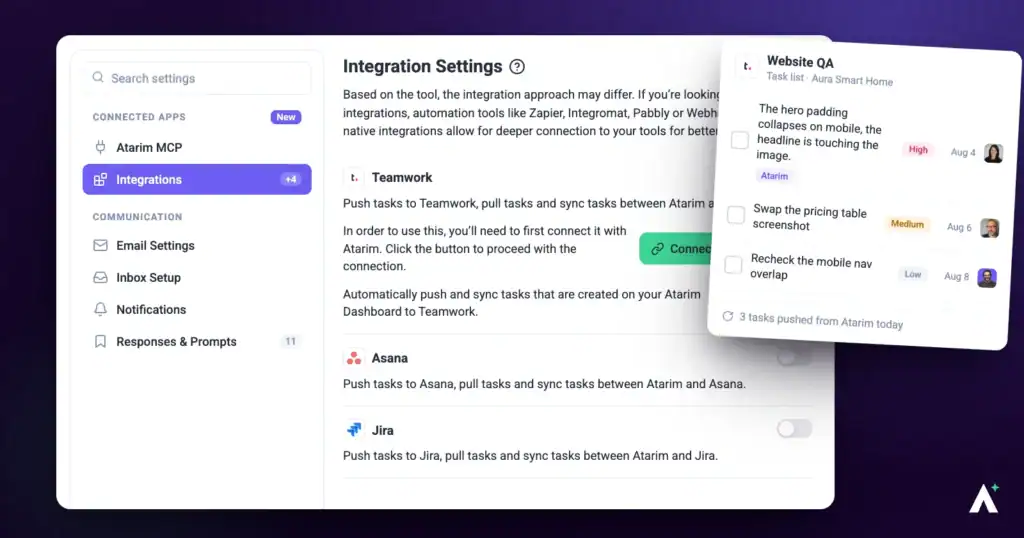
In this article, you'll learn how to connect Teamwork to your Atarim workspace so tasks stay in sync across both platforms — keeping your team aligned without jumping between tools.
Step-by-Step Guide
1. Connecting Your Teamwork Account
The first step is enabling the Teamwork integration within your Atarim settings.
Instructions:
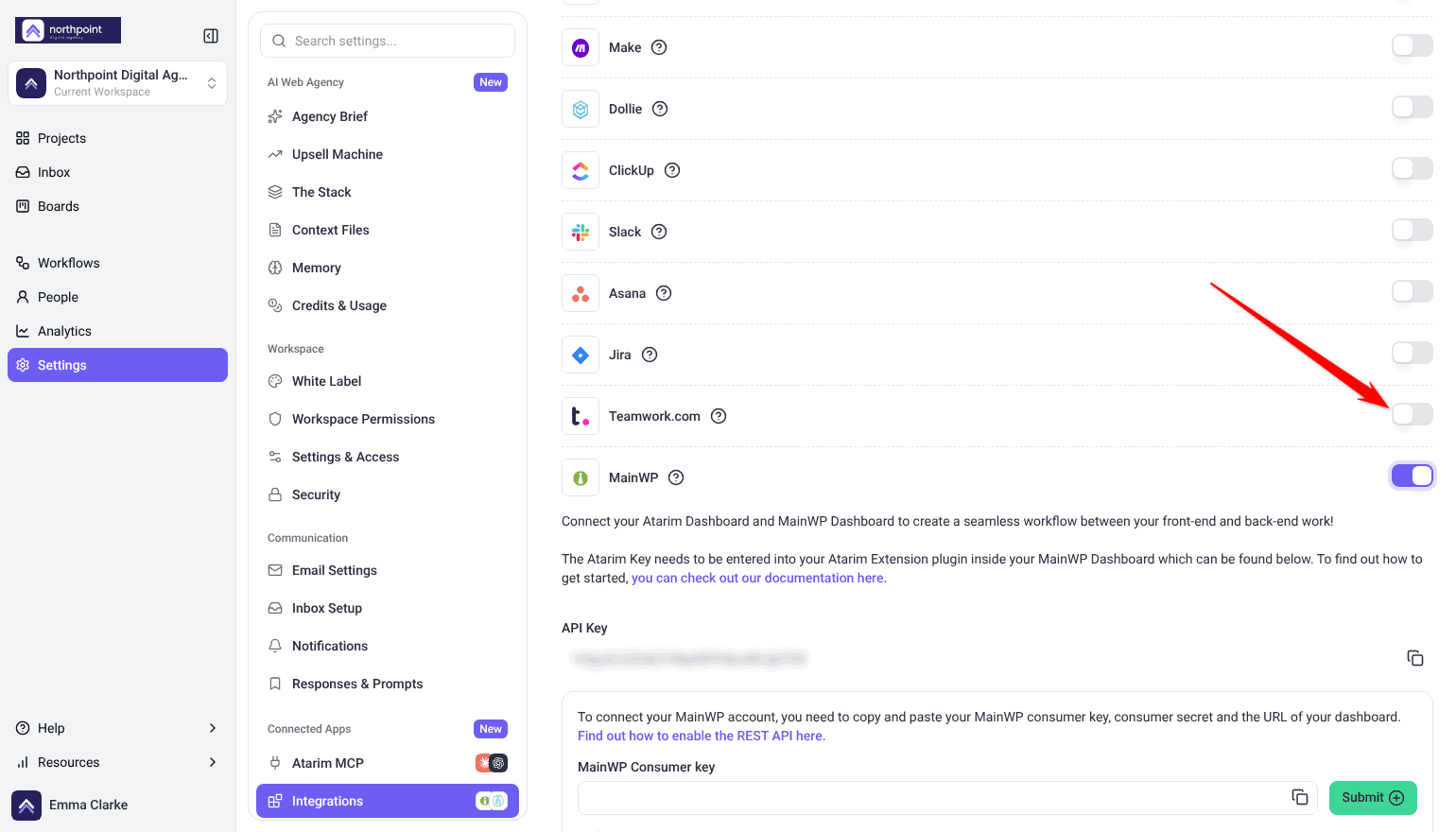
- Log in to your Atarim Dashboard.
- Go to Settings.
- Under Connected Apps, select Integrations.
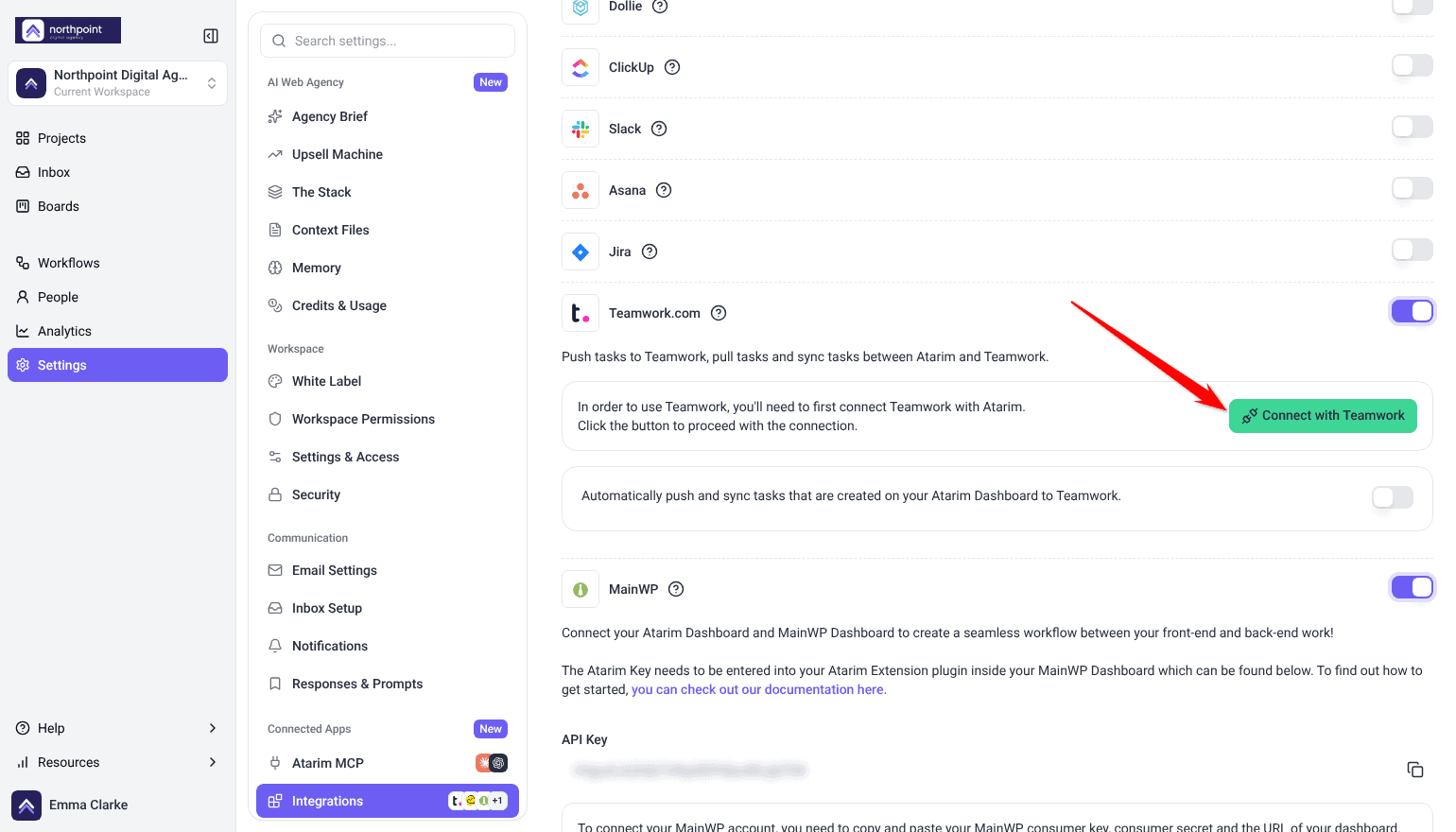
- Find Teamwork.com and switch its toggle on.
- Select Connect with Teamwork.
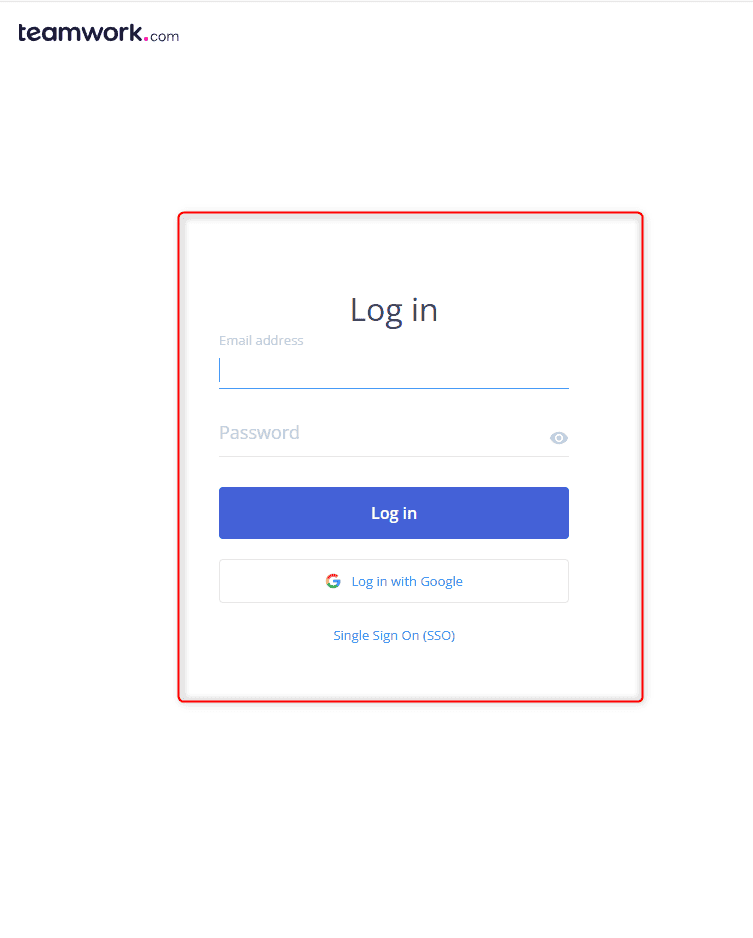
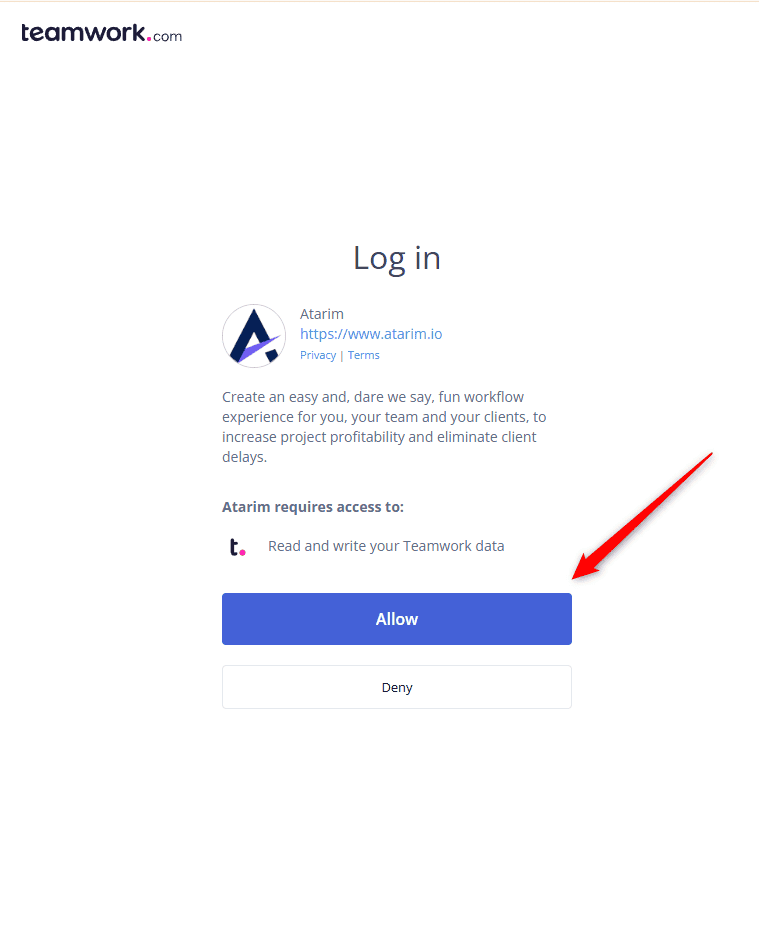
- If prompted, log in to Teamwork with your credentials and select Allow to grant Atarim access.
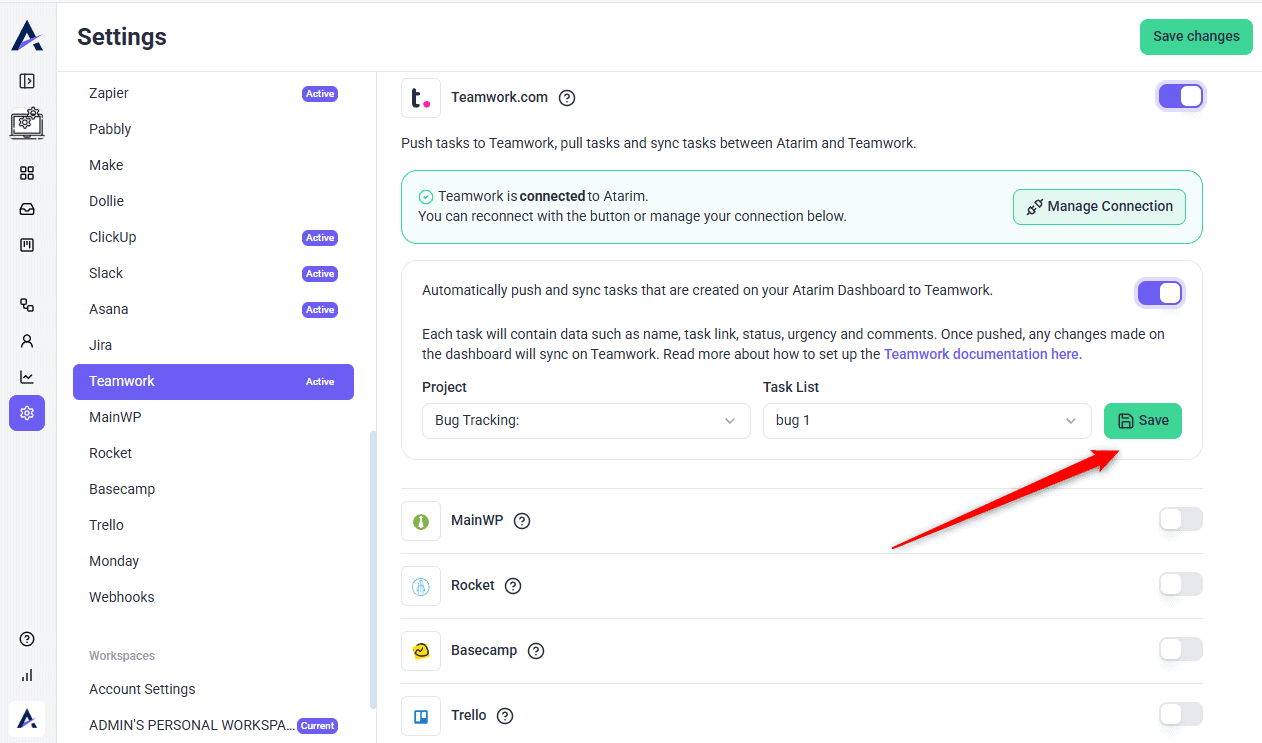
- You’re returned to Atarim. The card now says Teamwork is connected to Atarim, and the button reads Manage Connection.
2. Automatically Pushing Tasks to Teamwork
Set up automatic pushing so every new task created on your Atarim dashboard goes to a Teamwork Project and Task List you choose. Each task carries its name, a link back to the task, its status, urgency and comments.
Instructions:
- On the same card, switch on Automatically push and sync tasks that are created on your Atarim Dashboard to Teamwork.
- Select the Teamwork Project and Task List where Atarim tasks should be created.
- Select Save to confirm.


3. Configure Workflow Automations
Enhance efficiency by automating task management between Atarim and Teamwork:
Instructions:
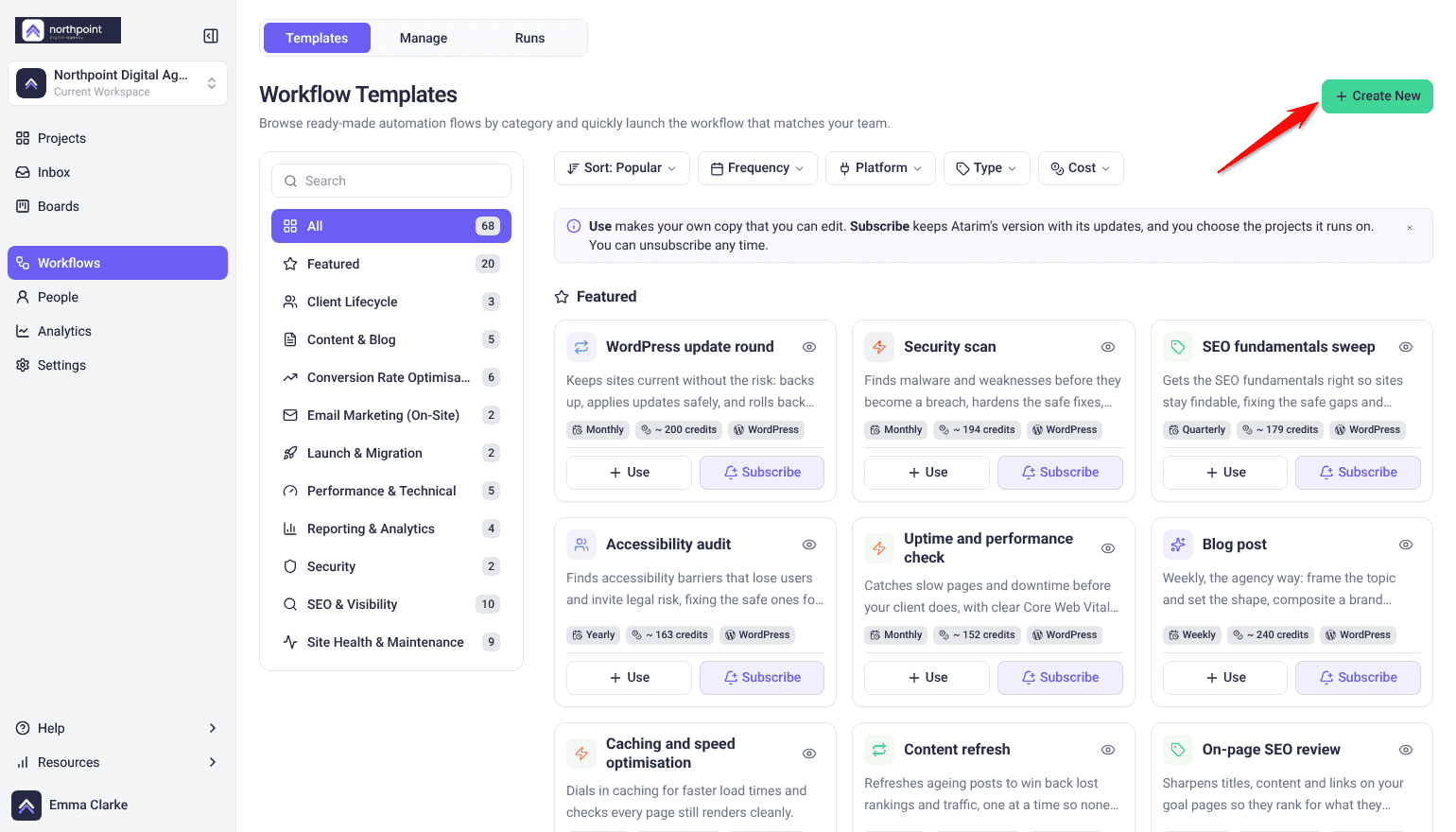
- Open Workflows in the Atarim Dashboard. It has three tabs — Templates, Manage and Runs.
- On the Templates tab, select Use on a template to make your own editable copy. Subscribe keeps Atarim’s version up to date instead, but you can’t edit its steps. To start from nothing, select Create New, or Create a Blank Workflow from inside a template’s preview.
- Set a trigger such as Task added, then add the Add Task to Teamwork action and choose the Teamwork Project and Task list it should push to.
- Save the workflow. Creating one needs the workflow-creation permission, so if the buttons are not available to you, check your role.

4. Testing the Integration
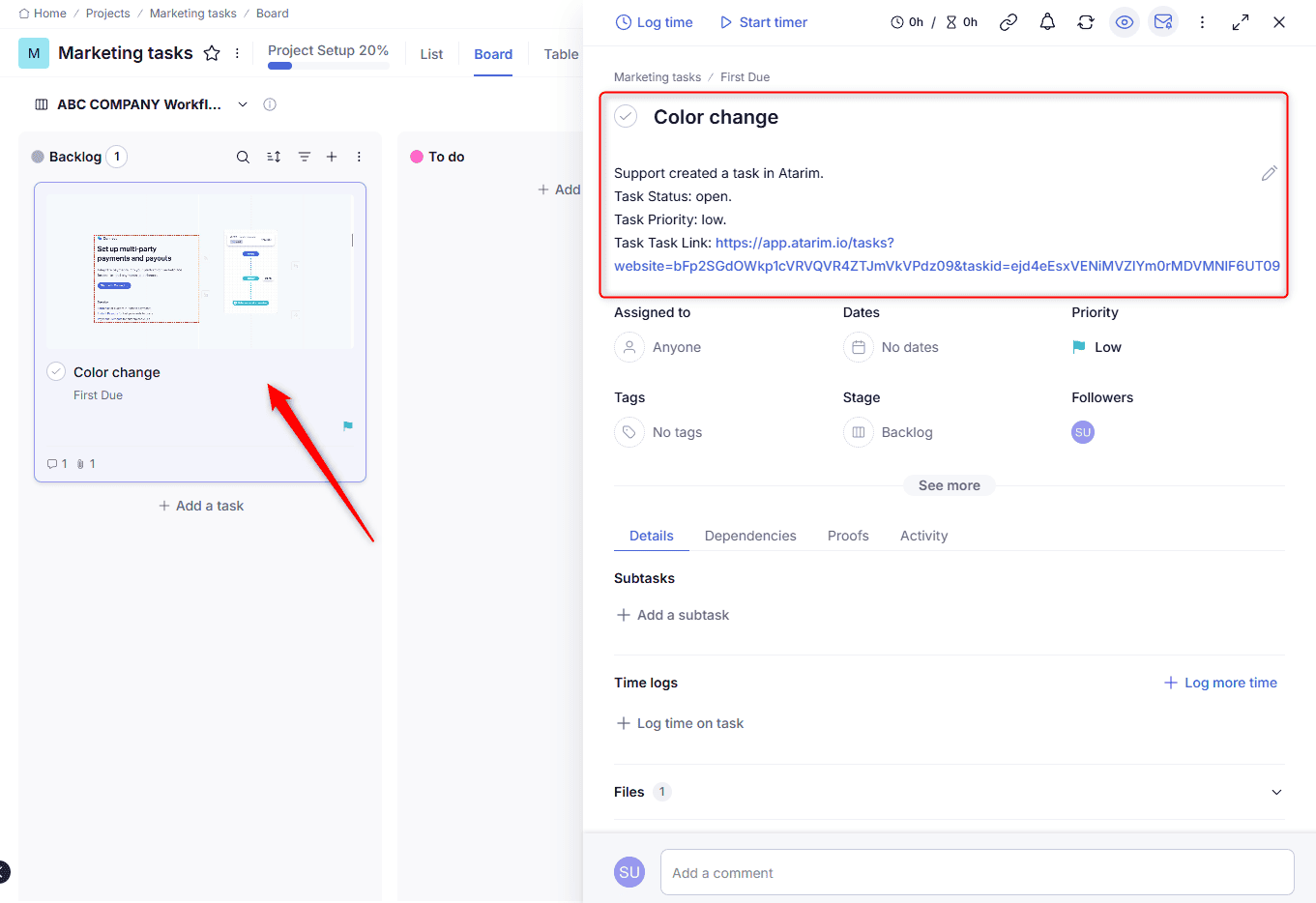
Verify the setup by creating a task in Atarim and checking its sync to Teamwork.
Instructions:
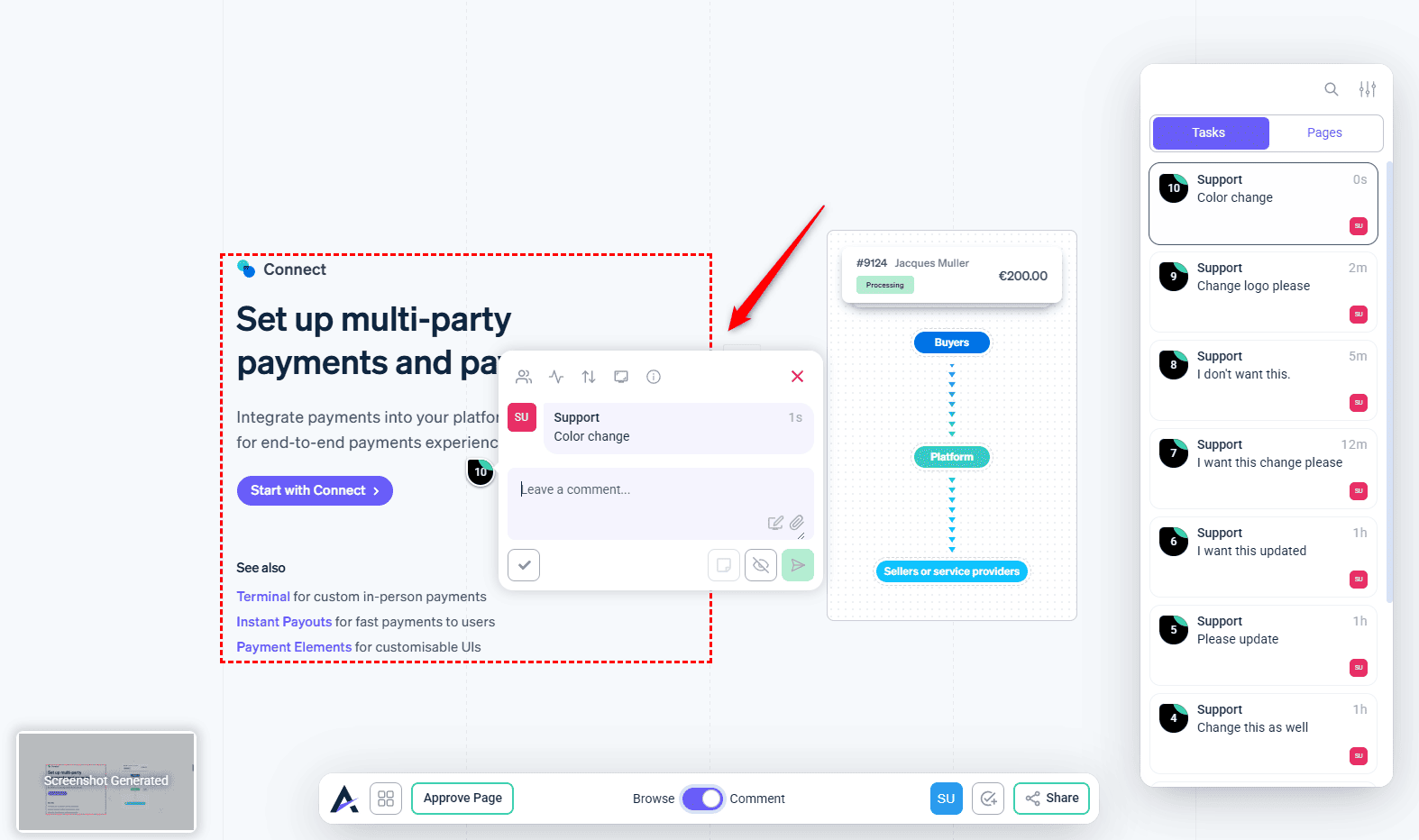
- Create a task in Atarim for one of your projects.
- Open the Teamwork project and task list you configured.
- Confirm the task appears with the correct details.
5. Pushing or importing tasks by hand
You can also push a single task to Teamwork yourself, or bring Teamwork work into Atarim.
- To push one task, open it in the Inbox and select the Integrations icon in the task toolbar. Choose Push to TeamWork, pick the project and task list, then select Create Task on Teamwork.
- To import, open the Inbox’s More Actions menu and select Import Tasks › Import from TeamWork. Choose the Teamwork project and list and the Atarim project the tasks should land in, then select Import Tasks. Tick Create all tasks as Internal Tasks (not visible to clients) to keep them from clients. For the other options in the import window, see Importing tasks.
FAQs
What happens if I disable the Teamwork integration after setup?
Disabling the integration will stop the sync between Atarim and Teamwork. Tasks already created in Teamwork will remain, but no new tasks or updates from Atarim will be pushed moving forward.
Who can manage the integration in my workspace?
Only Admins and Workspace Owners can enable or disable the Teamwork integration and manage project mappings in Atarim. Standard users can still work with tasks, but cannot access integration settings.
Conclusion
Syncing tasks from Atarim to Teamwork automatically cuts double entry, speeds up delivery, and keeps both platforms aligned.
Tips & best practices
- Start small: begin with one or two project mappings to test your setup.
- Notify your team: let others know where to create and manage tasks after the integration.
- Monitor the sync: check both platforms during the first week to confirm data stays consistent.