Basecamp
Seamlessly connect Atarim with Basecamp to streamline your task management and automate your workflow.
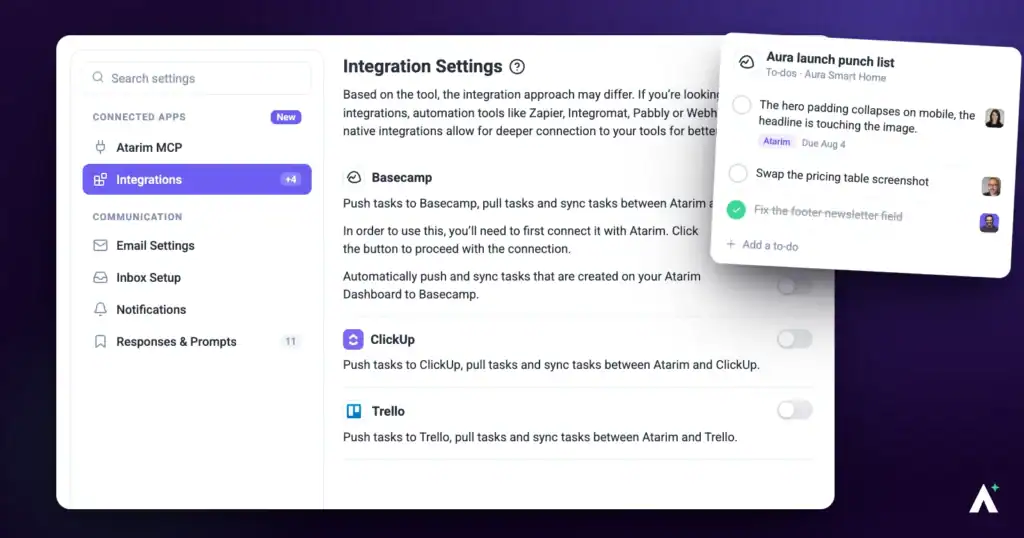
Managing work across multiple platforms can lead to missed tasks and duplicated efforts. With Atarim’s Basecamp integration, you can connect both tools to create a unified task management experience. Basecamp is a deep native integration, so if it is not included on your plan the toggle shows a lock naming the plan you would need.
In this guide, you'll learn how to:
- Connect your Basecamp account to Atarim
- Automatically sync tasks from Atarim to Basecamp
- Use Workflows to automate your task syncing
- Test your integration by creating a live task
Step-by-Step Guide
1. Connecting Your Basecamp Account
To start using the integration, you’ll first need to authorize your Basecamp account within Atarim.
Instructions:
- Go to your Atarim Dashboard.
- Go to Settings, and under Connected Apps select Integrations.
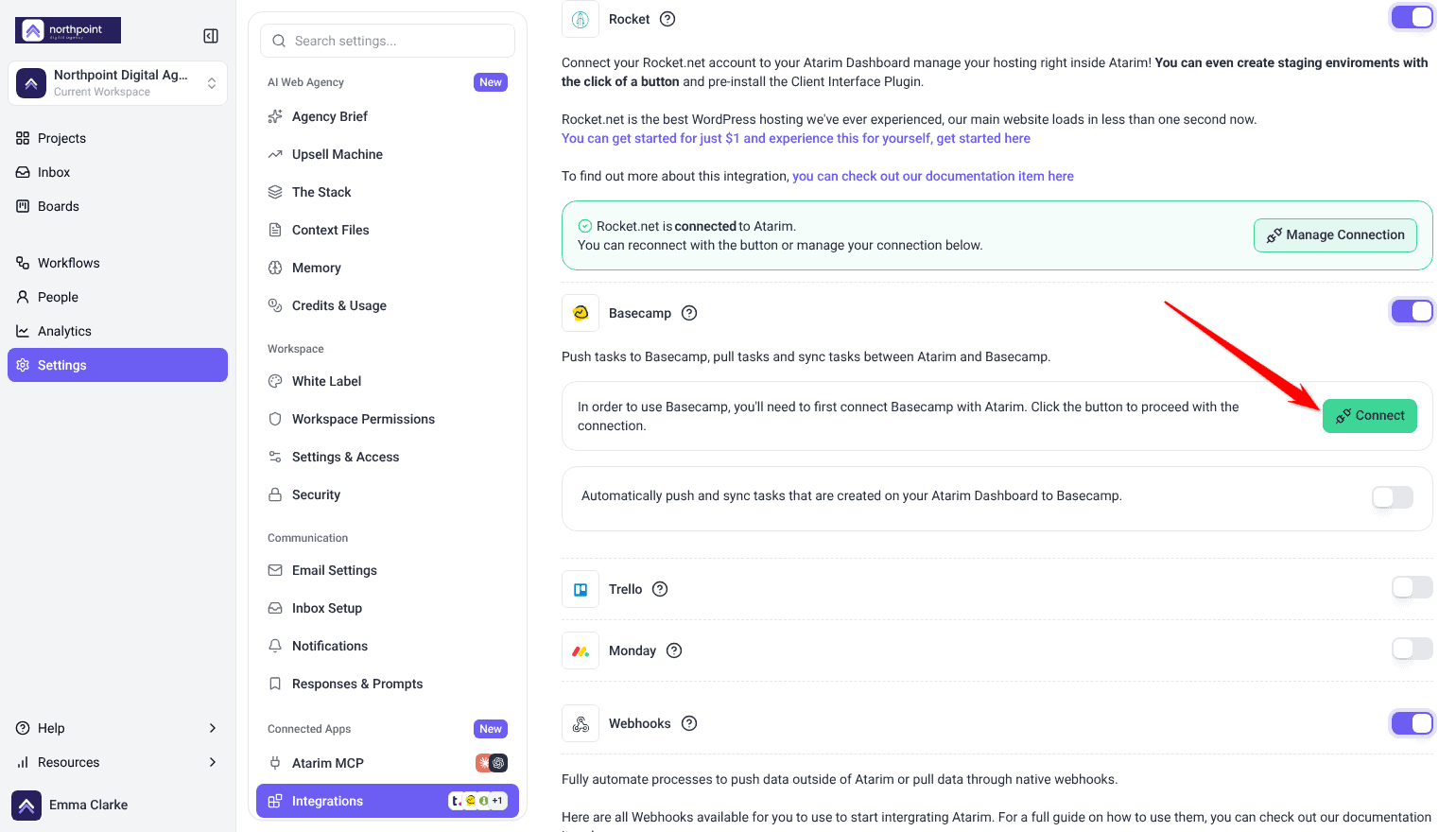
- Find Basecamp and switch its toggle on.
- Select Connect on the Basecamp card.
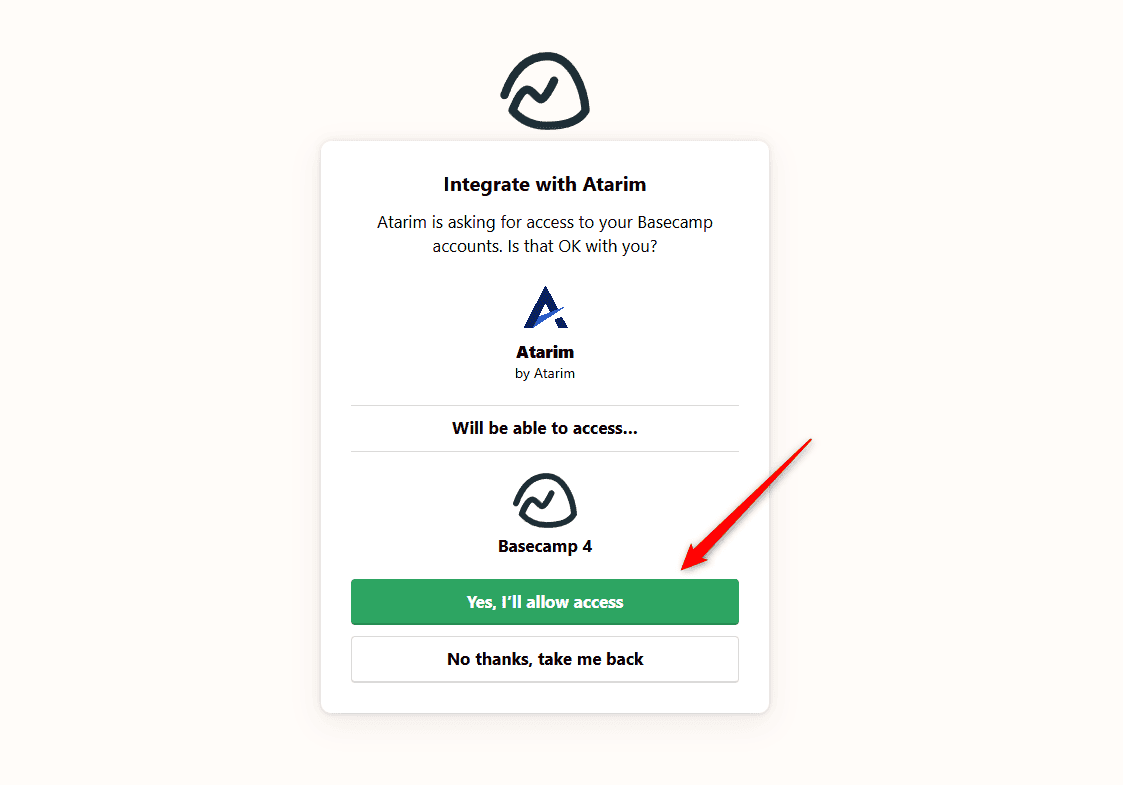
- If already logged into Basecamp, a confirmation screen appears.
- Click Yes, I’ll allow access to complete the connection.
- Once connected, the button becomes Manage Connection, and the card tells you Basecamp is connected to Atarim.
2. Automatically Pushing All Tasks to Basecamp
Enable full automation to ensure all tasks created in Atarim sync directly into a Basecamp Project and Task List of your choice.
Instructions:
- Return to Settings → Connected Apps → Integrations in Atarim.
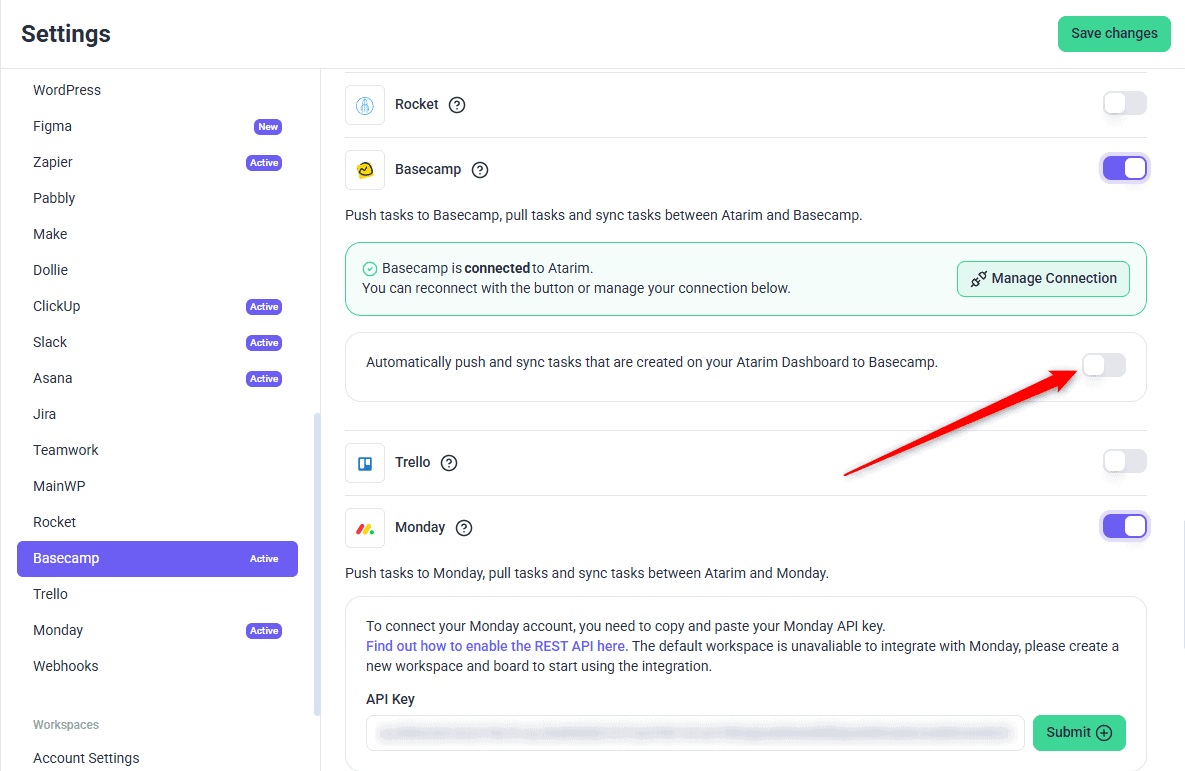
- Switch on Automatically push and sync tasks that are created on your Atarim Dashboard to Basecamp.
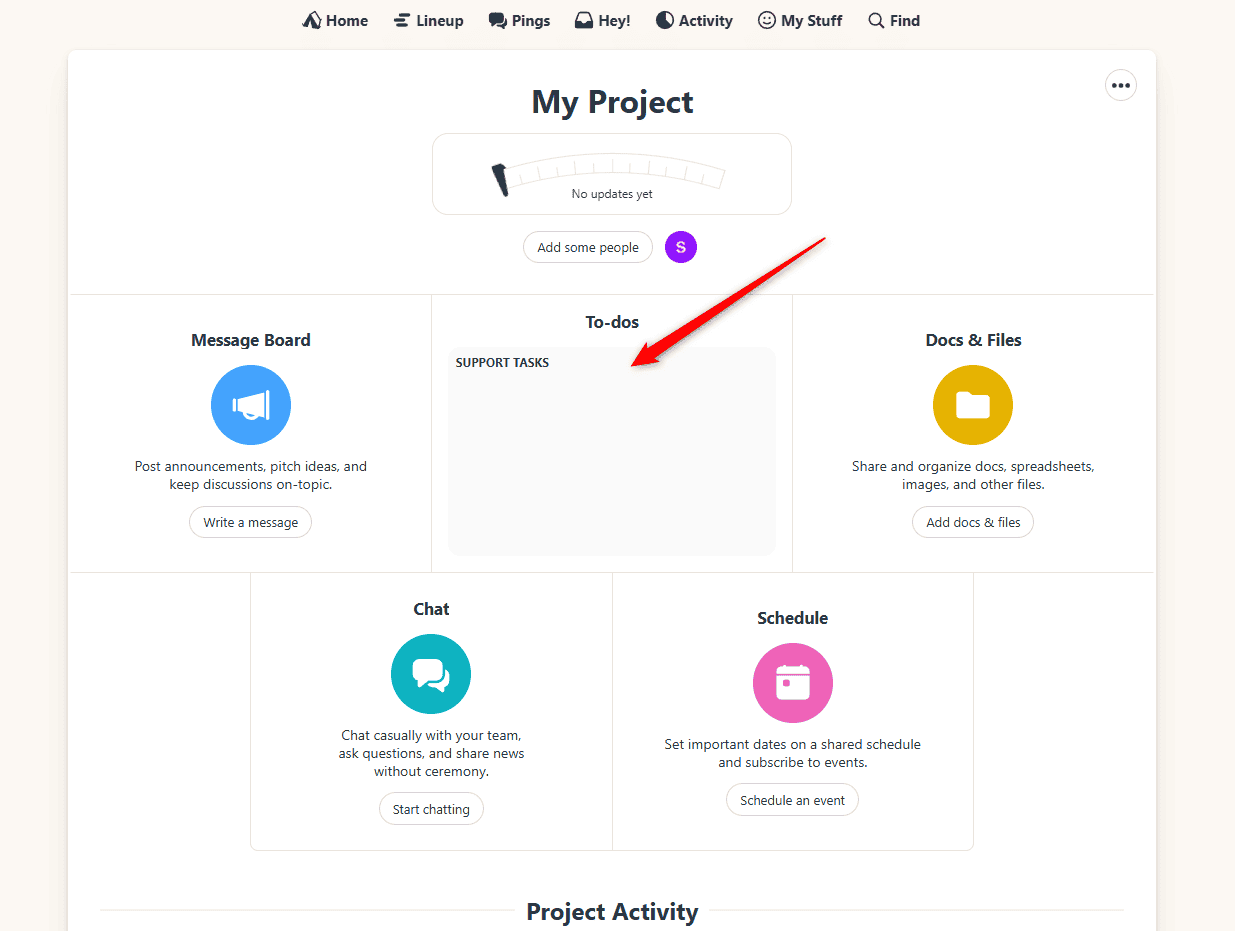
- Select the default Project and Task List to receive new tasks.
- Click Save.

3. Automating with Workflows
You can further customize and automate your sync process using Atarim’s Workflows feature.
Instructions:
- Go to the Workflows section from the main navigation.
- Select Create New — the button sits on both the Templates and Manage tabs. Opening a template and choosing Create a Blank Workflow gets you to the same empty canvas.
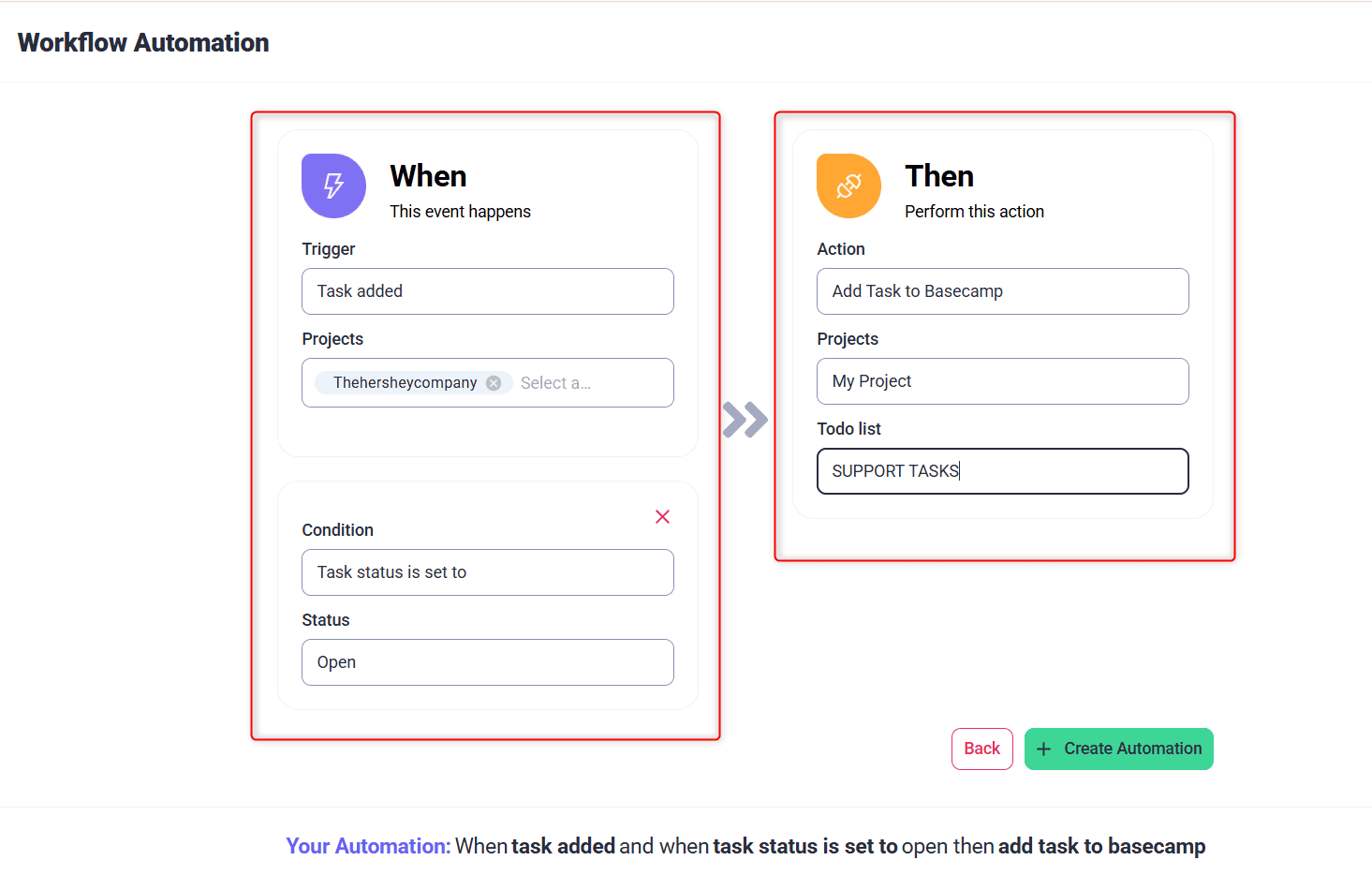
- Set the trigger to Task added.
- Add the action Add Task to Basecamp and choose where the task should go in Basecamp.
- Save your workflow, then attach it to a project and activate it — saving alone does not start it.
4. Creating a Task (Let’s See It in Action)
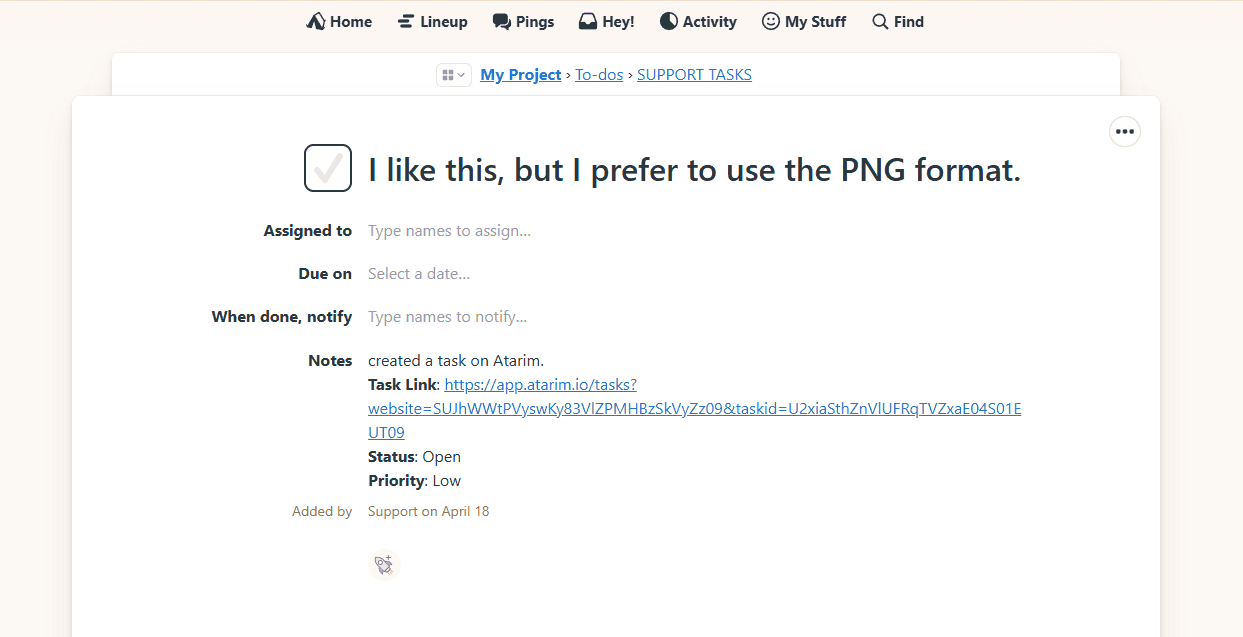
Once everything is connected and automation or workflows are configured, it’s time to test it all by creating a task.
Instructions:
- Navigate to one of your websites or visual collaboration assets inside Atarim.
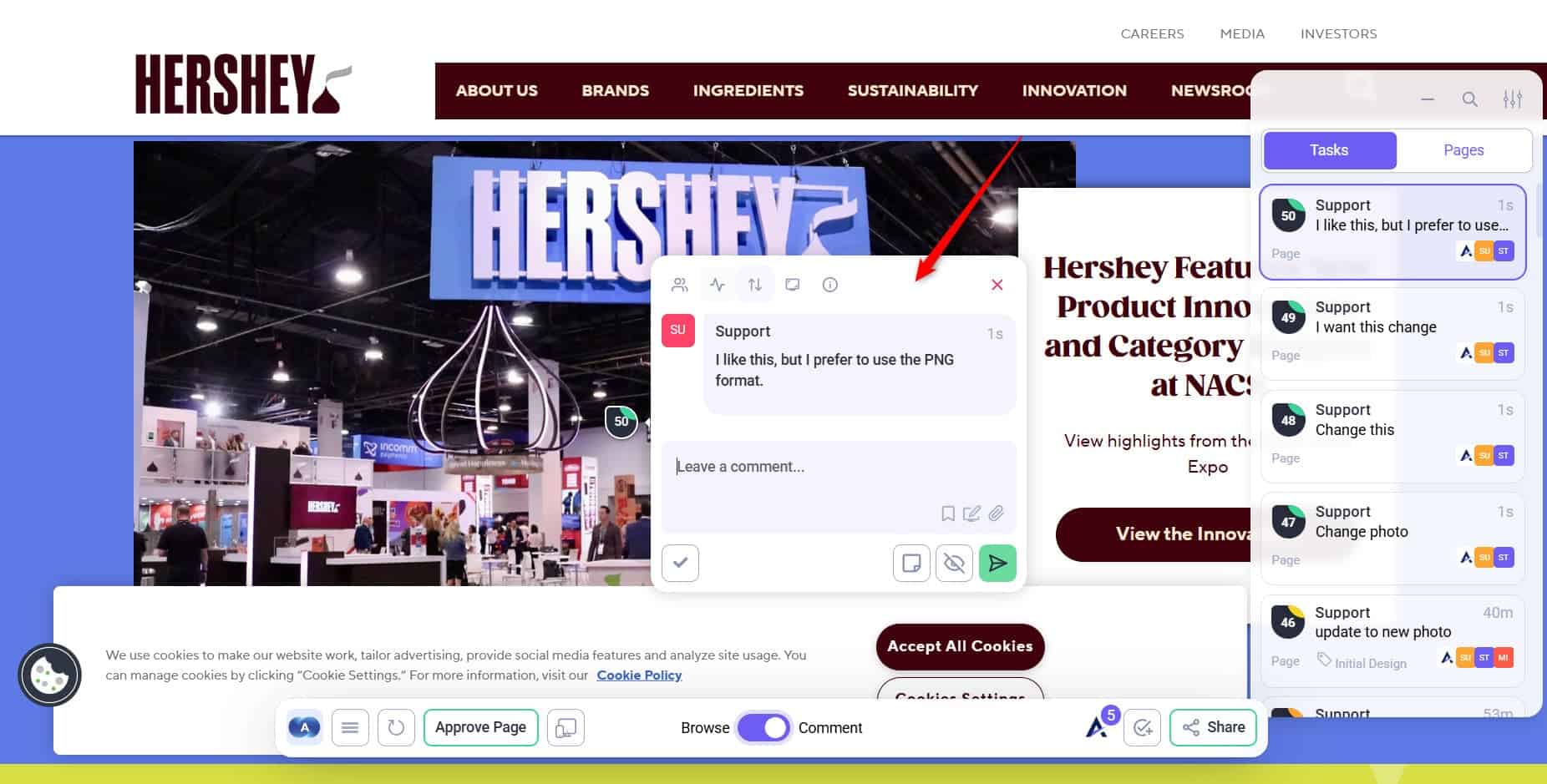
- Create a new task using your usual process—clicking on an element, leaving a comment, or adding a general task from the sidebar.
- Change your task details like title, status, or tags.
- Select Comment to create the task.
5. Pushing or importing tasks by hand
You can also push a single task to Basecamp yourself, or bring Basecamp work into Atarim.
- To push one task, open it in the Inbox and select the Integrations icon in the task toolbar. Choose Push to Basecamp, pick the project and task list, then select Create Task on Basecamp.
- To import, open the Inbox’s More Actions menu and select Import Tasks › Import from Basecamp. Choose the Basecamp project and list and the Atarim project the tasks should land in, then select Import Tasks. Tick Create all tasks as Internal Tasks (not visible to clients) to keep them from clients. For the other options in the import window, see Importing tasks.
FAQs
Can I choose which tasks get pushed to Basecamp?
Yes, use custom workflows to control exactly which tasks are synced based on triggers and filters
Does this integration sync tasks in both directions?
Partly. When you push a task with Sync Task with Basecamp ticked, comments added in Basecamp come back to the Atarim task. You can also import Basecamp to-dos with Import Tasks.
Can I push updated tasks to Basecamp automatically?
Yes, but there is no Task updated trigger. Pick the trigger that matches the edit you care about: Task status changes, Task priority changes, Task comment added or Task tag added. Each fires its own workflow, so you can push different edits to different places.
Conclusion
By connecting Basecamp to Atarim and using automation features like auto-push and workflows, you eliminate the need for manual task entry, improve visibility across platforms, and keep your entire team moving in sync.
Tips & best practices
-
Auto-push for speed, workflows for control: Use auto-push for general tasks, and workflows to control what gets synced and when.
-
Keep your teams aligned by standardizing which types of tasks go to Basecamp—especially when collaborating with external teams.
-
Use internal tasks in Atarim when you don’t want certain tasks (like QA or design iterations) visible in Basecamp.