Make
Push task data out of Atarim, or pull data in from thousands of other tools, without writing any code.
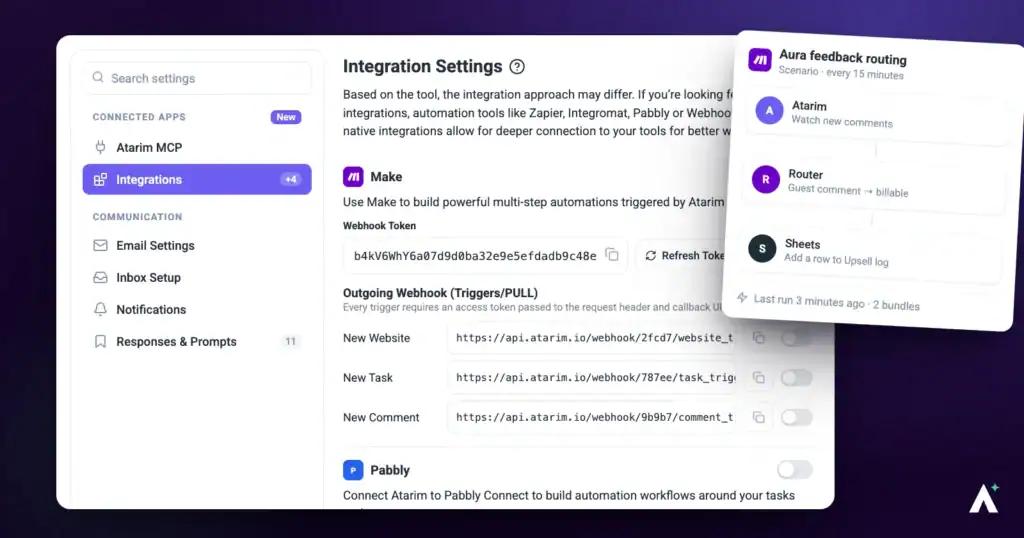
Make is an automation platform that connects Atarim to hundreds of other apps. Enable the integration, copy your API key, and build a scenario — from there, task data can reach Slack, Gmail, Trello or wherever else your team works, the moment something happens in Atarim.
Enable Make and Copy Your API Key
The API key is what authorises Make to act on your account, so treat it like a password.
Instructions:
- Log in to Atarim and go to Settings.
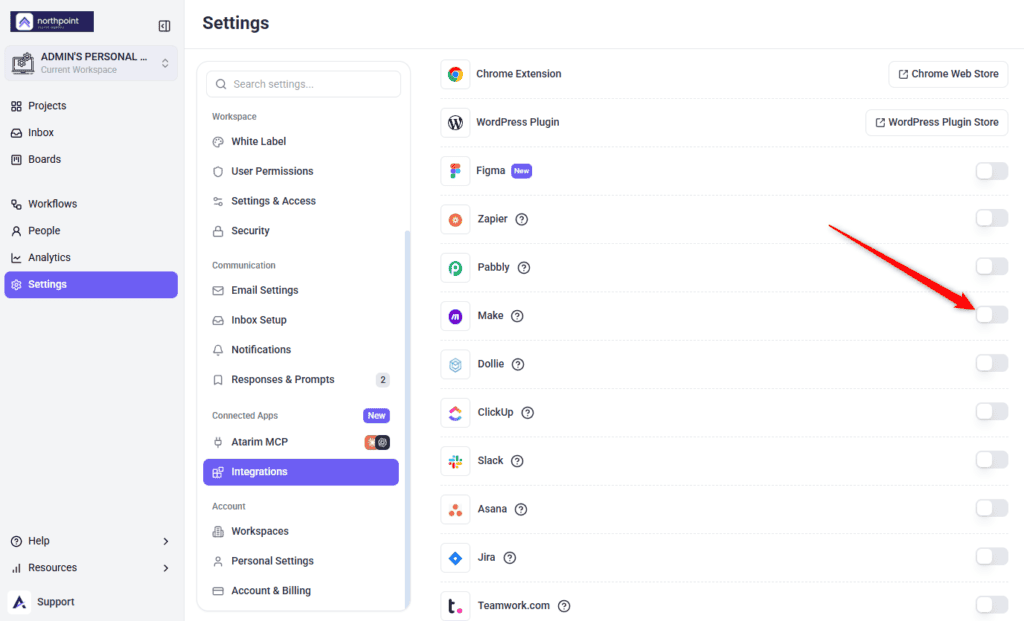
- Under Connected Apps, select Integrations. The panel lists the available integrations, each with its logo and controls.
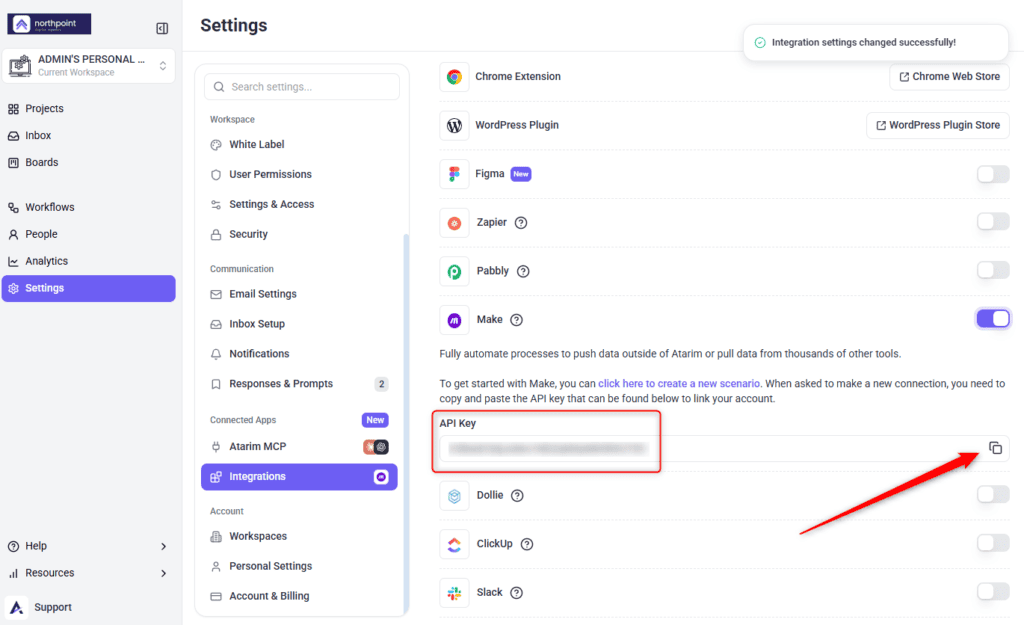
- Find Make and switch its toggle on. A confirmation reads Integration settings changed successfully!, and the integration’s details expand.
- Find the API Key field that appears beneath the description and select the copy icon. The key is on your clipboard, ready for Make.
Connect Atarim to Make
The trigger module is the part that listens to Atarim; everything downstream of it is Make's job.
Instructions:
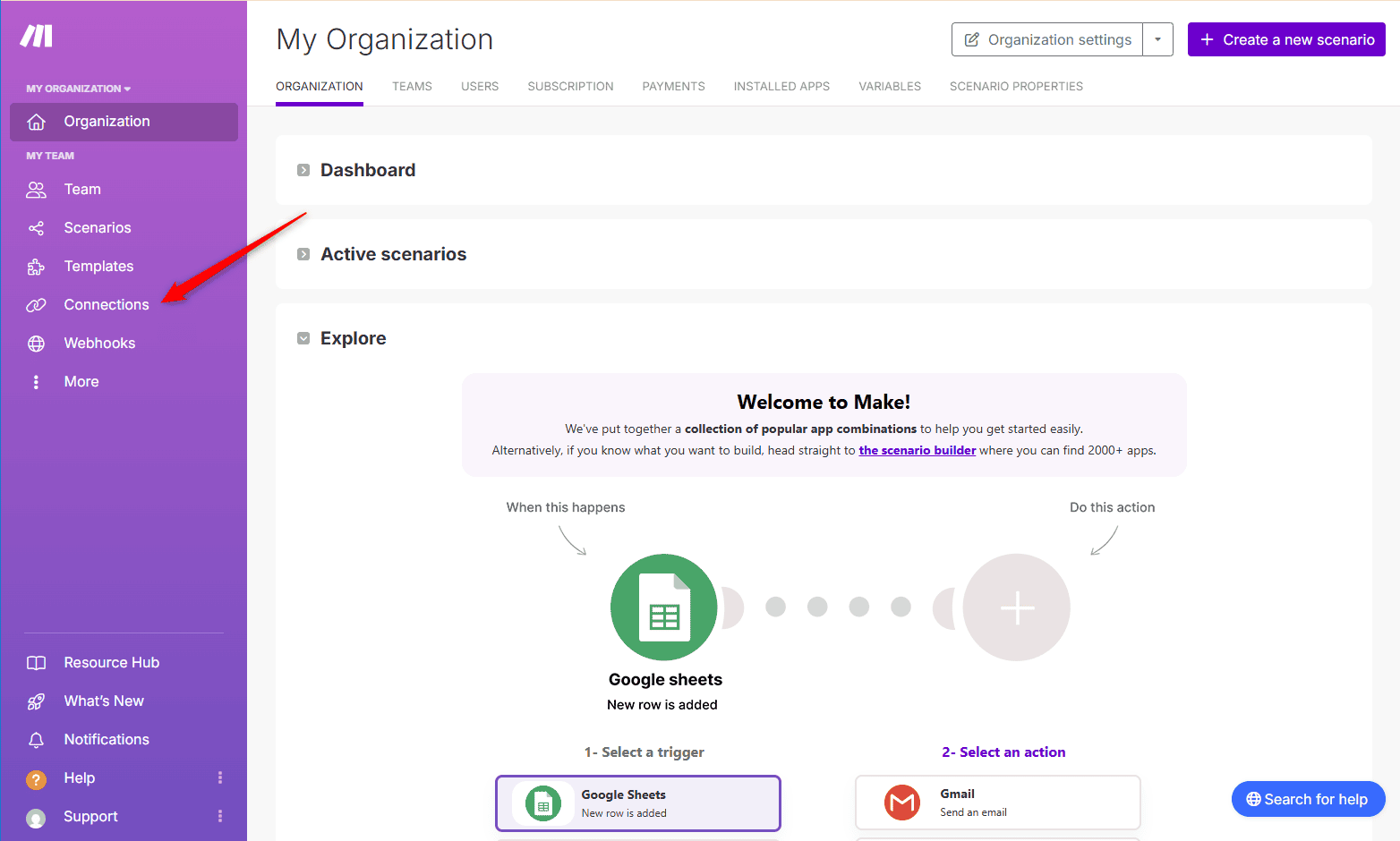
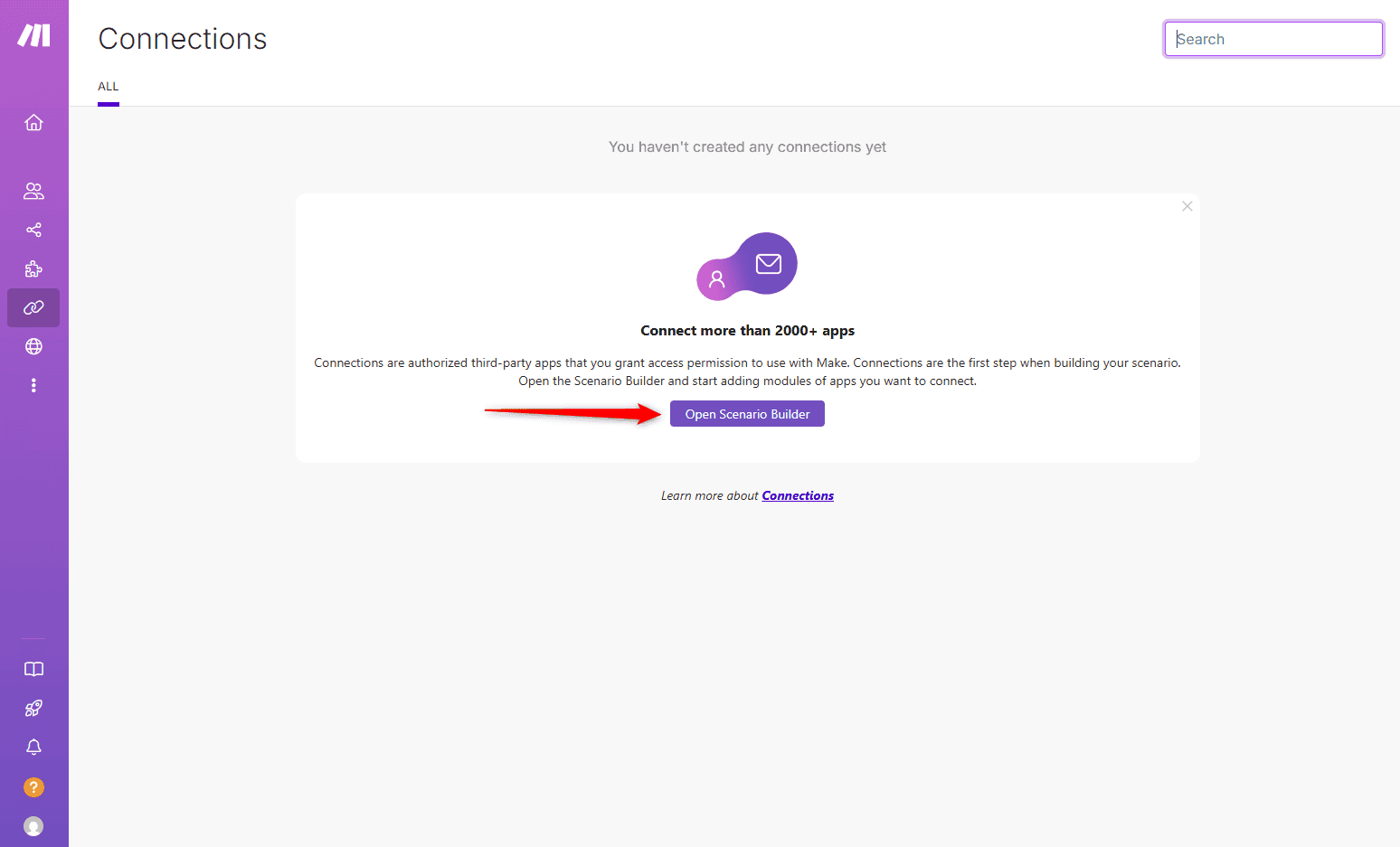
- In Make, start a new scenario — either from the link in Atarim or from your Make dashboard.
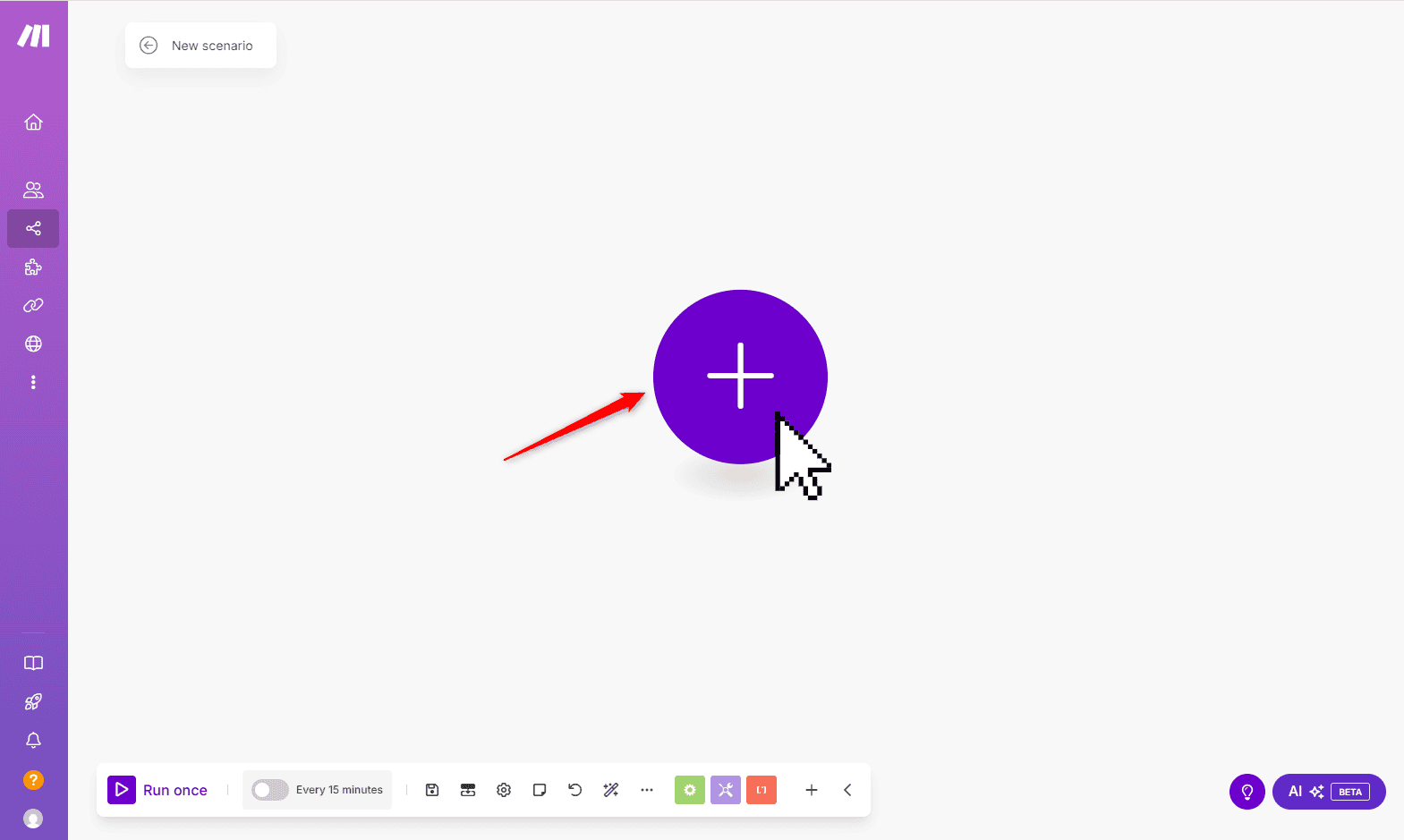
- Select the + icon to add a module.
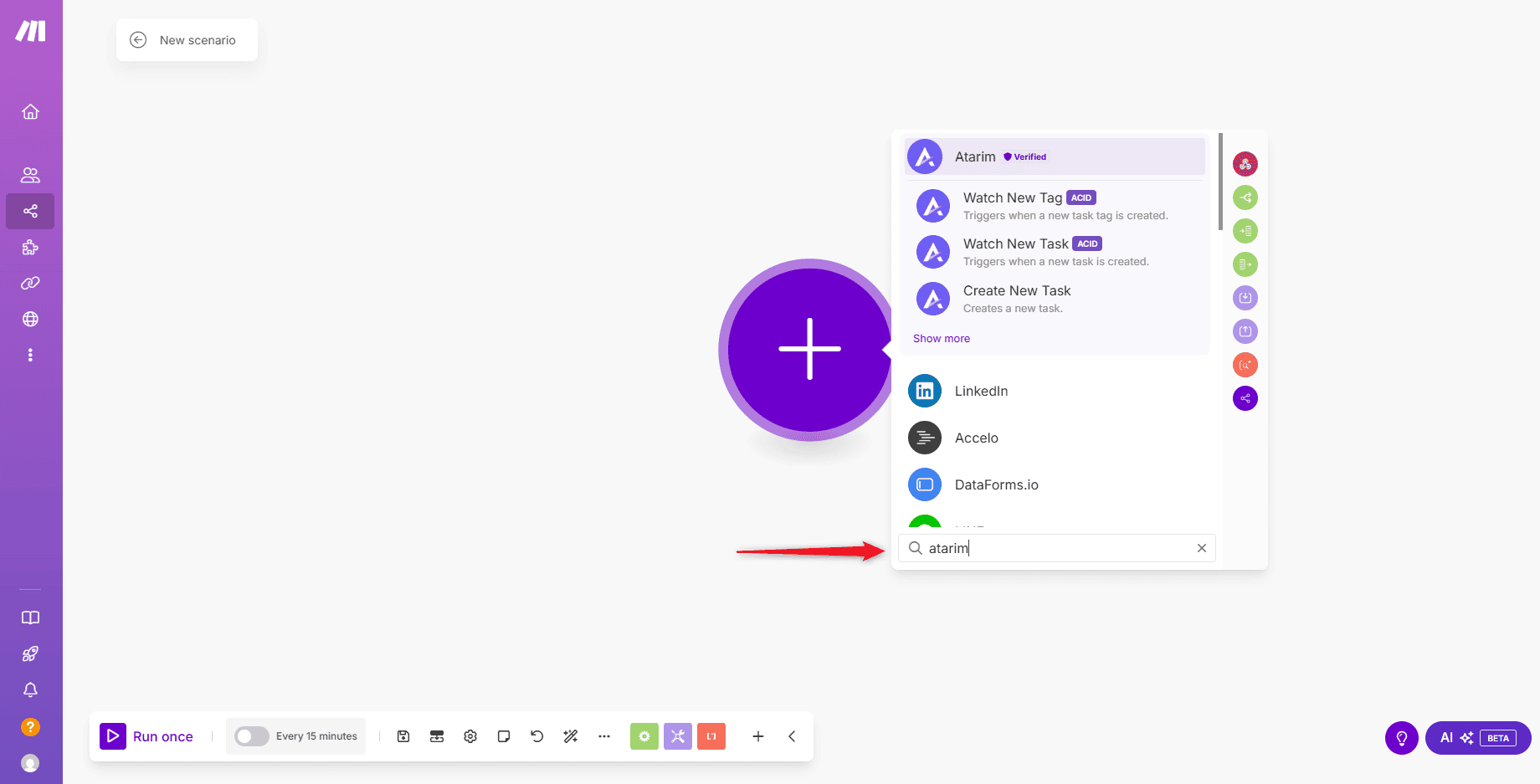
- Search for and select Atarim.
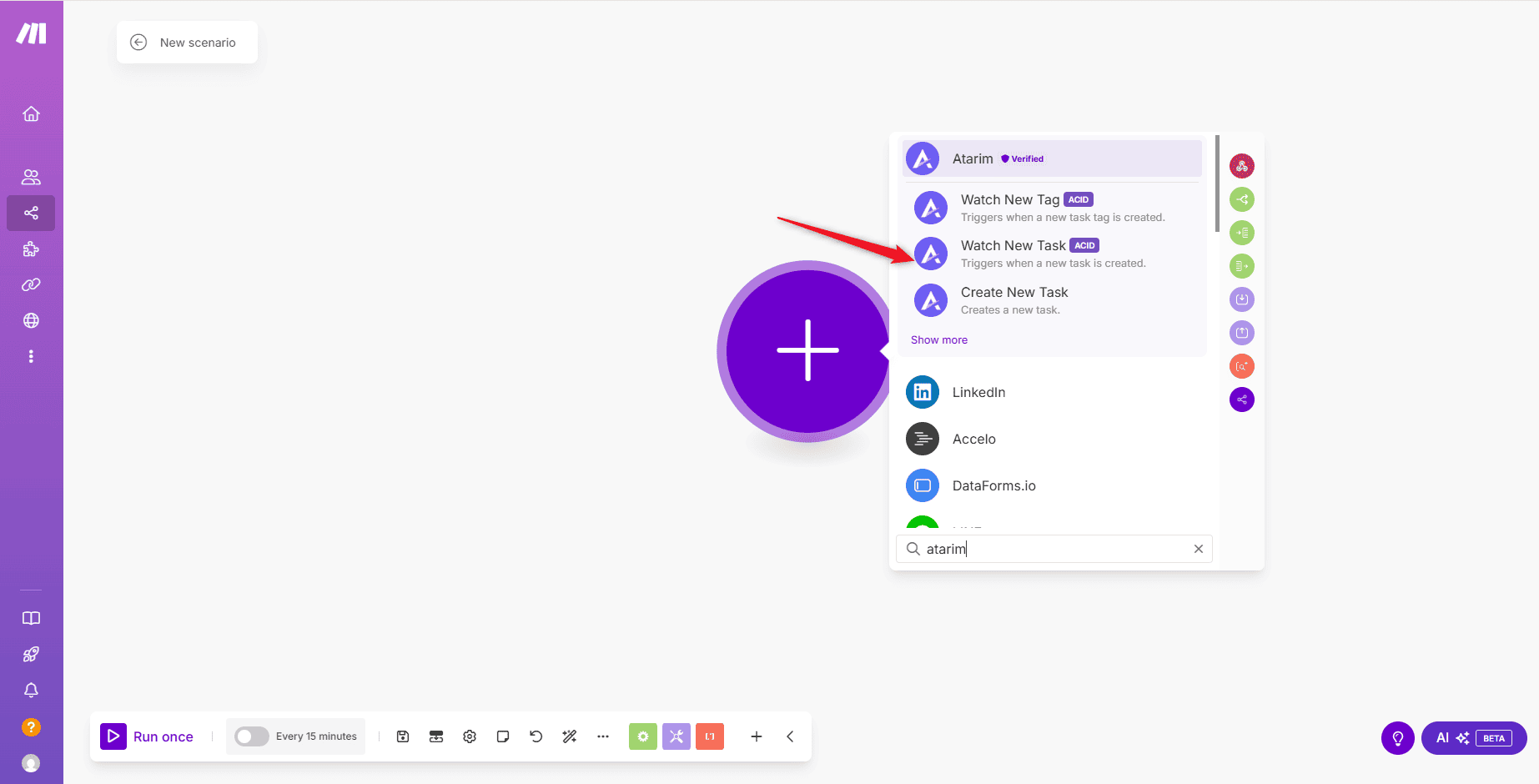
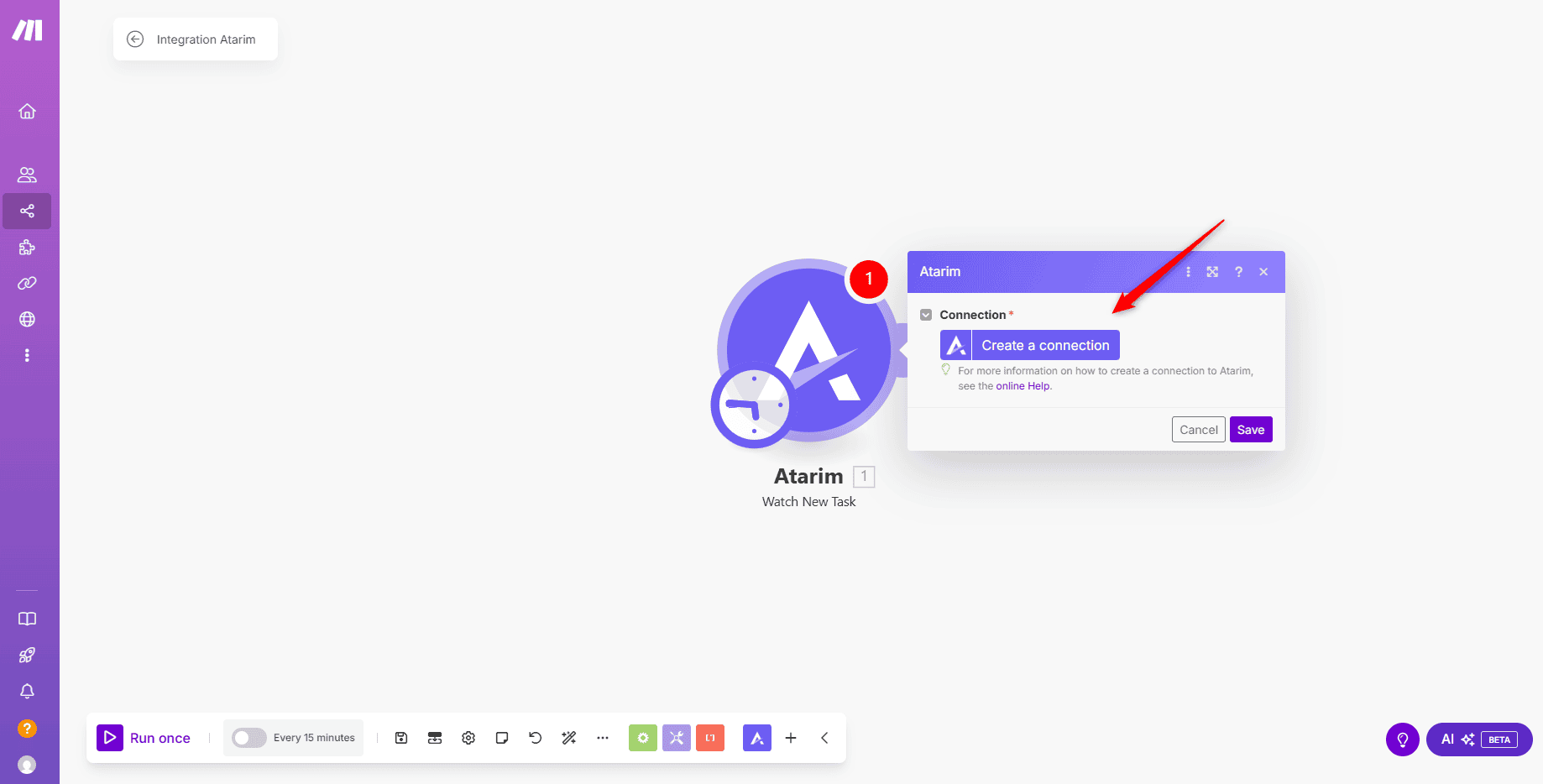
- Choose a trigger. Watch New Task is the usual starting point — it runs whenever a new task is created in Atarim.
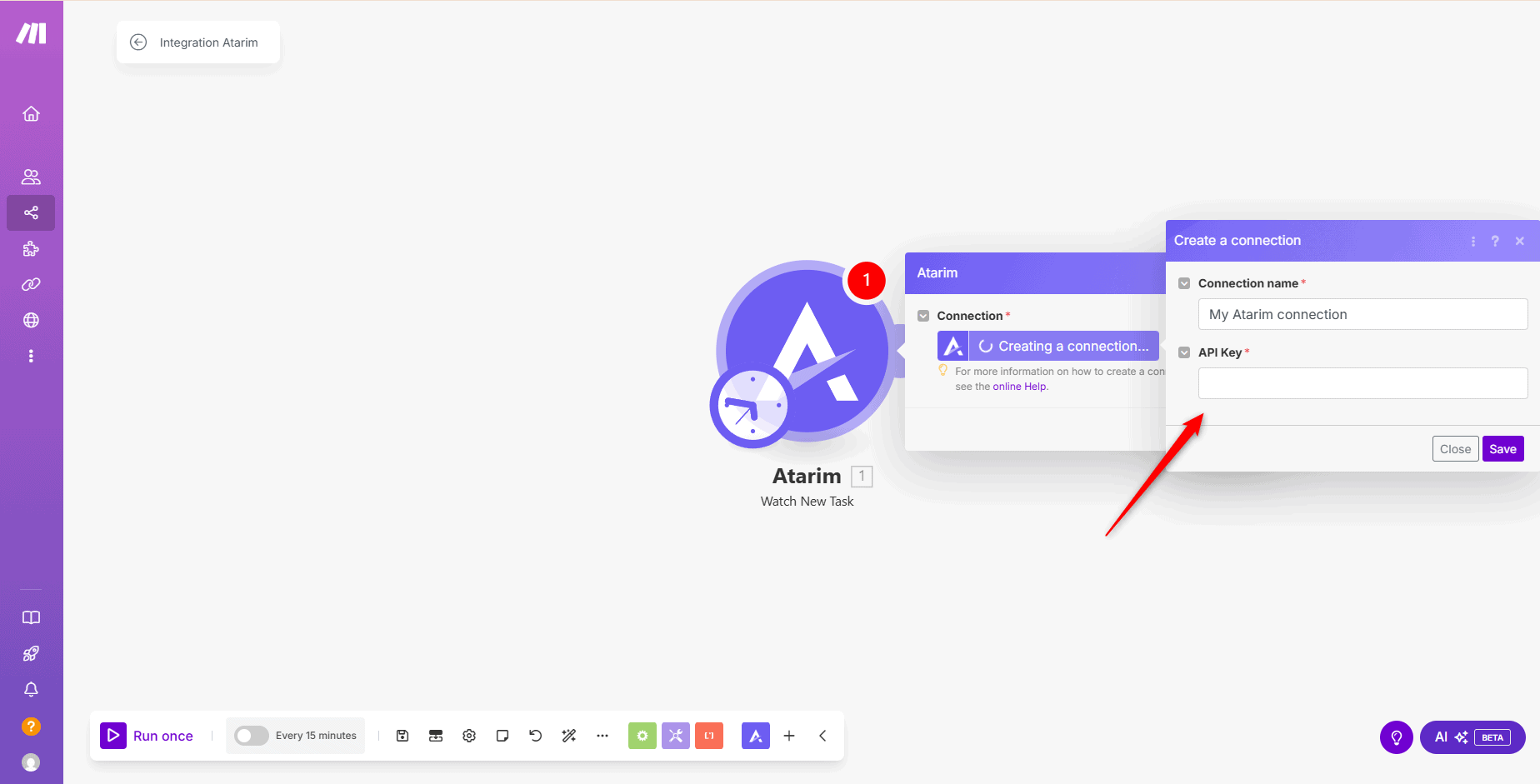
- When prompted to create a connection, paste the API Key you copied and give the connection a name. Make stores the connection so you can reuse it in later scenarios without pasting the key again.
Send Atarim Data to Another App
With the Atarim module in place, add a second module to decide what happens when the trigger fires.
Instructions:
- Add another module to the scenario.
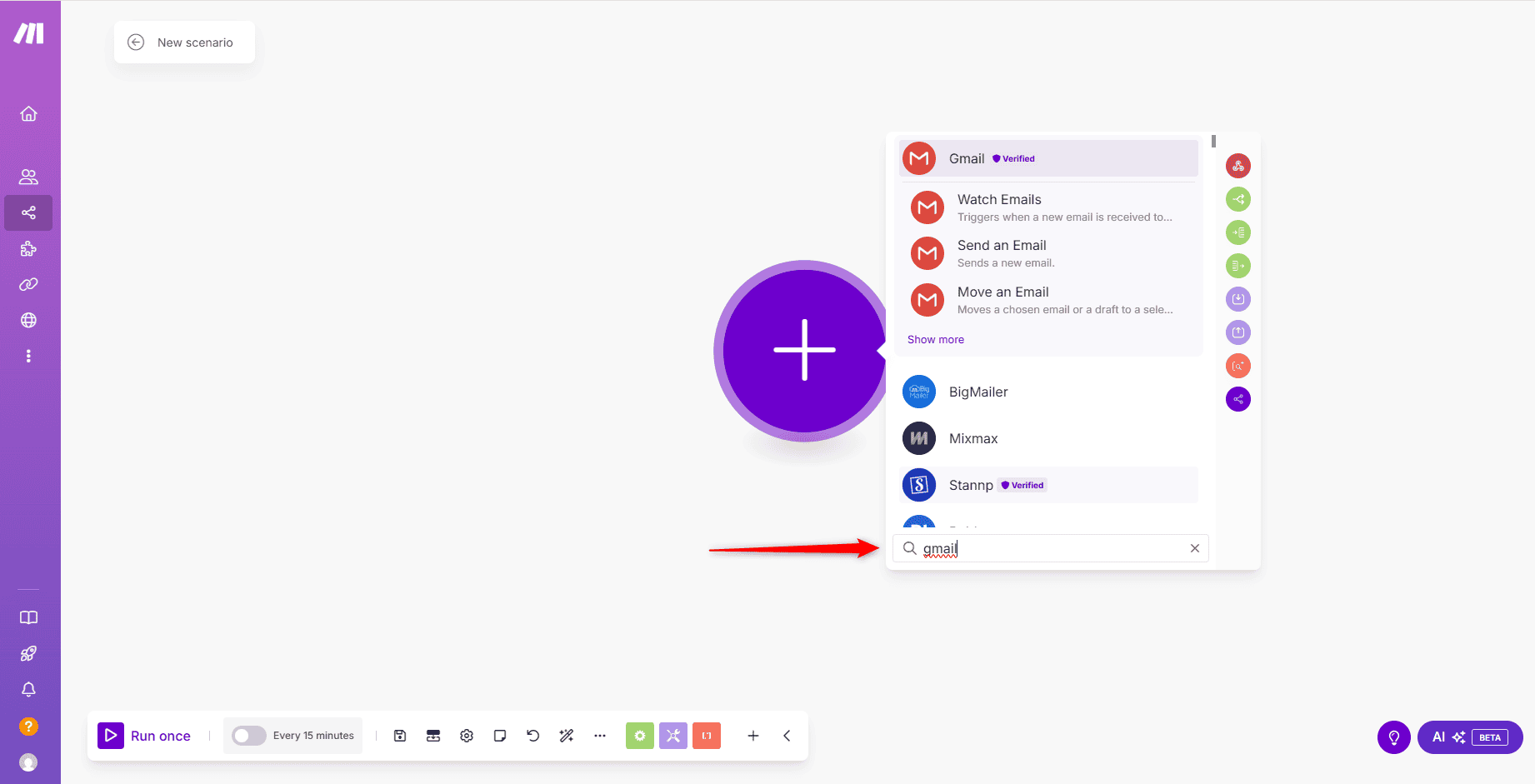
- Choose a destination app — Gmail, Slack, Trello or anything else Make supports.
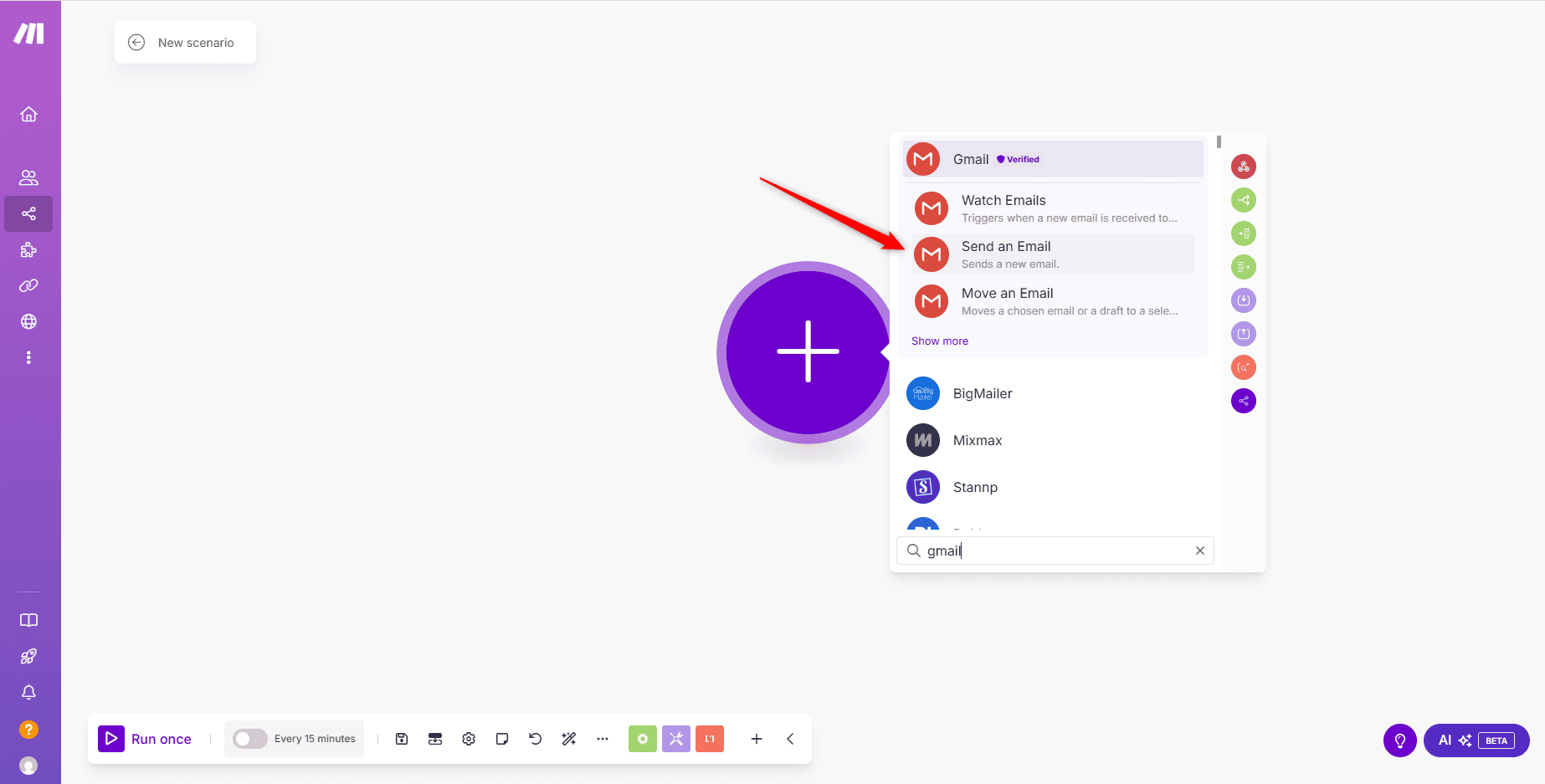
- For an email example, select Gmail and then Send an Email.
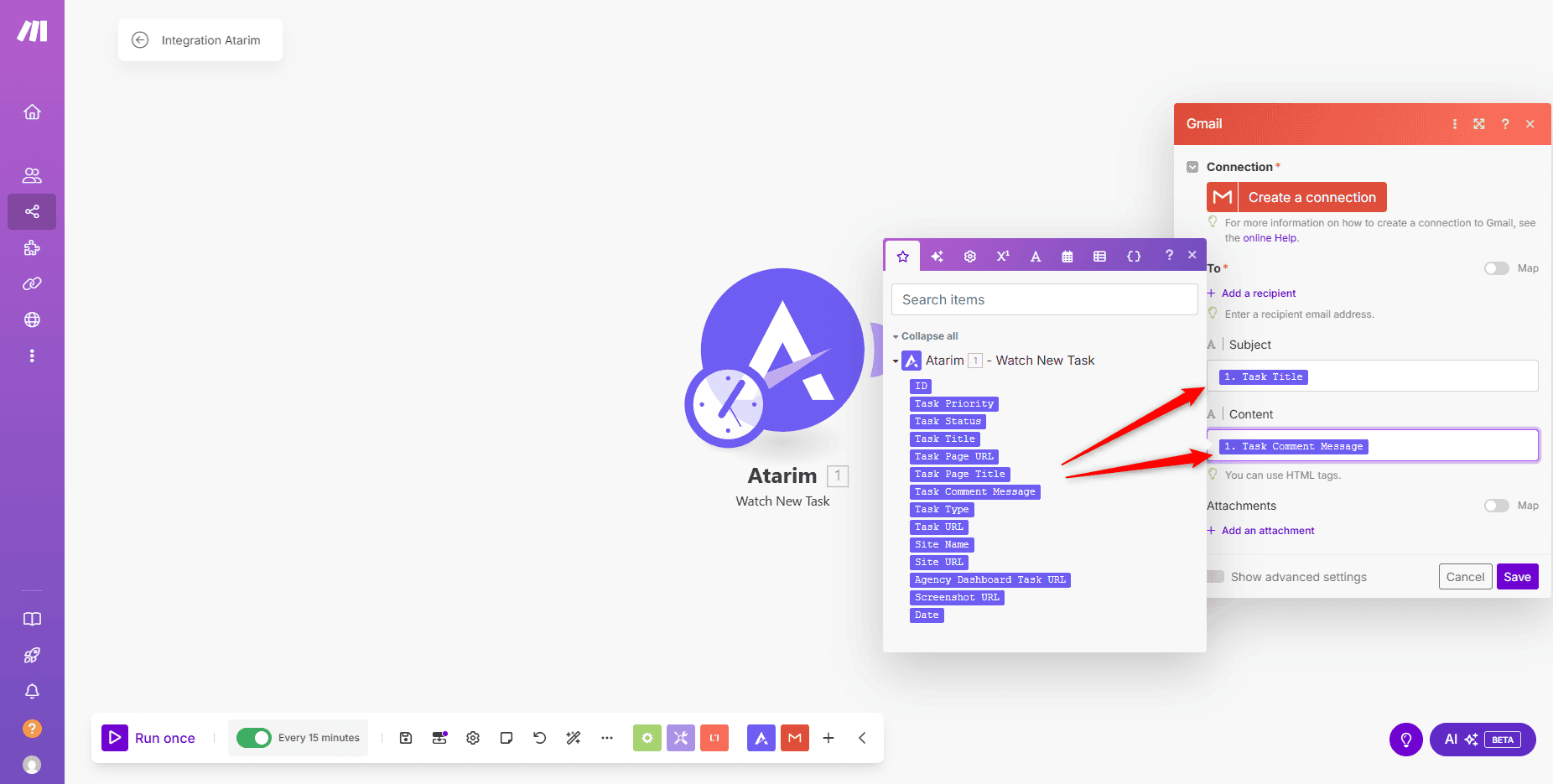
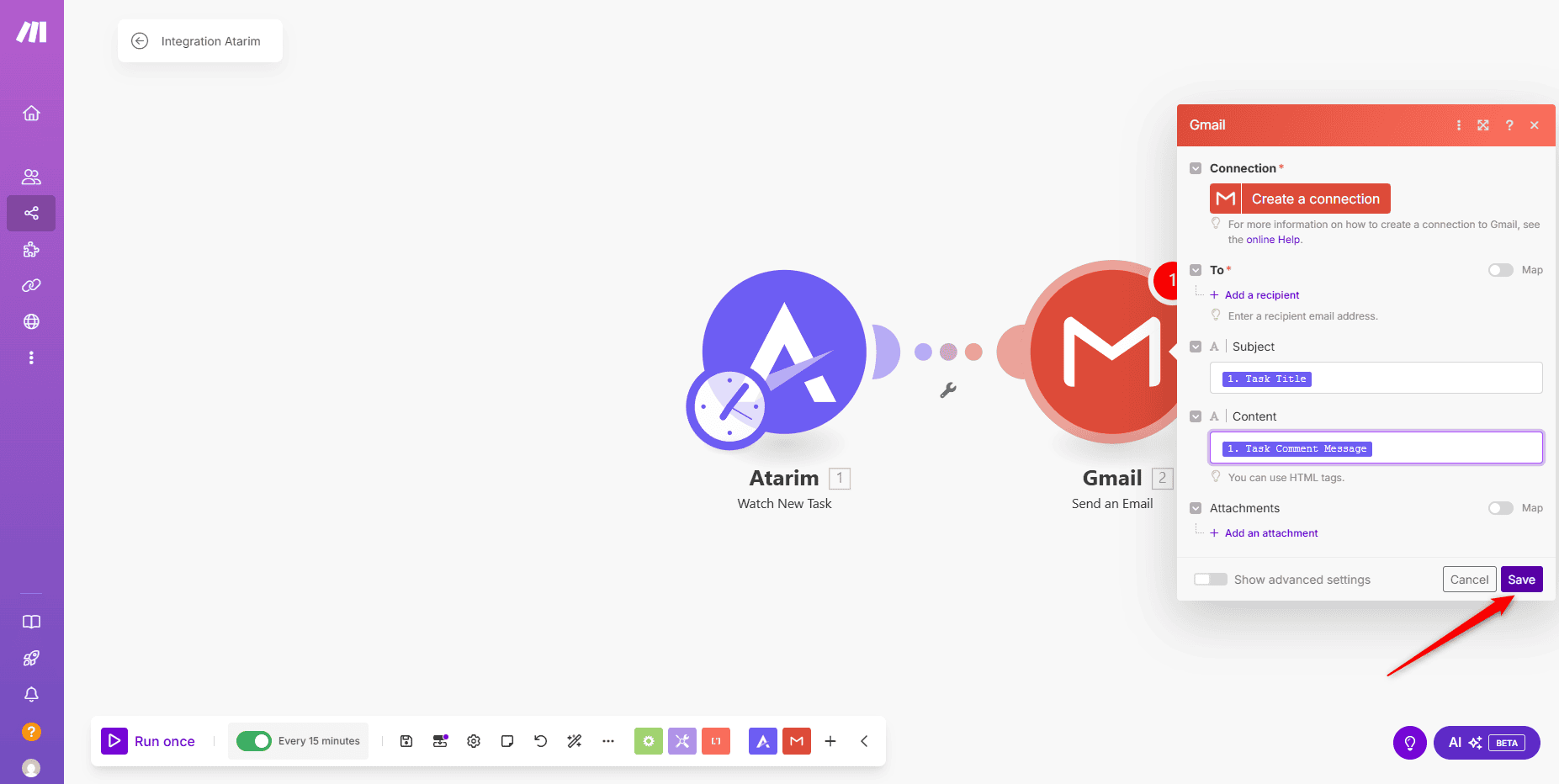
- Map the Atarim fields into the message. Use the task title as the subject and the task comment as the content.
- Add any other fields you need.
| Field available from Atarim | Useful for |
|---|---|
| Task Title | The subject line, or the headline of a Slack message. |
| Task Comment Message | The body — what the person actually asked for. |
| Page URL | Letting the recipient jump straight to the page in question. |
| Task Type | Routing different kinds of request to different destinations. |
| Automatic Screenshot | Giving the recipient visual context without opening Atarim. |
| Creator Email | Knowing who raised it, and replying to the right person. |
Test and Activate
Run Once watches for a single event, so create the task while it is listening or nothing will arrive.
Instructions:
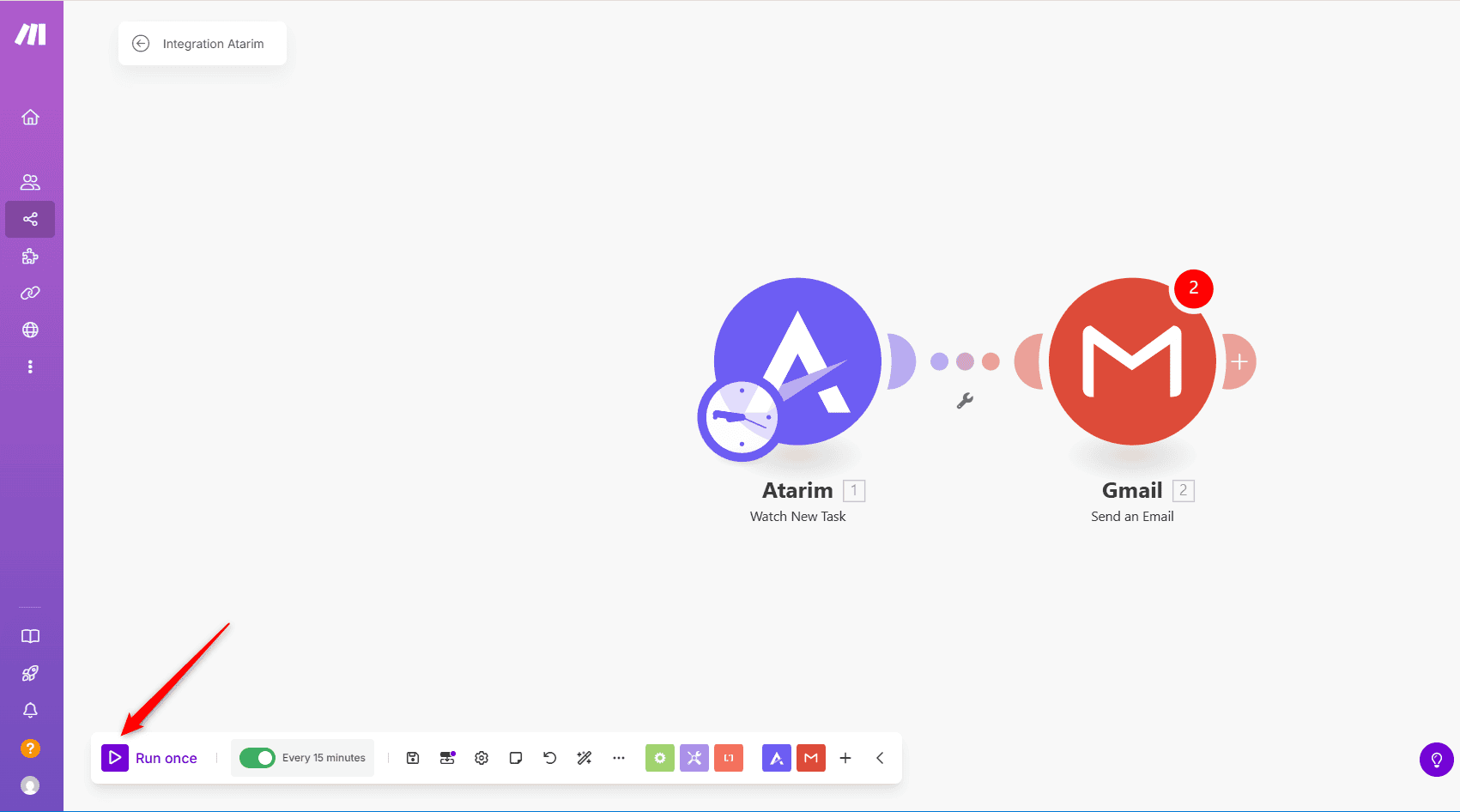
- Select Run Once to test the scenario.
- Create a task in Atarim so the trigger has something to catch. The data flows through Make and you can inspect each module’s output.
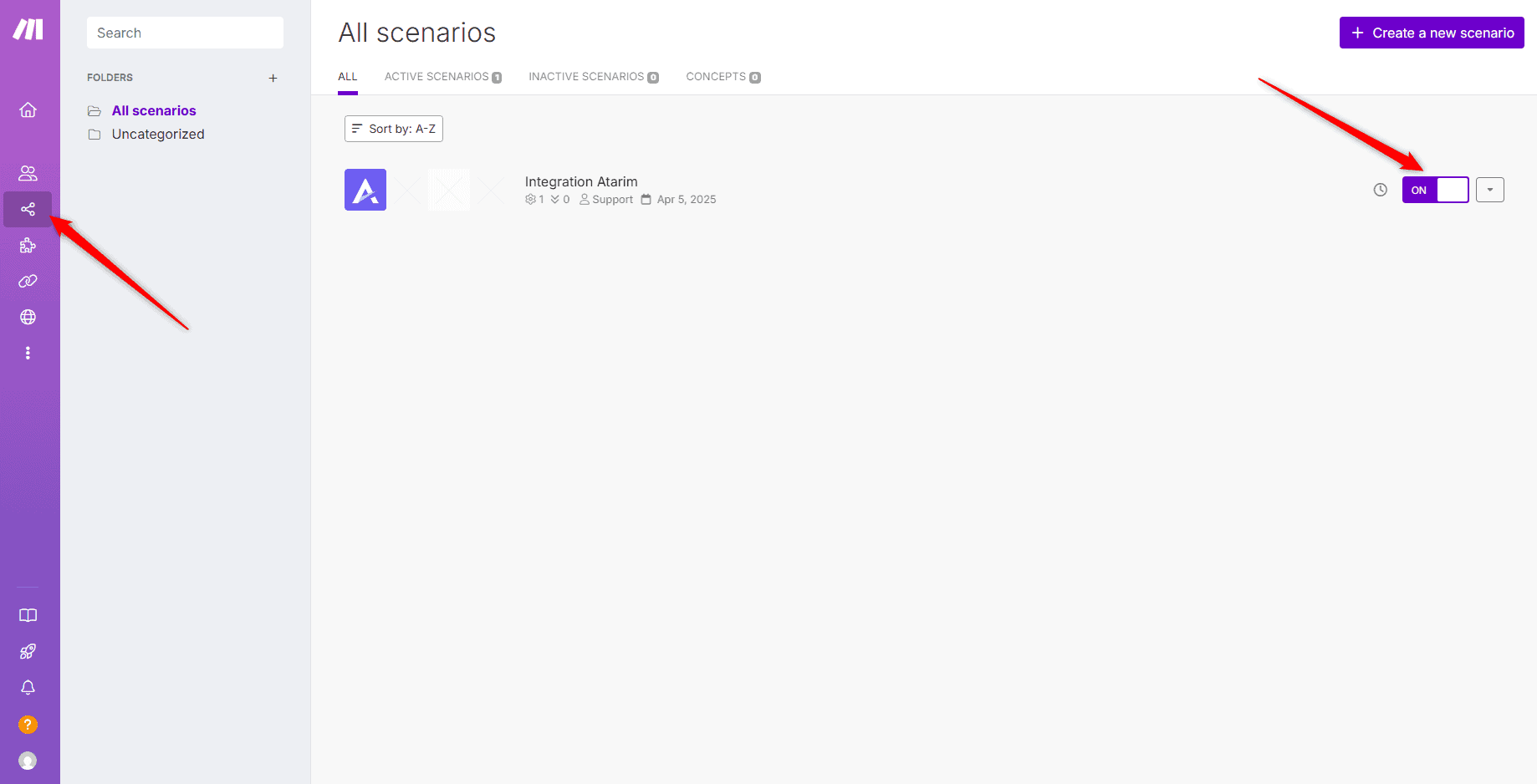
- If it worked, select Activate to turn the scenario on.
Benefits
| Benefit | In practice |
|---|---|
| Task data reaches your other tools | Requests land where your team already works instead of waiting to be noticed. |
| No code required | Scenarios are built visually, so this is not a developer task. |
| Hundreds of destinations | If Make supports the app, Atarim can feed it. |
| Context travels with the task | Page URL and the automatic screenshot mean the recipient sees what was meant. |
| Reusable connection | Paste the key once and use the connection across scenarios. |
Example Use Cases
| Situation | Scenario to build |
|---|---|
| A team that lives in Slack | Watch New Task, then post the title, page URL and screenshot to a channel. |
| A client who should get an acknowledgement | Watch New Task, then send an email confirming the request was received. |
| Work tracked in another project tool | Watch New Task, then create a matching item in Trello or similar. |
| Urgent requests needing attention fast | Use Task Type to route only certain requests to a high-visibility destination. |
| A weekly report of incoming work | Collect tasks into a sheet as they arrive rather than compiling by hand. |
Known Limitations
- It is a plan feature. Where integration connectors are not included the toggle is locked.
- Admin access is needed to enable integrations and reach the API key.
- One API key per workspace. It authorises that workspace rather than an individual project, so copy the key from the workspace whose data the scenario should see.
- The key cannot be regenerated from the Integrations panel. If you believe it has been exposed, contact support rather than looking for a reset.
- Scenario behaviour is Make’s, not Atarim’s. Operation limits and scheduling follow your Make plan.
FAQs
What does the Atarim–Make integration do?
It lets you push data out of Atarim to other tools, and pull data in, using Make scenarios rather than custom code.
Which plans support it?
It requires a plan that includes integration connectors. If the toggle is locked in your Integrations panel, it names the minimum plan needed.
Do I need a separate Atarim account?
No. You use your existing account — the API key from your Integrations panel links it to Make.
Where do I find the API key again later?
In Settings → Connected Apps → Integrations, in the Make row beneath its description.
Which trigger should I start with?
Watch New Task is the usual starting point. It runs whenever a new task is created in Atarim.
Can I use one connection for several scenarios?
Yes. Make stores the connection once you have created it, so you do not paste the key again.
What happens if I turn the integration off?
The API key is hidden until you switch it back on. To stop an automation, switch the scenario off in Make.
Common issues
- Integrations is not in your settings sidebar — your role does not have access. Ask an Administrator.
- The Make toggle is locked — your plan does not include integration connectors. The lock names the minimum plan required.
- Make rejects the API key — re-copy it with the copy icon rather than selecting the text, in case a space was included.
- The trigger never fires — confirm the scenario is activated, not just saved, and create a task to test it.
- Messages arrive with empty fields — a mapping problem. Check the scenario log to see which field came through blank.
- The connection stopped working — re-copy the key from the Make row and update the connection in Make. If you think the key was exposed, contact support.
- You cannot tell two connections apart in Make — rename them after their Atarim workspace.
Conclusion
Setup is short: enable Make in Atarim, copy the API key, create a connection in Make, and pick a trigger. From there the work is in Make rather than Atarim.
The habit that pays off is building one field at a time and testing with Run Once before activating — scenarios that grow from something working are far easier to keep working.
Tips & best practices
- Apply filters in Make to trigger workflows only for specific tasks, preventing unnecessary automations.
- Integrate Atarim with CRM tools like HubSpot or Salesforce to seamlessly send task updates.
- Monitor API usage to avoid exceeding limits when using multiple webhooks.
- Test workflows manually before automating to ensure data flows correctly.
- Configure error handling in Make to receive alerts if an automation fails.