How to Collaborate with Clients Using Atarim’s URL Collaboration Feature
Paste a web address, send one link, and your client leaves feedback on the page itself — no install, no account, no screenshots in email.
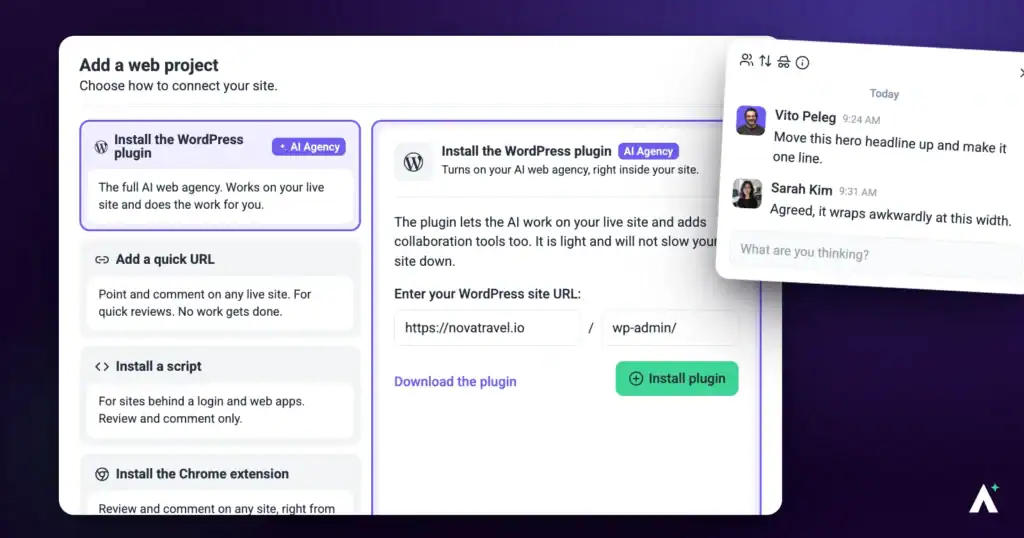
One address and one button in Add new are the whole setup for a URL-based project. Everything after that is about who you send the link to, and how the page gets displayed when they open it.
URL collaboration turns any reachable web address into a project your client can comment on directly. They click a link, point at the thing they mean, type what they want changed, and it arrives in your task list as a task attached to that exact spot on the page.
This guide covers the whole loop: creating the project from a URL, how the page gets displayed, inviting the client the right way, and handling the feedback that comes back. The display is the part most people skip, and it is the one that determines whether the page loads quickly for everyone afterwards.
Creating a Project from a URL
Any publicly reachable address works, and nothing has to be installed on the site itself.
Instructions:
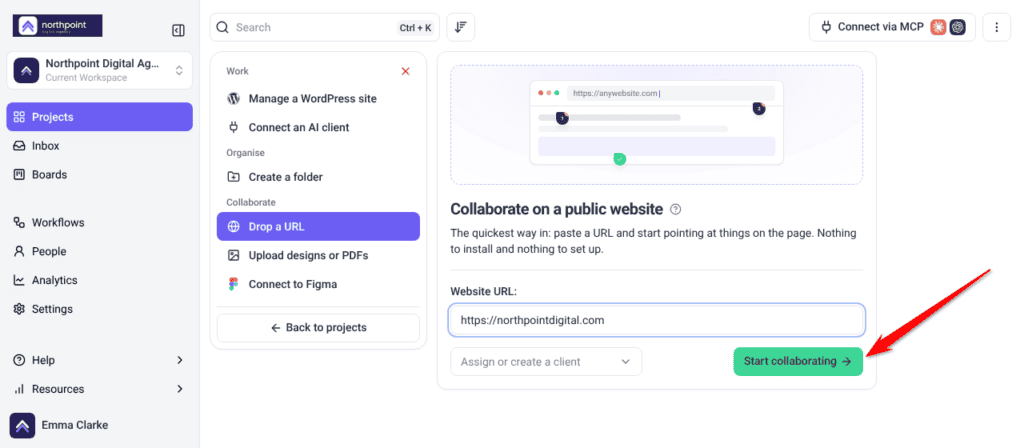
- Sign in and go to the Projects screen.
- Select Add new, the first card in the project grid. It is also in the ⋮ menu at the top right.
- Choose Drop a URL.
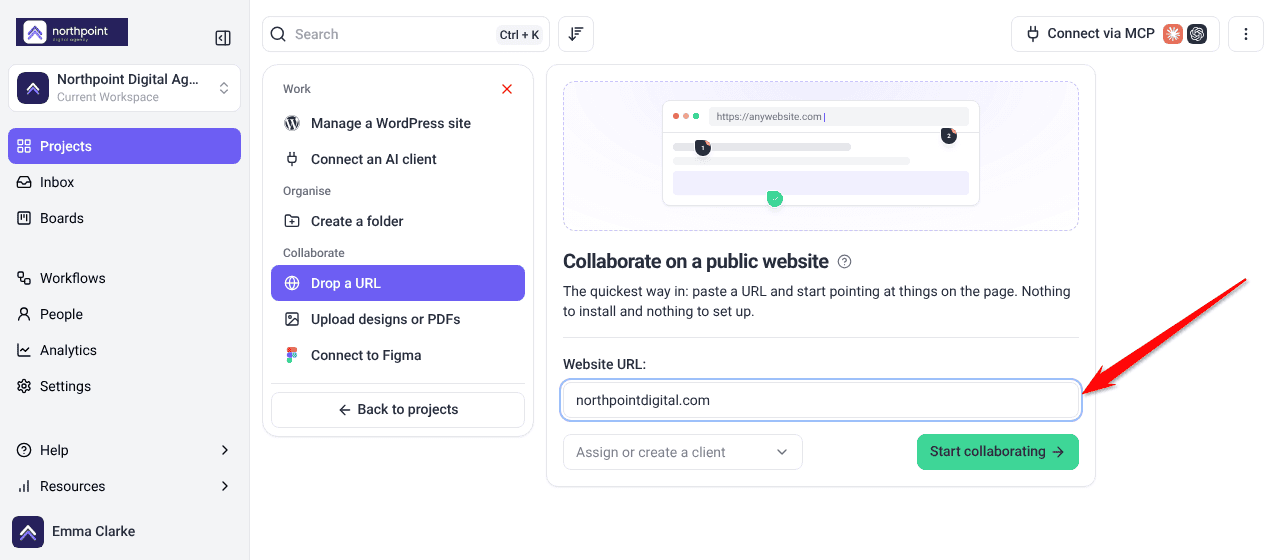
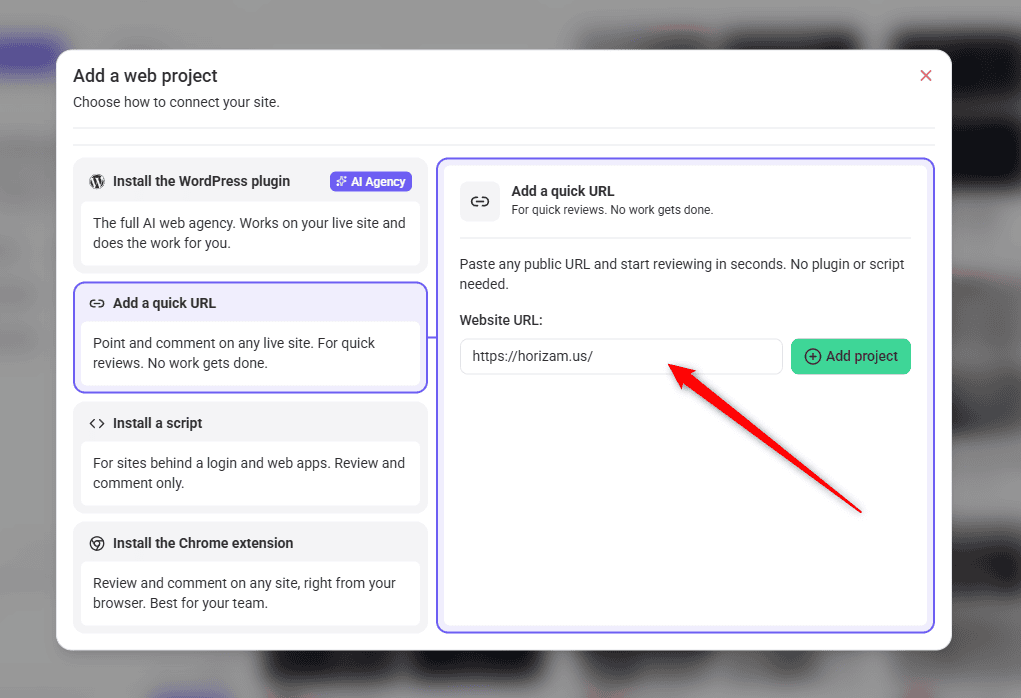
- Type or paste the address into Website URL. If you leave off
https://, Atarim adds it for you. - Select Start collaborating. Atarim takes you straight into the collaborate view for the new project, so you do not return to the Projects screen.
| If you see | What it means |
|---|---|
| Enter a URL. | The field was blank. Enter an address and try again. |
| That does not look like a valid URL. | The address could not be read as a web address. Check for typos and stray spaces. |
| Something went wrong, please try again later. | Something went wrong adding the site. Try again, and check the address loads in a normal browser tab. |
Choosing How the Page Is Displayed
A URL project can be displayed in two ways. The difference matters more than it looks, because it decides how the page loads for each person on your team.
| Option | How it works | Trade-off |
|---|---|---|
| Inside Atarim | Atarim fetches your web project and displays it inside Atarim. | Nothing to install, but the fetching step means you may see longer loading times. |
| With the Chrome extension | You collaborate on the website itself, in your own browser. | Requires installing the extension, but gives no loading delay and pages that render correctly. |
Inviting Your Client
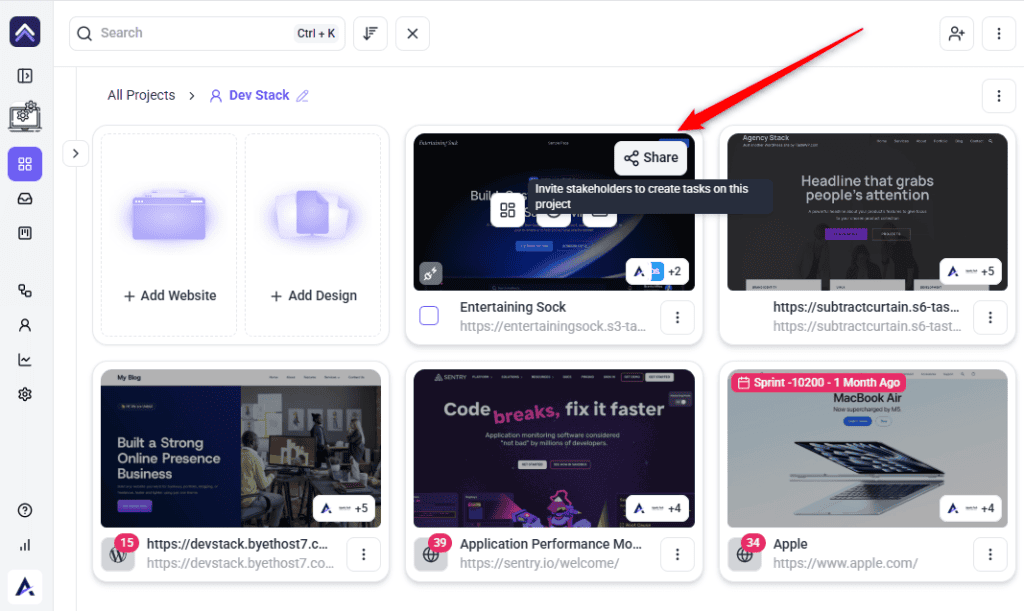
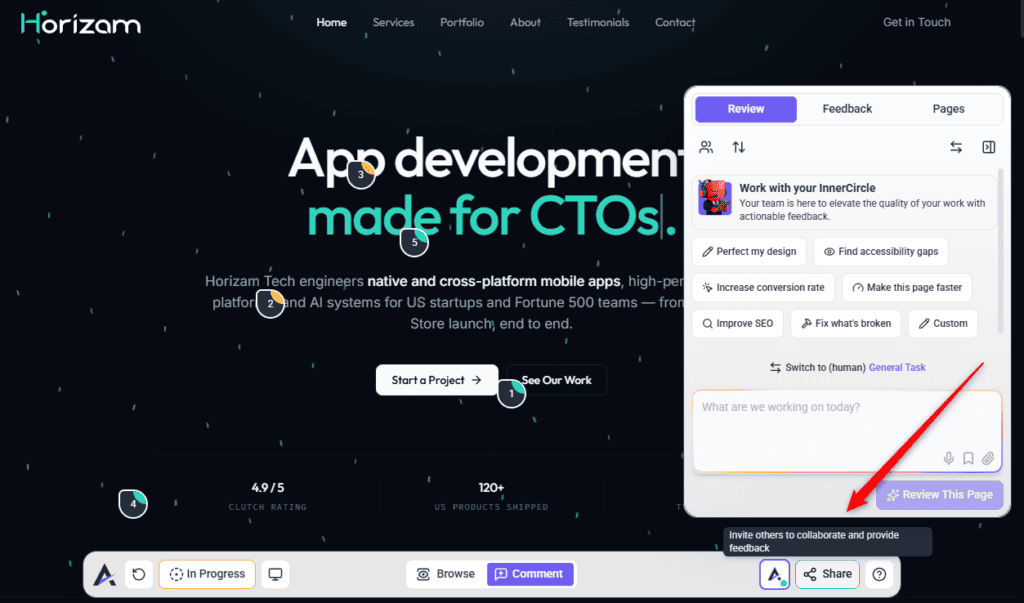
Open the project’s share modal — Collaborate on this project — from the project block on the Projects screen or from the collaborate view. Which tab you use matters, because they do different things.
| Tab | Use it for | What the person gets |
|---|---|---|
| Guests and Clients | Clients and outside stakeholders. | Access to this project only, in a simplified interface, with no sign-up. |
| Team Members | People inside your agency. | A workspace role — Administrator or Team Member — and broader access. |
| Manage Access | Setting who can reach the project at all. | Administrators only. Changing General Access needs a plan that includes it; otherwise you are asked to upgrade. |
Sending the Invite
The note is the part people skip, and it is what tells the client which parts you actually want reviewed.
Instructions:
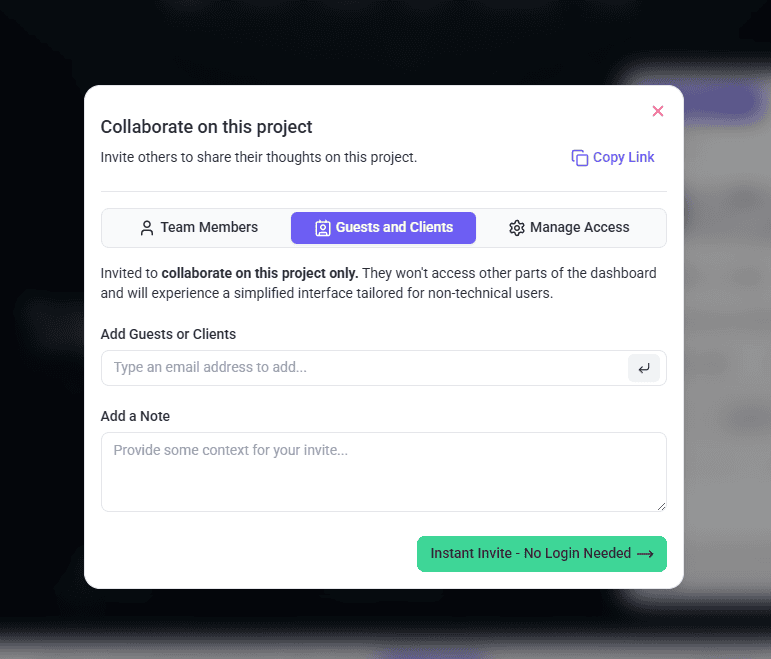
- Open the share modal and select the Guests and Clients tab.
- Under Add Guests or Clients, type an email address and press Enter. Repeat for each person. Each address is added as a separate entry, and there is no name field — the client gives their name themselves the first time they open the link.
- Under Add a Note, write some context for the invite.
- Select Instant Invite – No Login Needed. The invitation email goes out with the collaboration link.
Sending the Link Yourself
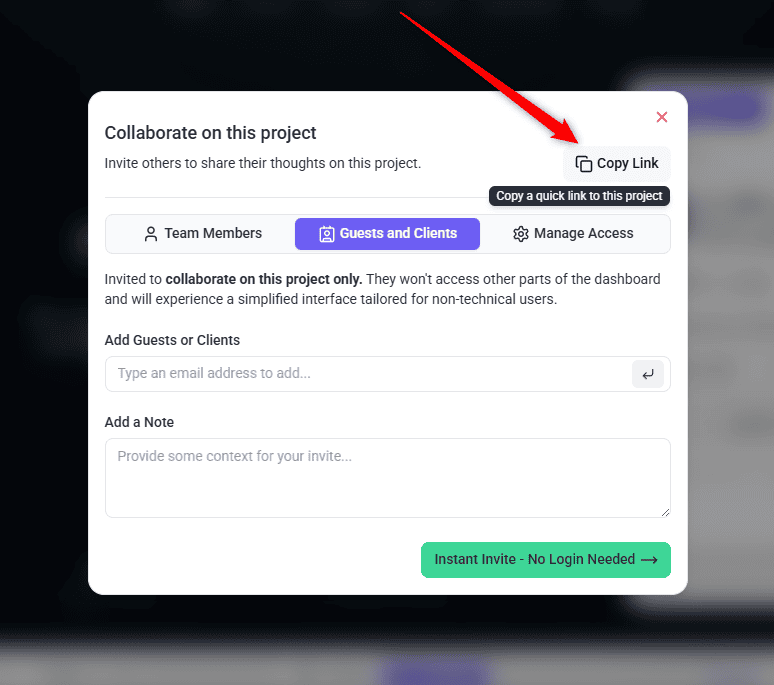
If you would rather send the link in your own message, use Copy Link in the share modal header. Its tooltip reads Copy a quick link to this project. The link carries a collab=true marker, which is what opens the page in collaboration mode.
What the Client Sees the First Time
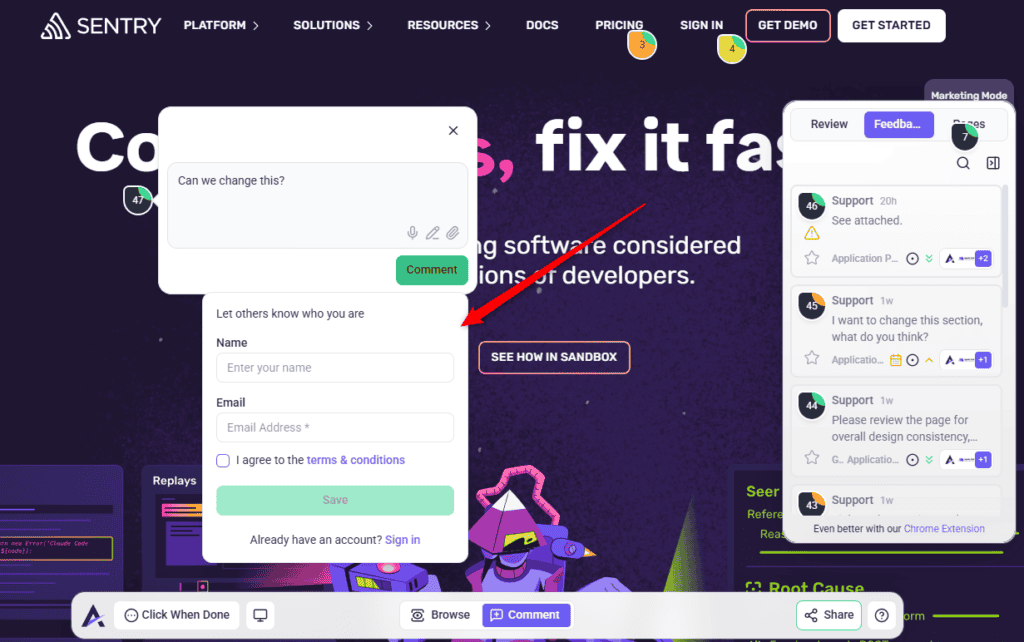
The link opens the page straight away — there is no sign-in wall. The client is only asked who they are at the moment they first try to do something, such as submitting a task or leaving a comment. A small form appears headed Let others know who you are.
Instructions:
- The client opens the link and starts a task on the page.
- When they go to submit, the identification form appears. It has a Name field and an Email field, plus a checkbox agreeing to the terms and conditions.
- They fill it in and continue. Their identity is stored in their browser and remembered for 90 days, so they are not asked again.
?new=true to the end of the collaboration link. That clears the remembered identity so the next person is asked for their own details.
How Clients Leave Feedback
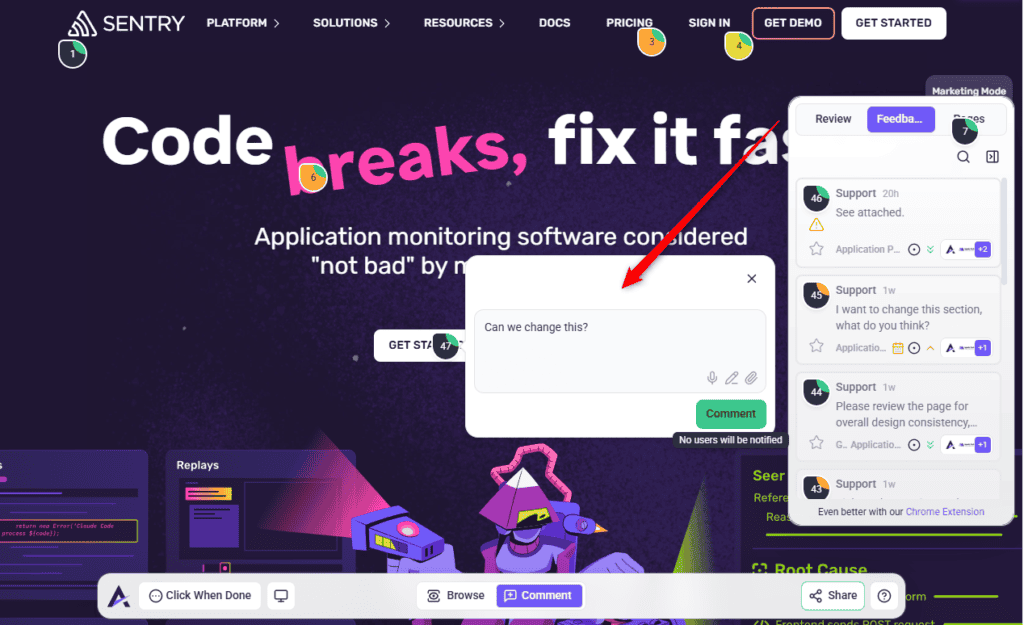
- The client selects the part of the page they want to talk about. A task is started, pinned to that spot on the page.
- They type their feedback and submit it. The task appears for your whole team straight away, with the page and location attached.
Reviewing and Responding
- Open the project and review incoming tasks from the Inbox or the Boards screen.
- Reply on the task to answer the client, or choose Add a note from the Comment button for internal remarks. Comments are visible to the client; notes are not.
- Update the task’s status as the work moves along, and set it to Complete when it is done.

Benefits of Collaborating by URL
| Benefit | In practice |
|---|---|
| Nothing for the client to install | They click a link and start commenting. |
| No account needed | Guests identify themselves once and are remembered. |
| Feedback arrives located | Each comment is pinned to the element it is about, so “the button” is never ambiguous. |
| Works beyond WordPress | Any publicly reachable address can become a project. |
| Everything lands in one place | Comments become tasks in your existing list rather than scattered email. |
Example Use Cases
| Situation | How to run it |
|---|---|
| A pre-launch review of a live staging site | Add the URL, invite the client as a guest, ask them to comment page by page. |
| A competitor or reference site you are discussing | Add it by URL and use it as a shared annotation surface with your team. |
| A client on a locked-down corporate laptop | Send the link — the in-Atarim view needs no install or admin rights. |
| A site behind a staging password | Use the Chrome extension instead; the fetched view cannot get past the login. |
| Several stakeholders reviewing at once | Add all their addresses on the Guests and Clients tab in one invite. |
| Two reviewers sharing one computer | Append ?new=true to the link so the second person identifies themselves. |
Known Limitations
- The address must load without signing in. Password-protected, gated, or IP-restricted pages need the Chrome extension.
- The in-Atarim view can be slower, because the page is fetched and redisplayed rather than loaded directly.
- Complex pages may not render perfectly in the fetched view.
- Guest identity is per-browser. Ninety days applies to that browser only, not to the person.
- The client’s view is deliberately reduced. Guests see a simplified interface, not the dashboard.
FAQs
Can clients use the link without an Atarim account?
Yes. They identify themselves once with a name and email, then comment directly on the page. No sign-up.
Does the client need the Chrome extension?
No. The extension is for you and your team. Clients can collaborate inside Atarim on the same project without installing anything.
Will this work on a site that is not WordPress?
Yes. Any address that loads publicly can become a URL project.
What about a site behind a staging password?
Use the Chrome extension. The in-Atarim view cannot get past a login.
When is the client asked who they are?
Not on opening the link. The form appears the first time they try to act — submitting a task or commenting. Only the email is required, along with agreeing to the terms.
How long is a guest remembered for?
90 days, stored in the browser they used. A different browser or device will ask again.
Should I invite a client on the Team Members tab?
No. Use Guests and Clients. The Team Members tab assigns a workspace role and is intended for your own staff.
Why does the page load slowly?
Because the fetched view retrieves the page and redisplays it inside Atarim. Installing the extension removes that step for whoever installs it.
Can a client invite someone else?
Yes. Guests and collaborators get a simplified share form so they can bring a colleague into the same project.
Common issues
- “That does not look like a valid URL” when adding — check for typos or stray spaces. The address needs to be a normal web address.
- The page will not load in Atarim — open it in a private browser window. If it needs a login there too, use the Chrome extension.
- The page loads but looks broken — you are on the fetched view. Install the extension for your team and re-check.
- The page is slow for everyone — expected on the fetched view. The extension removes the delay for whoever installs it.
- The client says the link does not work — confirm the project has not been archived or deleted, and re-copy the link with Copy Link.
- The client cannot get past the identification form — the Save button stays greyed out until they have entered a valid email address and ticked the terms checkbox. Both are required; the name is not.
- Feedback is attributed to “Guest” — they left the optional Name field blank. Ask them to re-enter with a name, using
?new=trueon the link. - The client is asked for their details again — they are on a different browser or device, in a private window, or have cleared their browsing data.
- Client feedback is not appearing — check you are looking at the right project, and that the tasks are not filtered out by a status or view filter.
- The client sees your internal notes — they cannot. Notes are never visible to guests. If they saw something internal, it was posted as a comment.
Conclusion
URL collaboration removes the two things that usually slow a feedback round down: asking the client to install something, and asking them to describe where on the page they mean. Paste the address, invite them as a guest, and their comments arrive as located tasks in your existing list.
The two decisions worth getting right are installing the extension for your own team, and using the Guests and Clients tab rather than Team Members for anyone outside your agency. Discover How To Review And Respond To Client Feedback
Tips & best practices
- Check the address loads in a private browser window before adding it — that is what Atarim and your client will see.
- Install the Chrome extension for your team and let clients use the in-Atarim view.
- Always invite clients from Guests and Clients, never Team Members.
- Write a note on every invite, so it does not read like an automated email.
- Mark internal work internal before you send the link.
- Use
?new=truewhen a second person needs to identify themselves on a shared computer. - Reply quickly, even briefly — it keeps clients commenting instead of batching.