Trello
Turn client feedback into Trello cards on the board your team already works from.
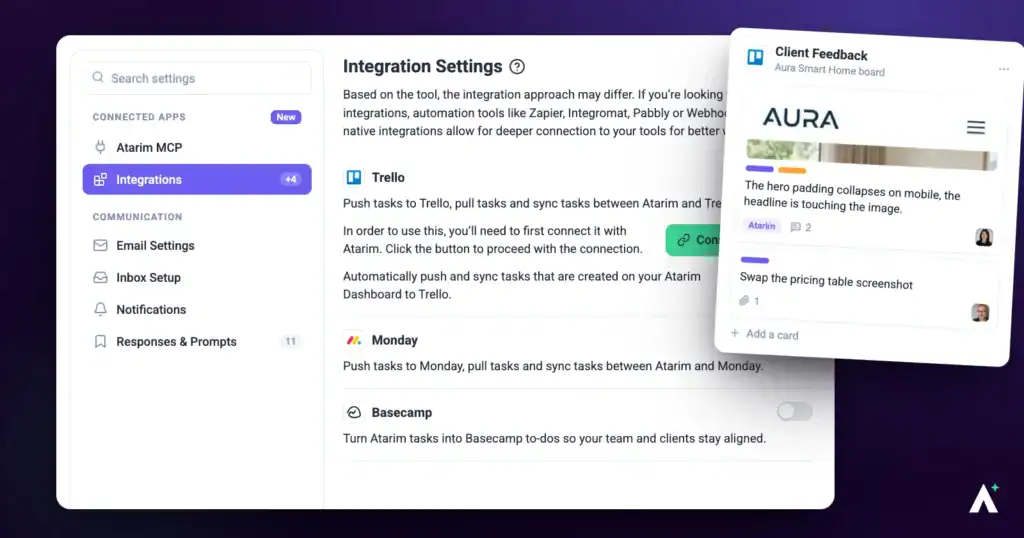
The Trello integration pushes tasks from Atarim into Trello and keeps them in step afterwards. Client feedback captured visually in Atarim becomes a card in the list your team already works from. Setup needs two choices — the board, then the list within it.
Comments and status changes coming back from Trello are optional, and switched on per task at the moment you push it.
Connect Trello
The connection belongs to the Atarim workspace you are in. If you use more than one workspace, connect Trello in each one. The board and list your tasks go to are chosen separately, below.
Instructions:
- In Atarim, go to Settings.
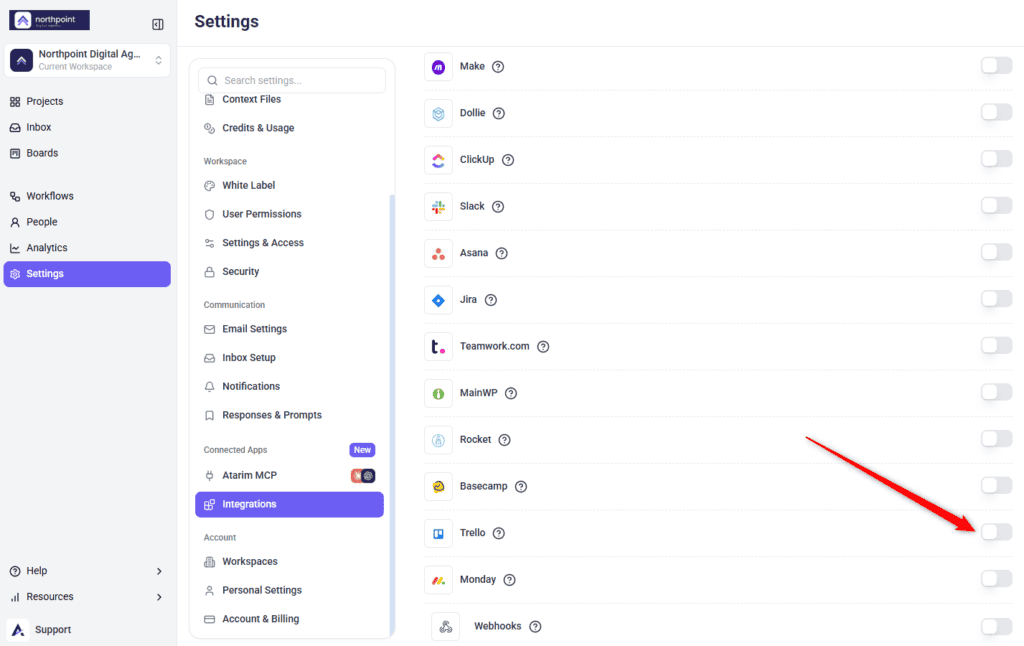
- Under Connected Apps, select Integrations.
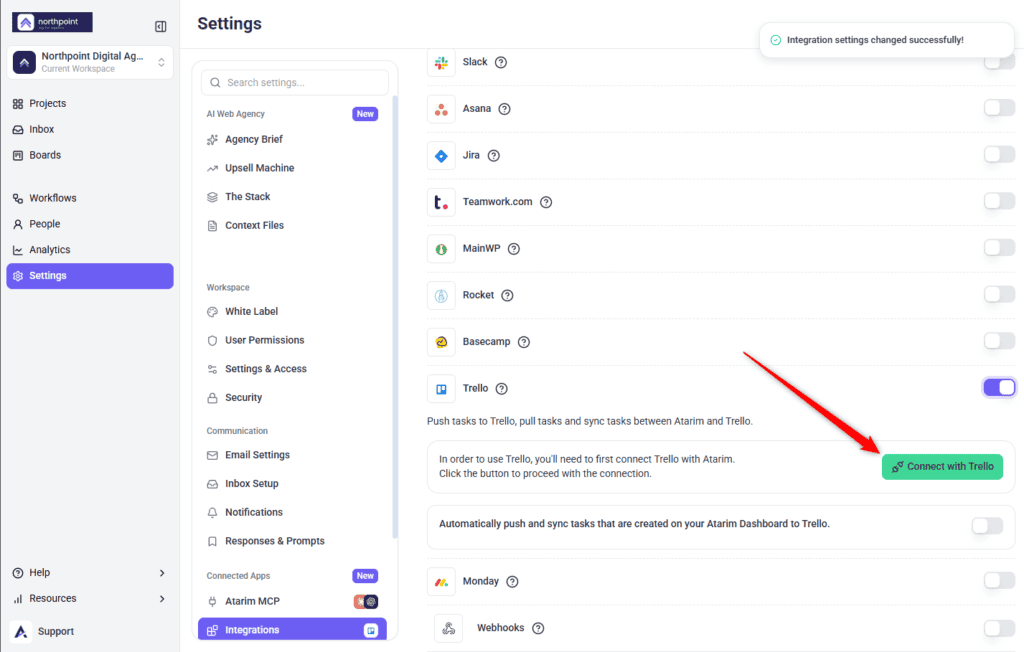
- Find Trello. Before it is connected, the panel explains that you need to connect Trello first and to use the button to proceed.
- Switch the Trello toggle on, then select Connect with Trello. Trello opens its authorisation screen — log in if prompted.
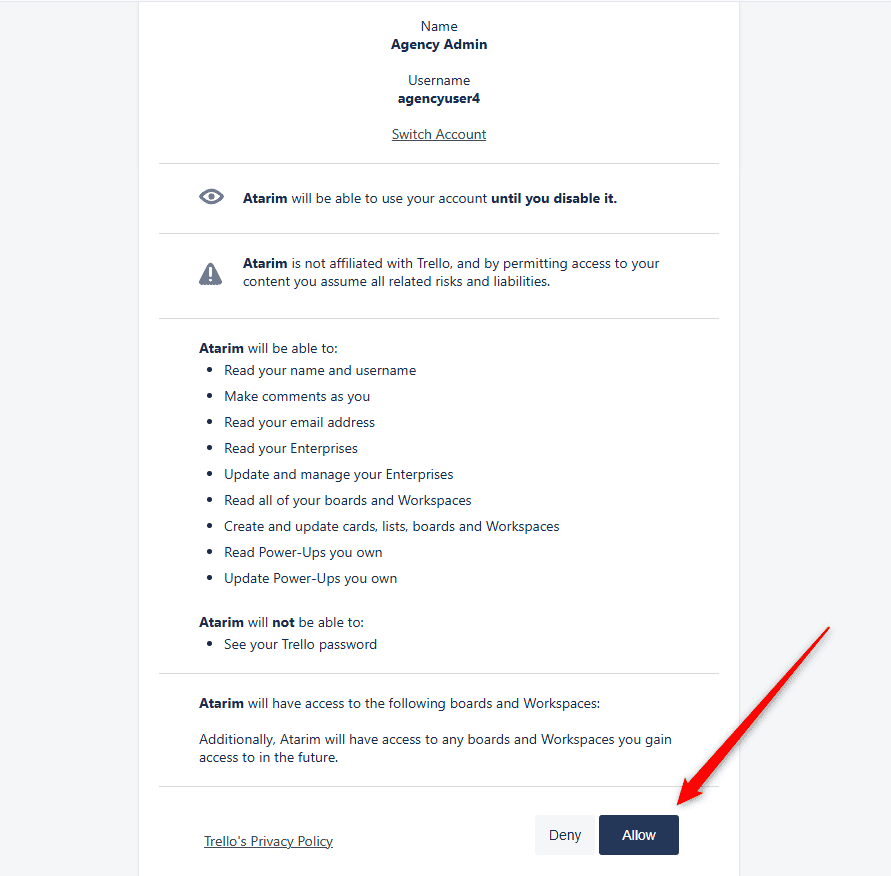
- Select Allow to authorise Atarim. You are returned to Atarim with a banner confirming Trello is connected, and the selectors become available.
Choose the Destination
Two selectors decide where cards are created: the Trello board, then the list within it.
Instructions:
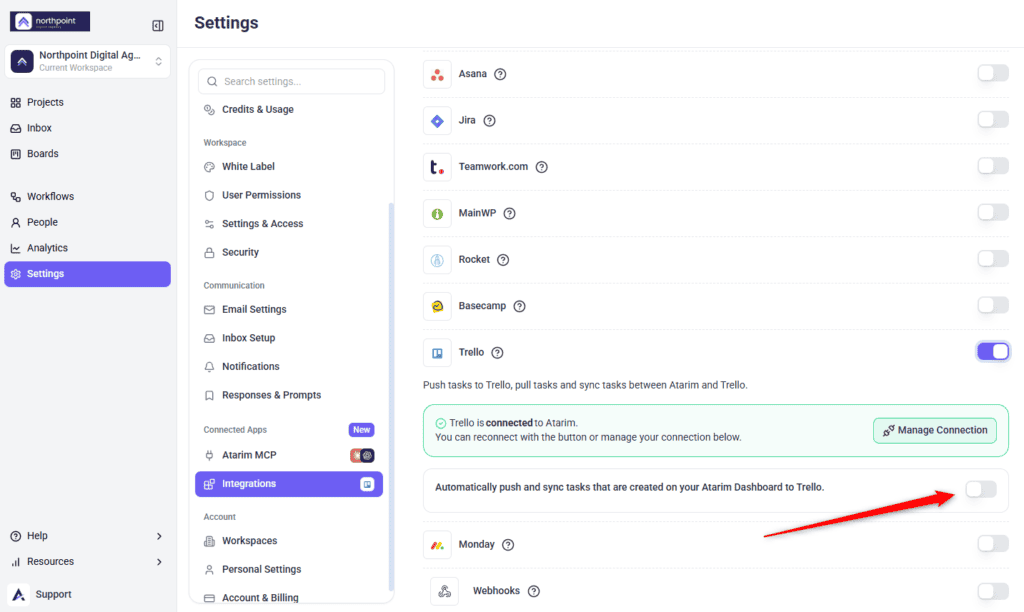
- Switch on the option to automatically push and sync tasks created on your Atarim dashboard to Trello.
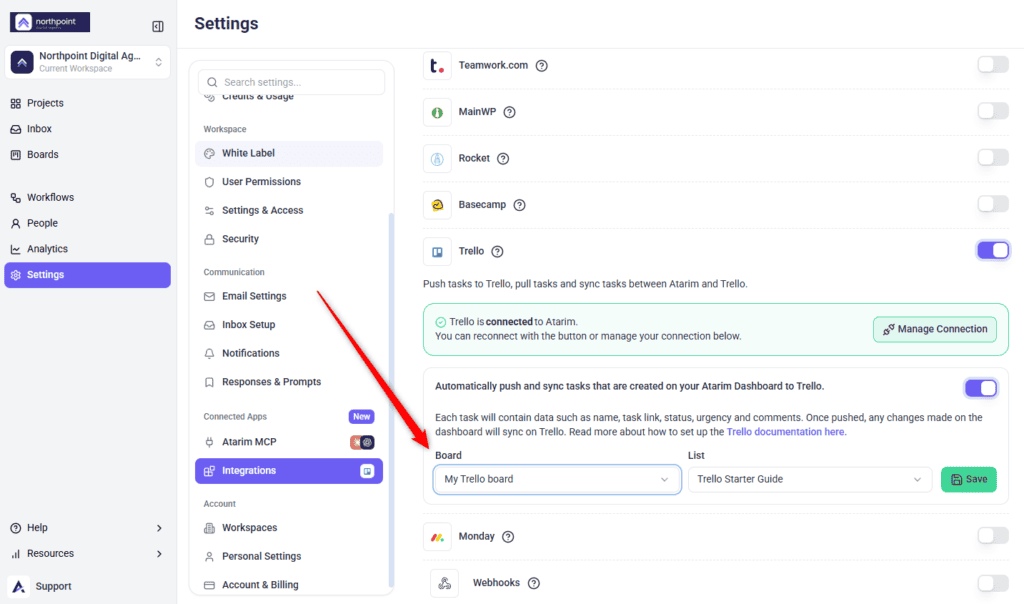
- Open Board and choose the Trello board.
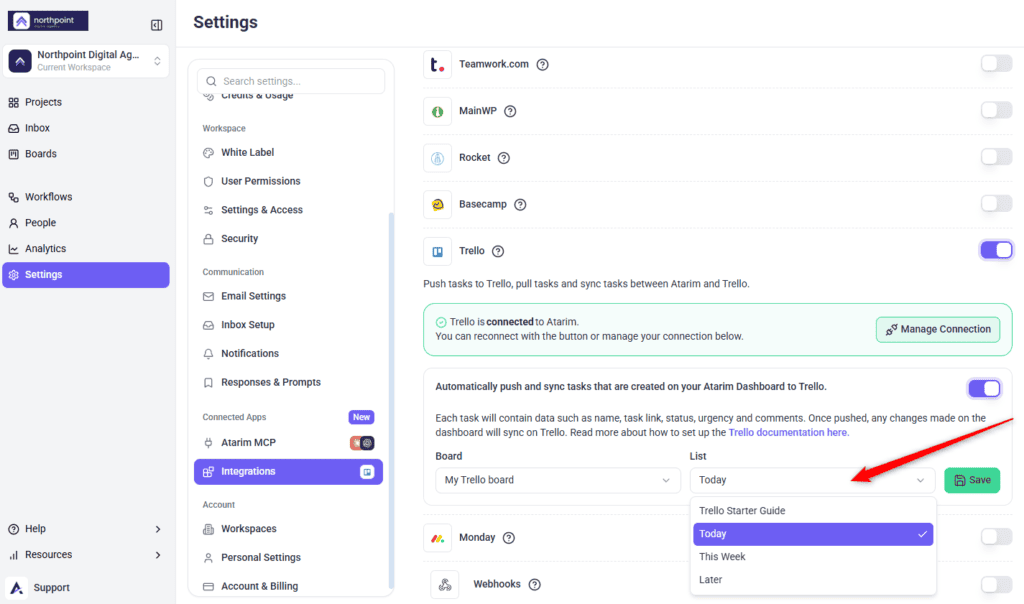
- Open List and choose the list within that board. The list only populates once a board has been chosen.
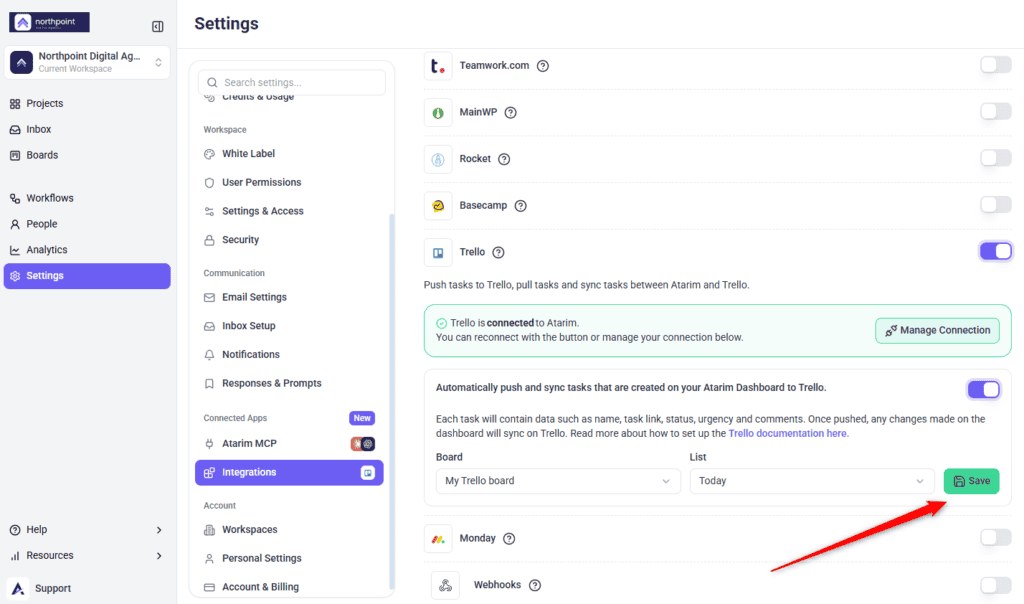
- Select Save. Tasks now push to that list as cards.
What Gets Pushed
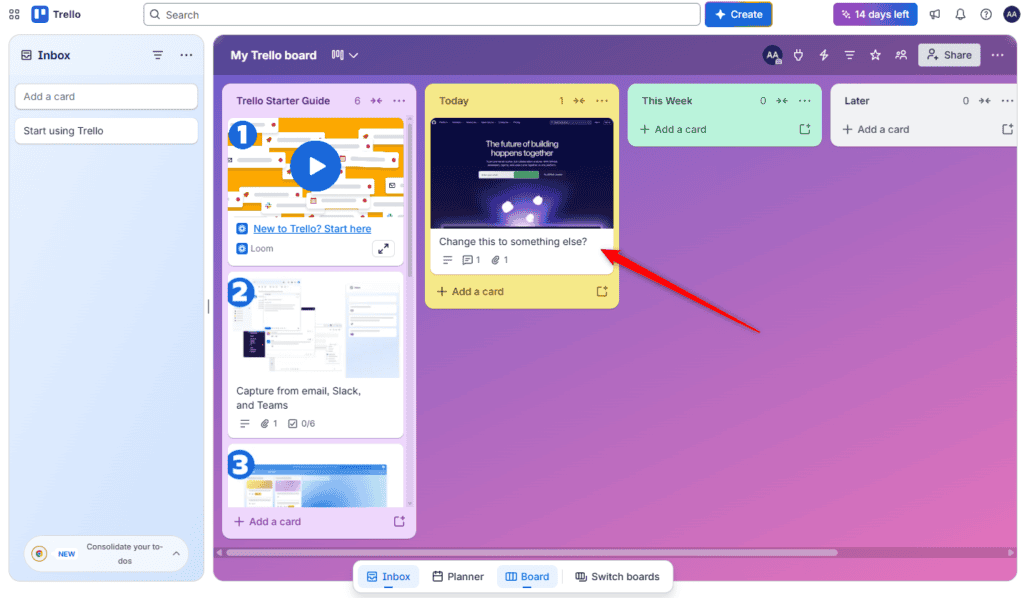
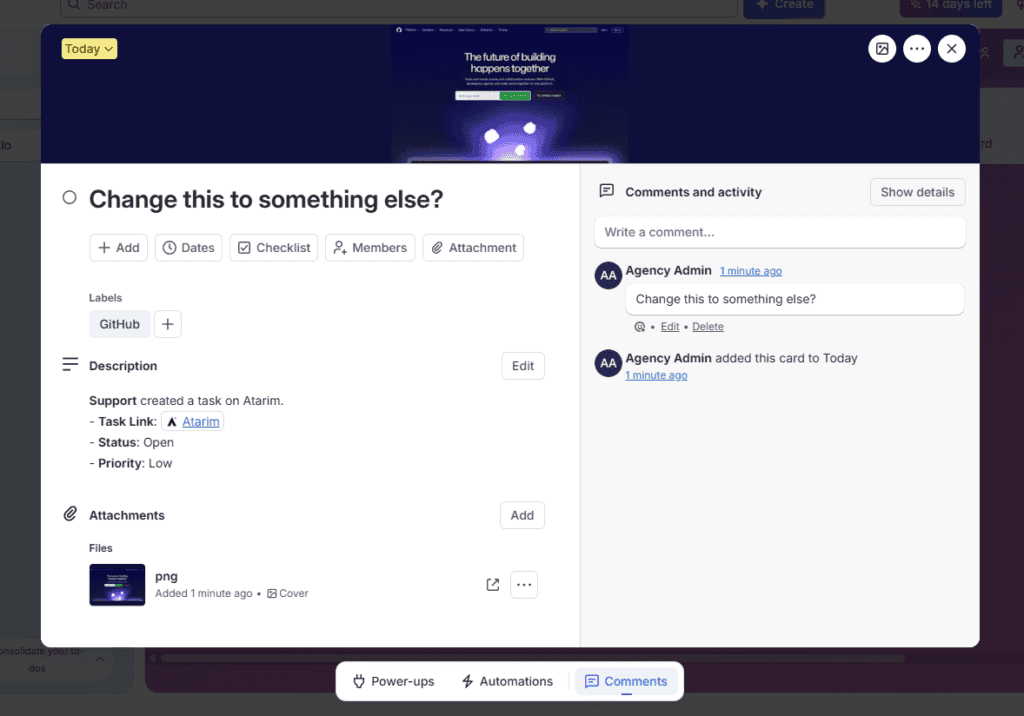
Each task pushed to Trello carries its details across — the task name, a link back to it, its status, urgency and comments — so the card is useful on arrival rather than a bare title. After the initial push, changes made on the Atarim dashboard continue syncing to Trello. What travels the other way is a separate, opt-in setting, covered below.

What Comes Back From Trello
Two-way sync is off by default. When you push a task to Trello the dialog carries a Sync Task with Trello checkbox, and it starts unticked. Tick it and Atarim watches that card, so three kinds of change come back:
| What you do on the Trello card | What happens to the Atarim task |
|---|---|
| Add a comment | The comment is copied onto the Atarim task, credited to the Trello member’s name followed by “(Trello)”. |
| Move it to another list | The task status changes when the list name matches an Atarim status, such as To Do, Doing, Pending Review or Done. Atarim may also recognise your board’s own list names. A list it doesn’t recognise leaves the status as it was. |
| Mark it complete or incomplete | Complete sets the task to Complete. Incomplete sets it back to Open, since Atarim cannot tell which stage it should return to. |
Nothing else comes back. Renaming the card, due dates, labels and members stay in Trello, and deleting a card does not delete the Atarim task behind it. One thing to watch: because the list name is what drives the status, dragging a card into a list you happen to have called Done will mark that task complete in Atarim.
To bring existing Trello tasks into Atarim, use Import Tasks in the More Actions menu of the Inbox or Boards, as described in Importing tasks.
Using Trello in a Workflow
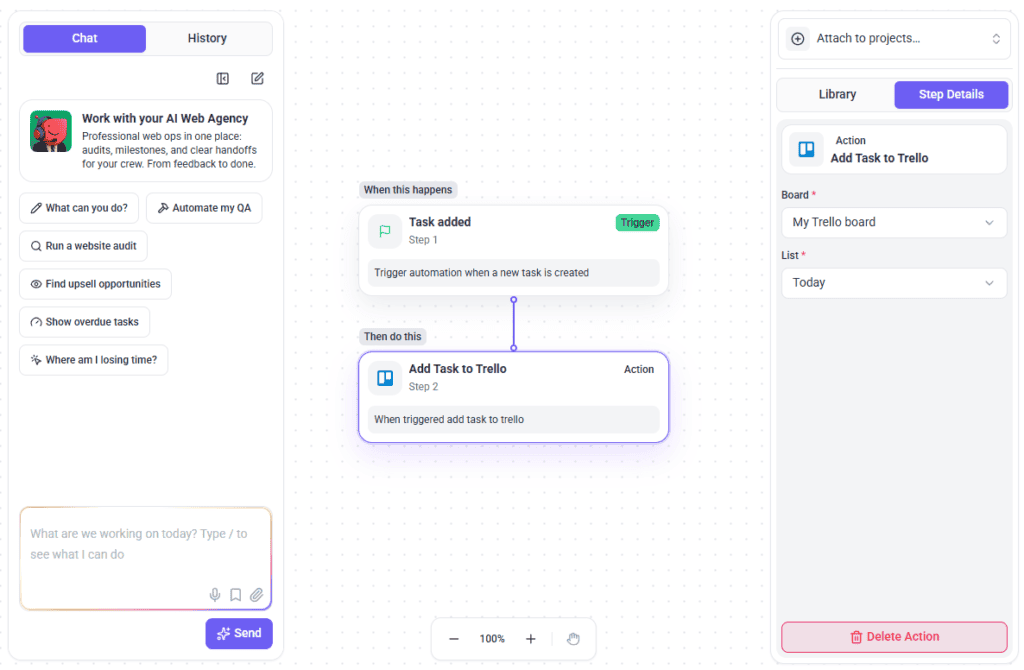
The setup above pushes everything automatically. If you would rather be selective, Trello is also available as an action inside Workflows, so only tasks meeting your conditions get pushed.
Instructions:
- Create or edit a workflow.
- Add the Add Task to Trello action, listed under Integrations.
- Choose the Board and List the card should be created in.
- Save the workflow.
Test the Integration
A test card is the fastest way to confirm both selectors point where you think they do.
Instructions:
- Create a task in Atarim on one of your projects.
- Open the Trello board and list you configured.
- Confirm the card appears with the details you expect. If it does not, check both selectors are saved and automatic syncing is on before looking anywhere else.
Setup at a Glance
| Step | Where it happens | What it needs |
|---|---|---|
| Switch Trello on | Atarim → Integrations | A plan that includes it, and permission to manage integrations. |
| Authorise Atarim | Trello | Enough access in Trello to approve an app. |
| Turn on automatic syncing | Atarim | A live connection. |
| Choose the Board | Atarim | A board existing in Trello. |
| Choose the List | Atarim | A list existing on that board. |
| Save | Atarim | Both levels chosen. |
Benefits
| Benefit | In practice |
|---|---|
| Feedback becomes cards | Client requests arrive on the board where work is planned. |
| Context travels with the task | Cards arrive with the name, link, status, urgency and comments. |
| No manual copying | Nobody transcribes requests between systems. |
| Simple setup | Two selectors and a save. |
| Clients stay in Atarim | They never need a Trello account for their feedback to be tracked. |
Example Use Cases
| Situation | How to set it up |
|---|---|
| Your team runs delivery on a Trello board | Push into an intake list so requests enter the board automatically. |
| Client feedback mixed with internal work | Create a dedicated list for client requests and point the sync there. |
| Only some requests belong on the board | Use a workflow with conditions instead of automatic syncing. |
| Clients giving visual feedback | Let them work in Atarim while cards appear in Trello. |
| A board per client | Use a workflow per client, each pointing at that client’s board. |
FAQs
Where do Atarim tasks appear in Trello?
As cards in the board and list you selected during setup.
Do I need to create the board and list first?
Yes. Atarim can only choose from what already exists in your connected Trello account.
Why is the List dropdown empty?
Either no board has been chosen yet, or that board contains no lists.
What travels across with a task?
The task name, a link back to it, its status, urgency and comments. Later dashboard changes continue syncing to Trello.
What comes back from Trello to Atarim?
Only if you ticked Sync Task with Trello when you pushed the task. Then three things come back: comments on the card, moves into a list whose name Atarim recognises, and marking the card complete or incomplete. Renaming the card, due dates, labels and members do not come back, and deleting the card does not delete the Atarim task.
Can I send only some tasks to Trello?
Yes. Use the Add Task to Trello action inside a workflow instead of automatic syncing.
Do clients need a Trello account?
No. Clients work in Atarim; syncing happens between your two accounts.
Can I change the destination later?
Yes. Change the selectors and select Save again.
What happens if I switch Trello off?
Tasks stop syncing automatically. Cards already in Trello are unaffected and stay where they are. To switch it off, turn off the Trello toggle in Settings → Connected Apps → Integrations.
Common issues
- The List selector is empty — either no board has been chosen, or that board has no lists. Create one in Trello and reopen the selector.
- The Trello option is locked — your plan does not include native integrations. The lock names the minimum plan required.
- Integrations is not in your settings sidebar — your role does not have access. Ask an Administrator.
- The boards you expect are missing — you are signed into a different Trello account in that browser. Sign out of Trello and reconnect.
- Tasks are not reaching Trello — confirm both selectors are set, automatic syncing is on, and you selected Save.
- Cards landed in the wrong list — the saved destination points elsewhere. Change the selectors and save again.
- Cards are being created twice — automatic syncing and a workflow are both pushing. Use one or the other.
- Trello is not in the workflow action list — connect the integration first, then reopen the workflow builder.
- You cannot authorise Atarim in Trello — your Trello account may not have permission to approve apps. Ask a Trello admin.
Conclusion
Trello is a short setup: connect the account, pick a board and a list, and save. Tasks then arrive as cards with their context intact.
The choice worth thinking about is the destination list. An intake list keeps client requests reviewable, where pushing straight into an active column reshuffles the board underneath your team.
Tips & best practices
- Create the board and list in Trello before you start.
- Choose the board first — the list depends on it.
- Push into an intake list rather than an active column.
- Select Save once both selectors are set.
- Choose either automatic syncing or a workflow, not both.
- Reconnect rather than reinstall if the selectors stop loading.
- Use Trello lists to segment work by stage or team, so synced cards land somewhere meaningful.
- Check Trello periodically to confirm cards are still arriving as expected.